Welcome to the RSLBot guide
English version — RSLBot 8.5
Each section is illustrated with RSLBot screenshots and, where useful, RAID screenshots. Button and menu names are shown exactly as they appear in the RSLBot interface.
RSLBot is an automation program for RAID: Shadow Legends. It plays quests, the Campaign, dungeons, arenas, Clan Bosses, champion levelling and equipment management for you, following the settings you choose. For it to work well, RAID and Windows must be set up as described in chapter 2.
Plarium may take action against accounts that use third-party applications, and its policy may change. Use RSLBot with that understanding and read the RSLBot terms of use.
RSLBot GUIDE
Features by licence
RSLBot comes in three licences: Free, Regular and Premium. Regular and Premium also exist as lifetime licences (Lifetime), which give exactly the same features as the matching licence.
Automation features
Automation features are the activities RSLBot can play. Each licence includes some of them:
| Feature | Free | Regular | Premium |
|---|---|---|---|
| Campaign & Dungeons lines (up to 15) | Yes | Yes | Yes |
| Ice Golem, Spider, Dragon and Fire Knight dungeons | Yes | Yes | Yes |
| All other dungeons | Rotation | Yes | Yes |
| Classic Arena | Yes | Yes | Yes |
| Tag Team Arena | Yes | Yes | Yes |
| Demon Lord | Yes | Yes | Yes |
| Quests | Yes | Yes | Yes |
| Management of artifacts and accessories in storage and in the Inbox | Yes | Yes | Yes |
| Autosell of artifacts and accessories after battles | — | Yes | Yes |
| Faction Wars | Rotation | Yes | Yes |
| Doom Tower | Rotation | Yes | Yes |
| Live Arena | Rotation | Yes | Yes |
| Summon Rush | — | Yes | Yes |
| Champions Leveling (rank up, Tavern, summons when needed) | — | Yes | Yes |
| Champions Training | — | Yes | Yes |
| Champions to fight or to ban in the arena | — | Yes | Yes |
| Hydra | Rotation | Rotation | Yes |
| Chimera | Rotation | Rotation | Yes |
| Cursed City | Rotation | Rotation | Yes |
| Grim Forest | Rotation | Rotation | Yes |
| Relic Rank Up and Gemstones | — | — | Yes |
| Farm: level a new account up to the chosen level | — | — | Yes, after buying 10 licences |
| Choosing or excluding players and clans in the arena | — | — | Yes |
| Battle priority management (Manage Battles Priorities) | — | — | Yes |
Yes: always included. Rotation: may be offered as the bonus feature of the week (see below). —: not included.
Bonus feature of the week
Each week, Free and Regular licences get one extra feature, chosen from those marked Rotation in their column: for Free, all dungeons, Faction Wars, Doom Tower, Hydra, Chimera, Live Arena, Cursed City or Grim Forest; for Regular, Hydra, Chimera, Cursed City or Grim Forest. Only one is active at a time, until the end of the week. At startup, the log announces it with a message such as "Grim Forest feature added until end of the week". The controls of a feature that is not included stay greyed out, so seeing them on screen does not mean the feature is active.
Settings reserved for paid licences
Besides the table, some settings are greyed out with the Free licence and available with Regular and Premium:
- General: Save Bot window Location, Bot auto Start, Bot auto Restart after a Crash, Leave mouse and keyboard free, Raid Restart period, Wait account already connected, Refill Energy from Inbox, Refill Energy with Gems;
- Bastion: Buy Ancient Shards in Market, Buy 2 stars Champions in Market, Exchange Gold Bars in Bazaar;
- Battles: the Bastion switch (battles only) and the Dedicated shortcuts, Super Raids, token refills and opponent refreshes with gems in Classic Arena and Tag Team Arena;
- battle switch menu: with Free, only All battles ON and All battles OFF are offered, without the dedicated modes.
Do not confuse the champions to fight or to ban (Regular and Premium) with choosing players and clans (Premium). In RSLBot 8.5, the Target lists of Classic Arena and Live Arena stay greyed out whatever the licence, and so does buying artifacts in the Market.
Premium features to unlock
Every RSLBot feature is included in Premium. Some are unlocked under a condition:
| Feature | Condition to unlock it |
|---|---|
| Farm: level a new account up to the chosen level | Having bought 10 one-month Premium licences |
Until the condition is met, the setting stays visible but greyed out in RSLBot; hover over it to read the condition.
Licence linked to a RAID account
Depending on its duration and purchase date, a Regular or Premium licence can be linked to one or more RAID accounts (see below). One-week, one-month and three-month licences are never linked.
- When RSLBot starts on a RAID account that is not linked yet, it opens the RSLBot - Link your Raid account window with the name of the account open in RAID. Check that it is the account you want to use the licence on, then click LINK THIS ACCOUNT. NOT NOW links nothing: RSLBot does not play on this account until you switch account or restart the bot.
- Once linked, the licence only works with the linked account or accounts. If RAID is open on another account, RSLBot waits with the message "This license is linked to …: switch to it in Raid, the bot does not play on …": switch to the linked account in RAID and it resumes on its own.
- You cannot undo a link yourself. To change RAID account, for example after an account is lost or sold, contact support.
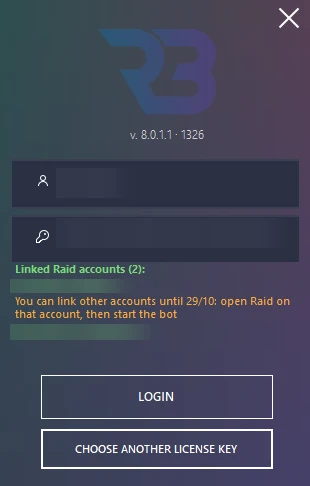
- Under the key, the sign-in window shows the linked accounts ("Linked Raid accounts (N):" followed by their names) and, in orange, what is still possible, for example "You can link other accounts until 28/10: open Raid on that account, then start the bot".
- Below that, a line shows the account open in RAID:
- in green "Raid open on … ✓": this account is linked;
- in orange "Raid open on … : not linked yet, the link is asked after Login": the Link your Raid account window opens when you click LOGIN, before the bot starts;
- in red "Raid open on … : this license cannot be linked to it, switch account in Raid": switch to a linked account in RAID;
- in grey "Raid not open: the account is checked when the bot starts": RAID is not open.
Licences bought since 28 October 2026: a one-year licence can be linked to up to 3 RAID accounts, a lifetime licence to up to 5 RAID accounts. To link more, ask support in the ❓│ask-support channel on Discord. 1, 3 and 6-month licences are not linked to any RAID account: the Link your Raid account window does not open for them. For a one-year or lifetime licence, the window says how many accounts are still possible, for example "Up to 3 Raid accounts can be linked to this license (2 more after this one). Each link is final." ("Up to 5 …" for a lifetime licence, "this is the last one" for the last account). Beyond the limit, RSLBot does not play and shows "This license is linked to the Raid accounts …: switch to it in Raid, the bot does not play on …".
Licences bought from 13 to 27 October 2026: six-month, one-year and lifetime licences are linked to a single RAID account.
Licences bought before 13 October 2026: six-month, one-year and lifetime licences are linked from V8 too, but you can link as many RAID accounts as you like for 15 days from the first link. Start RSLBot once on each of your accounts during that time; RSLBot tells you when the period ends. After these 15 days, the list of linked accounts is final.
A licence bought before 28 October 2026 keeps these rules. When you renew a licence, it keeps its key and its linked RAID accounts.
This table describes the features of RSLBot 8.5. The offers and prices shown on the website remain the commercial reference.
RSLBot GUIDE
Before you begin
General setup
Before starting RSLBot, check the following:
- Windows and the graphics driver are up to date.
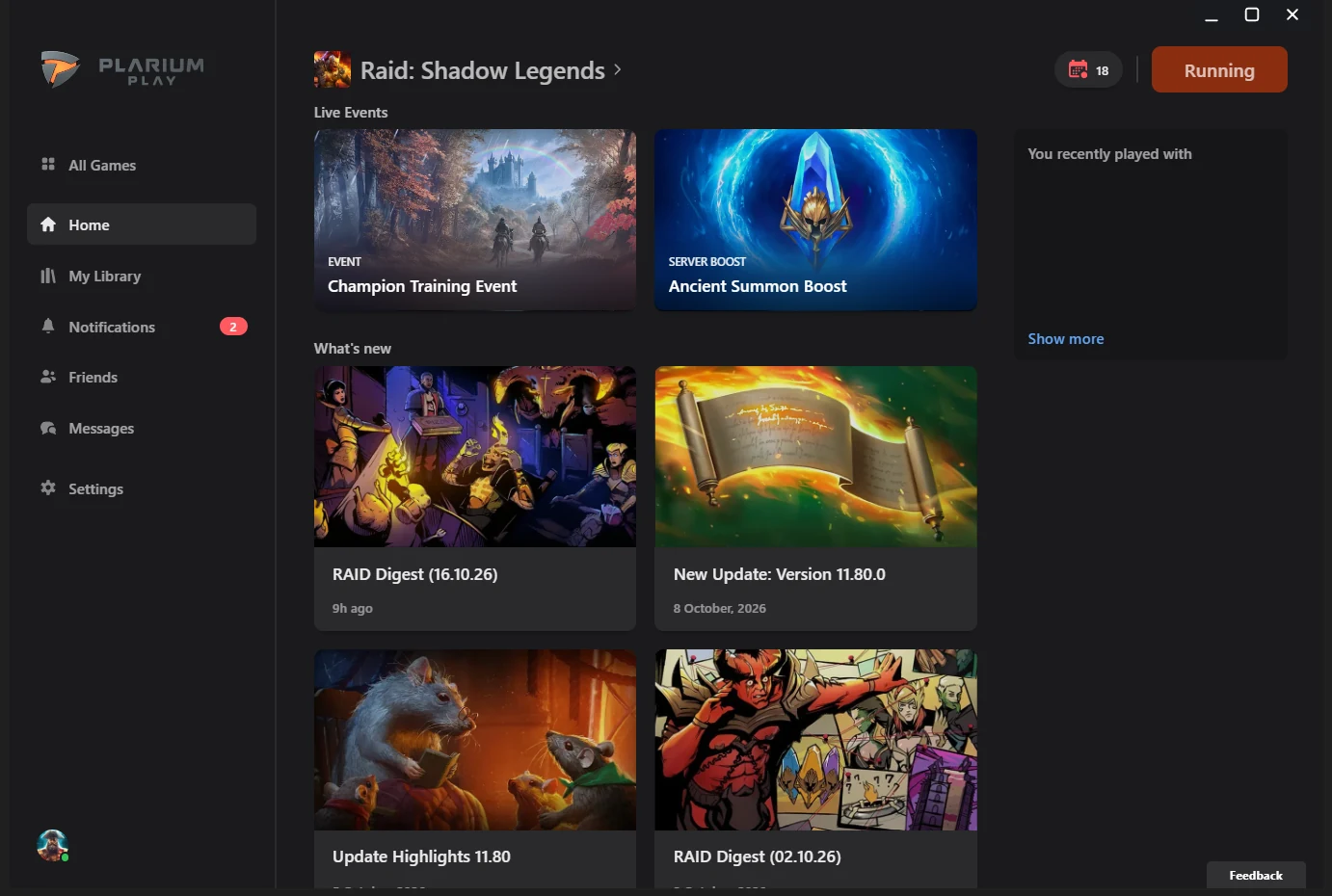
- Plarium Play is installed and working normally.
- RAID: Shadow Legends starts without errors.
- The Windows display scaling of the monitor showing the RAID: Shadow Legends game window (Raid.exe) does not change while RSLBot plays. 100% and 125% or more are both supported.
- The game window stays reachable and keeps the same size while RSLBot plays.
- You have an RSLBot licence (Free, Regular or Premium).
Since RSLBot 8.4, the game no longer needs a monitor at 100%: on a monitor at 125% or more, RSLBot sizes and reads the game window itself (Raid on scaled monitor, On by default). To go back to the old behaviour, set Raid on scaled monitor to Off in Settings\UserSettings.txt: RSLBot then asks again for a monitor at 100% ("Put Raid window in a Monitor with 100% scale display and restart"). The Plarium Play launcher window does not matter.
Prepare the game
- Open Plarium Play and launch RAID. Complete any required authentication yourself.
- Wait for the Bastion and close offers or notifications covering the screen.
- Keep the game window visible and do not change its size while RSLBot plays. RSLBot leaves it where you put it. Do not move it to a monitor with another scaling, and do not change a monitor's scaling, while RSLBot plays.
- Check that the teams you will need already exist in the game's saved teams. The team number chosen in RSLBot is the slot number in that list, empty slots included: team 15 is the one in the 15th slot. If the slot asked for is empty, RSLBot says so in the log ("Team … not found in the saved teams"). If the team asked for is already in place, RSLBot does not open the list.
On first start, RSLBot checks a few game options and fixes them if needed: English language, windowed mode (Fullscreen unchecked), graphics quality, 60 FPS limit, scroll sensitivity, Optimize in-game UI unchecked and camera shake disabled. The log lists each option it changed. Do not change them afterwards while RSLBot plays.
A CAPTCHA, reconnection or 2FA code must be handled by you, not by RSLBot. Stop it before entering this information.
RSLBot GUIDE
Download and install RSLBot
Download RSLBot only from the official download page or the official release channel on Discord. Do not use copies sent by private message or hosted on third-party websites.
- Download RSLBot-Setup.exe from the official download page.
- Run it: the RSLBot Setup window shows the latest RSLBot version and its changes.
- Check the folder (RSLBot folder, C:\RSLBot by default; Browse... to choose another one your Windows account can write to). The window says whether a new installation will be made, or whether the RSLBot already in that folder will be updated with your settings kept, after a backup of the whole folder.
- Leave Create a desktop shortcut ticked if you want a desktop shortcut, then click Install (or Update). RSLBot Setup downloads the version, checks that the file is the official one (SHA-256) and installs it.
- Click Launch RSLBot.
If the installation stops, RSLBot Setup offers to put the folder back as it was. Restore a backup... puts the RSLBot folder back as it was at an earlier backup; the current state is saved first.
Update
When a new version is published, a New: vX badge appears next to the version in the bot window, and the log says "RSLBot vX is available: click "New: vX" next to the version to see what's new". A version published while the bot is playing is seen within 30 minutes. With the bot stopped, the RSLBot - New version panel opens by itself to the right of the bot window; while the bot is playing, only the badge is shown: click it to open the panel. It lists the changes (New, Improved, Fixed) and has two buttons:
- Update now (Update after this battle when a battle is on): RSLBot waits for the end of the battle, closes RAID, then RSLBot Setup updates it. Your settings are kept: the whole RSLBot folder is saved first (Backups folder).
- Later: the panel does not come back for this version; the badge stays.
After the update, the RSLBot - What's new panel shows once what changed in the version you now use. If the download is not ready yet, the panel says so: retry later.
To update by hand, close RAID, Plarium Play and RSLBot, then run RBdownload.exe (RSLBot Setup) in the RSLBot folder, or RSLBot-Setup.exe downloaded from the official page. Then check that your antivirus has deleted neither the RSLBot program nor the auth-crypto-x64.dll file, and start the new version of RSLBot: it is the one that starts RAID.
After an update, check the version shown and review the settings affected by the changes before starting again.
If RSLBot shows "This version of RSLBot is no longer supported, please update RSLBot" or says your version "is outdated", download the latest official version instead of signing in again and again. Never download a modified copy to get around a warning; see the Antivirus chapter if launching is blocked.
If your version is stopped while the bot is playing, it keeps playing. A small RSLBot - Update needed window, above the bot window, says "This version of RSLBot is no longer supported. The bot keeps playing; at its next start you will need RSLBot …" with the downloads link; OK closes it. Download that version before the next start.
RSLBot GUIDE
Antivirus and quarantine
Antivirus warning
Automation software can sometimes trigger a warning. However, a warning must never be ignored without checking.
If Windows Security or another antivirus flags a file:
- Check that the file comes from the official source.
- Check the version and, when one is published, the file hash.
- Do not restore a file of unknown origin.
- Send support the exact detection name, the RSLBot version and a screenshot of the warning.
- Wait for support's confirmation before adding an exception.
Do not disable your antivirus completely and do not exclude a folder that contains other programs.
Review the detection and the quarantine
From the Start menu, open Windows Security, then Virus & threat protection → Protection history. Expand the relevant event and note the exact detection name, the date and the affected file. Details may require administrator rights. Viewing the history does not mean restoring the file or clicking Allow on device. With a third-party antivirus, use its history or quarantine and its official documentation. See Protection history, Microsoft.
Leave the file blocked until its origin and version are checked. Support's confirmation must concern that exact file. Mask your identifiers, your licence key and your personal paths on the screenshot you send.
Exceptions: a decision after checking
An exclusion is not a normal installation step. It reduces protection and should only be considered after the file has been checked and support has confirmed it. Do any restore or allow action yourself, by hand.
To review exclusions: Windows Security → Virus & threat protection → Manage settings → Exclusions → Add or remove exclusions. If an exception is really needed, choose the exact file, not a drive, the Downloads folder, a file extension, a process or a general folder. Remove exceptions you no longer need and check again after each update. Keep protections enabled. See Virus and threat protection and exclusions, Microsoft.
A SmartScreen warning (file reputation) is not an antivirus detection. Note its exact wording and ask support before bypassing it.
RSLBot GUIDE
Sign-in and licence
On startup, RSLBot shows the sign-in window.
- Enter your RSLBot account name.
- Enter the licence key.
- Click LOGIN. The button stays greyed out while the account name or the key is missing.
During sign-in, the window shows "Authenticating...", then "RSLBot starting...". If the RSLBot server does not answer, it shows "Server is not responding, retry in" followed by a countdown, and retries on its own.
The login window can sign RSLBot in automatically: it shows "Auto login in N s" with a STOP button, then LOGIN runs. STOP cancels the automatic login for this start only ("Auto login stopped"). The delay is set in the General tab with Auto Login (next start): Off, 10 s, 15 s or 20 s; it applies from the next start. LOGIN and the countdown wait until the RAID account line is read (8 seconds at most). The login window opens where you last moved it. Your account name and key are remembered on this computer.
Your licence key is private. Do not post it on Discord and mask it in all your screenshots. Signing in to RSLBot never asks for your Plarium password.
Discord account required
RSLBot V8 requires your RSLBot account to be linked to your Discord account. If it is not, the RSLBot - Link your Discord account window opens after sign-in:
- Click LINK MY DISCORD: the linking page opens in your browser.
- Sign in and link your Discord account.
- Go back to RSLBot: the window shows "Waiting for the Discord link..." and the bot starts on its own as soon as the link is made.
QUIT closes RSLBot without starting.
Choose another licence
The CHOOSE ANOTHER LICENSE KEY button shows all the licences of your RSLBot account so you can pick one:
- if the account name and key are already filled in, the list opens directly (the button shows "LOADING LICENSES...");
- otherwise, RSLBot opens your browser so you can sign in to your RSLBot account (for example with Discord). The button then shows CANCEL BROWSER SIGN IN: click it to give up.
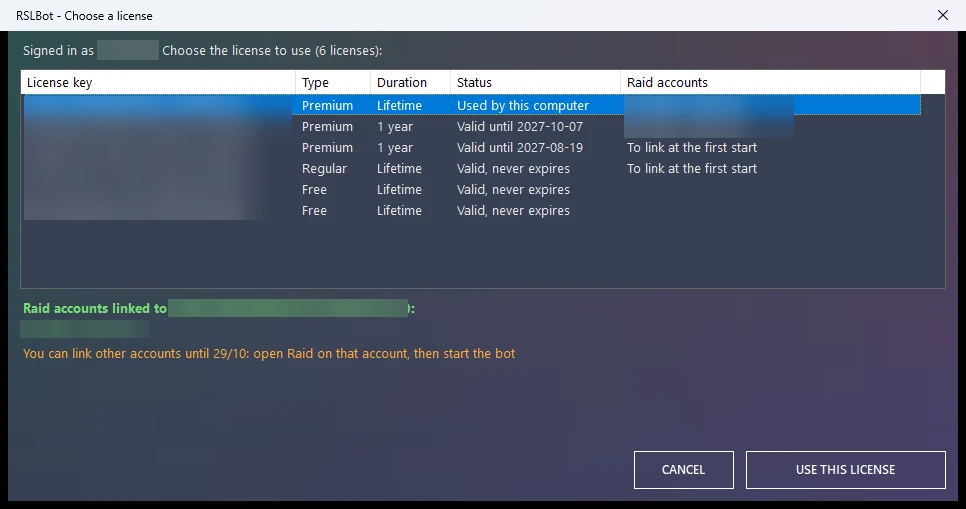
The RSLBot - Choose a license window lists your licences with their key, their type (Free, Regular, Premium), their duration (1 week, 1 month, 3 months, 6 months, 1 year, Lifetime), the linked RAID accounts (Raid accounts column, details in the tooltip and under the list) and their status:
| Status | Meaning |
|---|---|
| Valid until … | Valid until the date shown. |
| Valid, … from first use | Not used yet: the duration starts on first use. |
| Valid, never expires | Lifetime licence. |
| Used by this computer | Licence currently in use on this computer. |
| Used in the last 10 minutes | Recently used by another computer. It can still be selected, because the other RSLBot may have been closed. |
| Expired … / Revoked | Expired or revoked: shown in grey, cannot be selected. |
Select a licence, then click USE THIS LICENSE (or double-click the line): RSLBot fills in the account name and key, then signs in. CANCEL closes the window without changing anything. If no licence is valid, RSLBot shows "No valid license found on the account".
One licence, one computer
A licence only works on one computer at a time. If you start it on another computer, RSLBot may ask you to confirm using it on this computer ("Please confirm using of … license key with this Computer"); the RSLBot on the other computer then stops with a message. Only confirm if you really want to stop the other computer.
Messages during use
- "Bot is waiting for server, retry in …" in the status bar: the RSLBot server is temporarily unavailable. RSLBot pauses and resumes on its own as soon as the server answers. This is not a licence problem: no need to restart.
- "Unknown Username or your license Key is not valid (unknown or expired)": unknown account name or key, or expired licence.
- "This license was started on another computer, Bot Stopped" (or a message saying another account uses the same key): the licence was started somewhere else; RSLBot stops.
- "Your license ends on 21/10/2026 18:00 (in 5 days). Renew it on https://rslbot.com/licenses" (or "tomorrow", "today"): an orange reminder in the log and the status bar, at most once a day, from 7 days before the licence ends (2 days for a one-week licence). The bot keeps playing. Click the link to renew: the time bought is added after the current end date. There is no reminder for a lifetime or free licence.
- "Your license is not valid anymore, Bot Stopped": the licence is no longer valid (expired or revoked).
- "This version of RSLBot is no longer supported, please update RSLBot": install the latest version.
- "Bot Stopped by user" in the log: you stopped the bot with Stop. If Bot auto Start is on, its countdown starts again at once and the bot restarts at the end; otherwise it waits for you to start it again. "Bot Stopped" on its own means RSLBot stopped by itself: read the lines just above to find out why.
RSLBot GUIDE
Explore the interface
View the reference screenshots.
The left menu gives access to four tabs:
- Bastion: rewards, quests, Market, Bazaar, champions and equipment.
- General: general settings, settings files, start, restart and RSLBot behaviour.
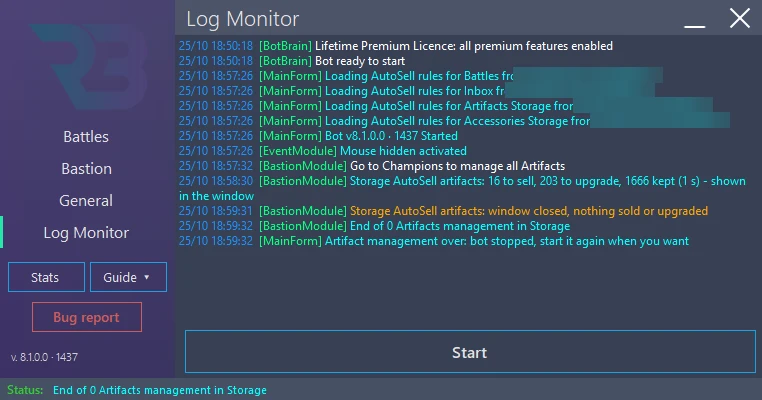
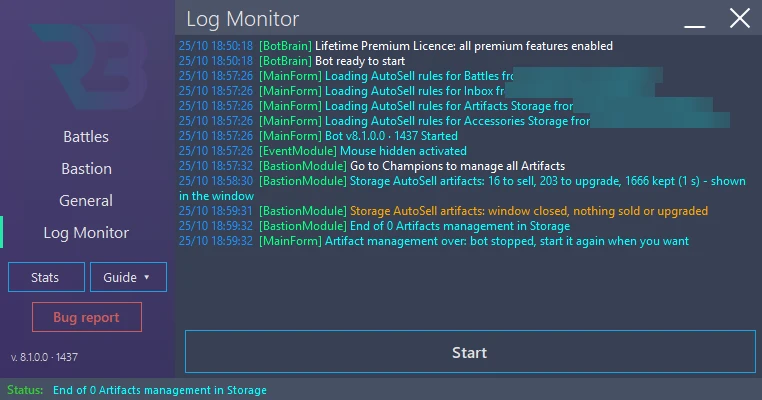
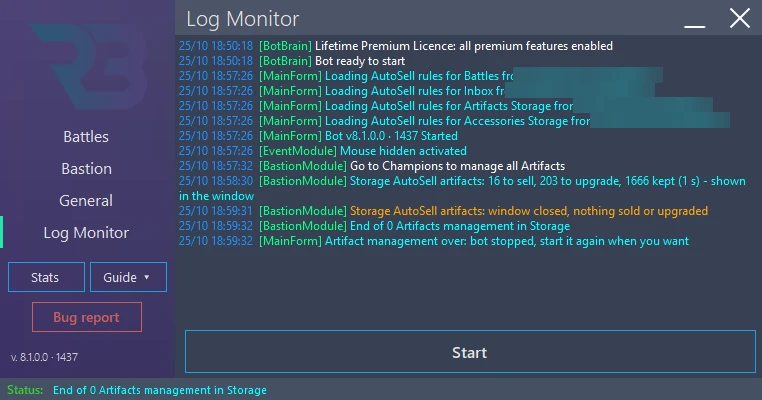
- Log Monitor: the log, with the actions performed, warnings and errors.
- Battles: enabling and configuring the different battles.
At the bottom of the window:
- Start starts RSLBot. The button becomes Stop to stop it.
- Pause only appears while RSLBot is running. It suspends RSLBot and becomes Unpause to resume. If you do nothing, RSLBot resumes on its own after the time set in Bot Pause Duration (General tab); the status bar shows the time left.
- Stats opens the RSLBot statistics window: what the bot did for you in this session, today, over 7 or 30 days or since the start, per RAID account, on three pages (Battles: time played, victories and defeats by mode; Loot: artifacts and accessories dropped and what became of them; Recent: the latest actions), with energy, silver and gems at the bottom. These statistics are kept on this PC only.
- Guide ▾ opens or closes this guide in the RSLBot - Guide window, which keeps its place and size. The arrow ▾ chooses the guide's language among the 13; by default, the Windows language (English if the guide does not have it). Without WebView2 (Edge), the guide opens in the browser.
- Bug report opens the RSLBot - Bug report window to prepare a bug report for support (see chapter 34). The bot keeps playing meanwhile.
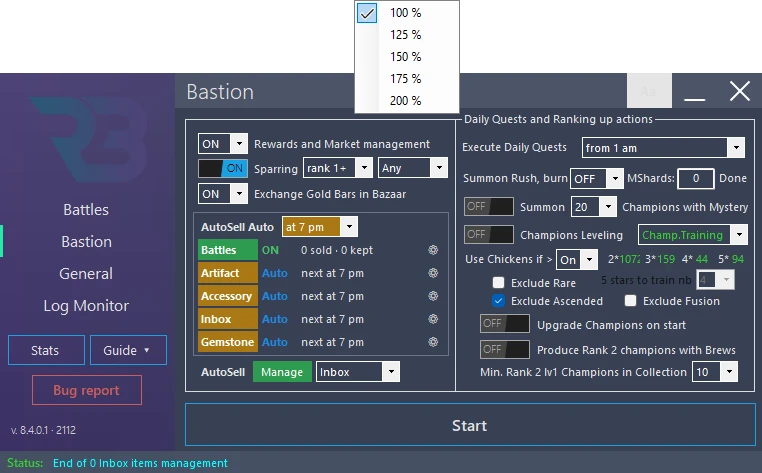
- Aa, left of the minimise button, sets the size of the RSLBot window from 100 % to 200 % (Window size setting). The window changes size at once and keeps it at the next start.
Each battle has an indicator showing its state:
| Colour | State |
|---|---|
| Red | Stopped. |
| Green | Active. |
| Yellow | To check at the next visit. |
| Cyan | Waiting for its start time. |
| Orange | Waiting for the reset. |
| Purple | Suspended. |
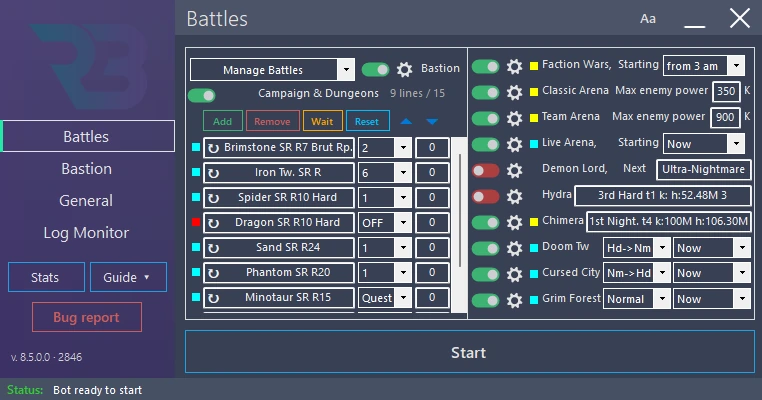
Each Campaign & Dungeons line has its own light: green = played now, light blue = waiting for its turn, orange = done until the reset, red = OFF.
In the Battles and Bastion tabs, most lines start with a compact switch: green = ON, red = OFF, grey = not included in your licence. A click on the switch turns the line on or off; the gear ⚙ next to it opens its settings (Manage); a right-click on the switch or the line's name shows the line's other choices (Reset…). Tooltips appear after 1 second and stay 10 seconds.
When the RAID version has not been validated for your RSLBot version yet, RSLBot says so in orange at each start ("Raid … not validated for v…: some features may not work") and in the status bar. It keeps playing; wait for the next RSLBot update if something does not work.
Reference screenshots
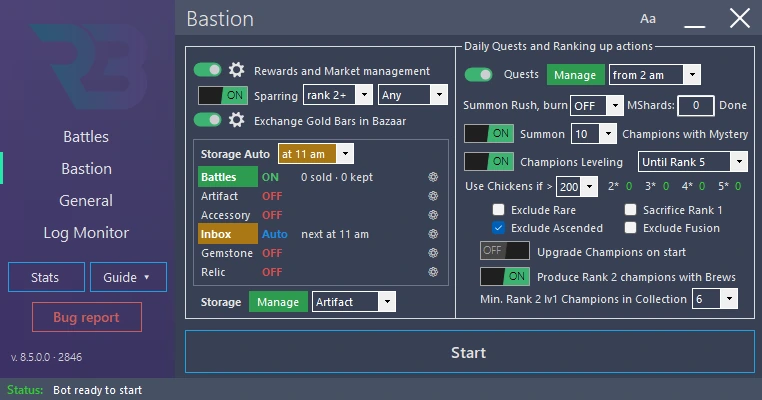
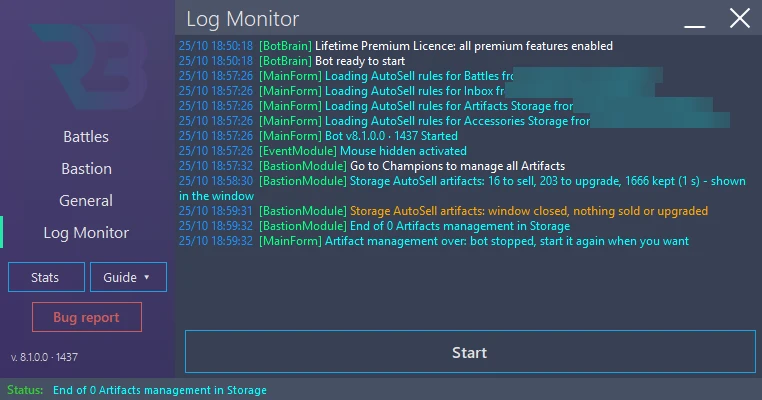
The Manage buttons do not start an activity: they open a settings window. In these windows, OK saves your changes; it is not a Cancel button. To go back, set the old values again or reload your settings file.
RSLBot GUIDE
Recommended first start
For your first launch, start small: one activity, low limits, and watch what RSLBot does. Add the other activities once you are confident.
Prepare a careful configuration
In General, first save your current settings with Save: you can reload them at any time from the Settings list. Then check:
- Bot auto Start, Bot auto Restart after a Crash and Raid Restart period: disabled;
- Refill Energy from Inbox and Refill Energy with Gems: 0;
- token refills and opponent refreshes with gems in the arena: 0;
- in Battles, all activities OFF, except the one you want to try;
- in Bastion, Quests, Market, Bazaar, Tavern and summons disabled for this first test;
- equipment processing (Autosell) disabled; for the storage and the Inbox, the AutoSell window shows what the rules would do and nothing is sold until you click;
- Super Raids unchecked;
- the Bastion switch of the Battles tab ON (no dedicated mode);
- Farm, if visible: OFF, unless you actually want to start a new account.
First test
- Choose a simple activity, for example a Campaign or dungeon stage you have already won, with a team you know.
- Limit the number of battles to one or two and leave Replace at 0.
- Launch RAID, wait for the Bastion, then click Start.
- Watch the game and the Log Monitor: on first start, RSLBot may adjust a few game options (see Before you begin), then it goes to the chosen activity.
- Check that the destination, the team and the result match your settings. If in doubt, click Stop.
- Once the test is conclusive, add activities one by one and raise the limits gradually.
A battle normally uses up its resource (energy, keys, tokens), even without gems: set the limits accordingly.
RSLBot GUIDE
General settings
View the reference screenshots.
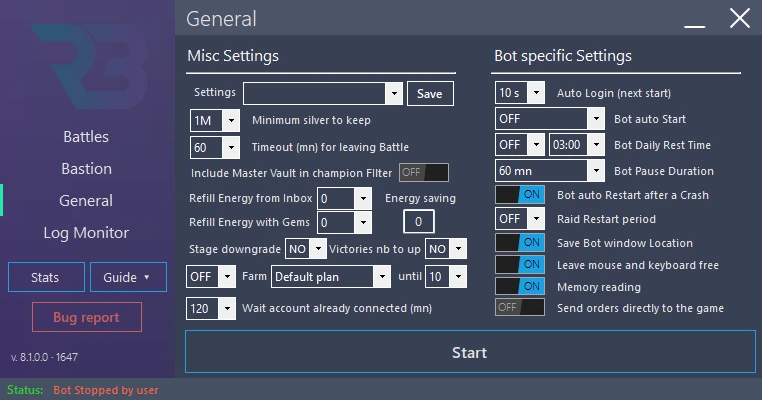
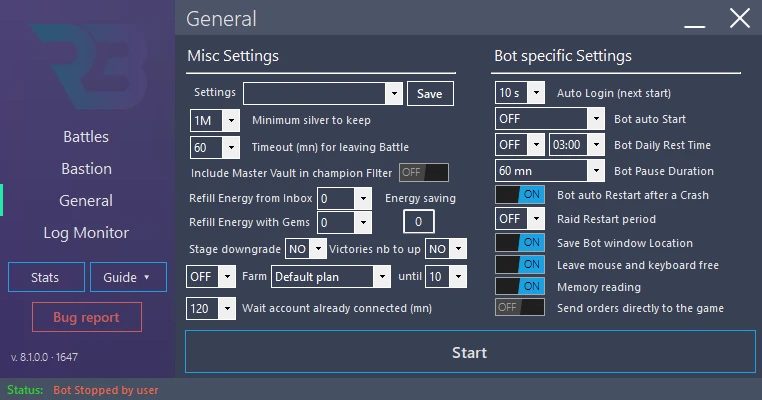
The General tab has two columns: Misc Settings on the left (profiles, battles, silver, energy) and Bot specific Settings on the right (how RSLBot itself behaves). With a Free licence, several settings are greyed out: window position, automatic start and restarts, hidden orders, account wait and energy refills.
Save and load a configuration
RSLBot can save several settings profiles in its Settings folder.
- Save asks for a file name, then saves all current settings under that name. If the name already exists, RSLBot asks for confirmation before replacing it: choose another name to keep the original.
- The Settings list loads the chosen profile and replaces all settings, except the user name, the licence and the bot window position, which are never saved in a profile.
Use clear names, for example Daily-no-gems, CvC-arena, Champion-training or Hydra-test. Before an important change, save the current profile under a new name. After loading, check the active modules, the refills and automatic start: a profile's name does not guarantee its content.
The list may also contain Account start.txt and Settings before account start.txt, created by Farm (see the Farm chapter).
Battles, silver and energy (Misc Settings)
| Setting | Values | Purpose |
|---|---|---|
| Minimum silver to keep | 0, 100K, 500K, 1M, 2M, 5M, 10M, 20M, 50M | Below this amount, RSLBot stops spending silver: no artifact upgrade, purchase, summon, Market unlock or Tavern levelling. Above it, the allowed spending continues. Default: 1M. |
| Timeout (mn) for leaving Battle | NO, 5 to 120 minutes | Time after which a battle is considered stuck and left. The tooltip reminds you that the game server may disconnect after 30 minutes. Default: 20. |
| Include Master Vault in champion Filter | ON / OFF | Includes Master Vault champions in the champion filter used by Live Arena, the Doom Tower secret rooms and Cursed City. |
| Refill Energy from Inbox | 0 to 100, or ALL | Number of Inbox energy refills RSLBot may use. |
| Refill Energy with Gems | 0 to 20,000, in steps of 40 | Number of gems RSLBot may spend to refill energy. |
| Energy saving | number | Energy threshold below which RSLBot stops the Campaign & Dungeons lines. This field is greyed out as soon as a refill (Inbox or gems) is allowed. |
| Farm | OFF / ON / Edit, the plan, and until 5 to 40 | Hidden with Free and Regular. With Premium, greyed out until Farm is unlocked. See the Farm chapter. |
Always start with gem refills at 0. Raise the limit only after checking that the profile works. A gem limit of zero does not stop RSLBot from using the energy you already have.
Bot behaviour (Bot specific Settings)
| Setting | Values | Purpose |
|---|---|---|
| Auto Login (next start) | Off, 10 s, 15 s, 20 s | Delay of the automatic login on the login window, used from the next start. Off: no automatic login. |
| Bot auto Start | OFF, 10 s to 12 h, or at 0 am to at 11 pm | Starts RSLBot automatically after the chosen delay, or at the given time (Windows local time). |
| Bot Daily Rest Time | Duration: Off or 1 h to 8 h (Off by default); start hour: 00:00 to 23:00 (03:00 by default) | Daily rest: each day, RSLBot finishes the current battle (15 min at most, never in the middle of a Live Arena battle), closes RAID and writes it in the log ("Daily rest of … h: Raid closed, the bot plays again at …"), then resumes on its own ("Rest over, the bot plays again"). The start falls at random between the chosen hour and 30 minutes after it, and the duration varies by 15% at most from one day to the next. |
| Bot Pause Duration | 15 mn to 12 h | Length of a pause (Pause button or the keyboard Pause key): RSLBot resumes on its own at the end of this time. |
| Bot auto Restart after a Crash | ON / OFF | Restarts RSLBot after a crash so it resumes its work. |
| Raid Restart period | OFF, 30 to 900 minutes | Restarts RAID at regular intervals to limit slowdowns in long sessions. Default: 180. |
| Wait account already connected (mn) | OFF, 5 to 120 | If the account is connected from another device, RSLBot waits this many minutes before reconnecting. During that time, it no longer clicks in RAID at all and does not restart the game, so as not to disconnect the other device; only RAID's reconnect button is used at the end of the wait. |
| Save Bot window Location | ON / OFF | Reopens the RSLBot window at the same place on the screen. |
| Leave mouse and keyboard free | ON / OFF | Lets RSLBot act without taking over the visible mouse and keyboard. Its tooltip says the option slightly changes the RAID game and may conflict with the game's terms of use: turn it on only if you are fine with that. Do not change it during an activity. |
| Memory reading | ON / OFF (ON by default) | ON: RSLBot reads RAID's game data: screens, buttons, server lag, rewards, faster and more reliable. When a piece of game data cannot be read, RSLBot waits and tries again; it no longer guesses from the screen. OFF: it plays with screen reading only; several features need Memory reading (AutoSell Auto, Relic Rank Up, craft quests, Bazaar items…). |
| Send orders directly to the game | ON / OFF (OFF by default) | For now, lets RSLBot do mass artifact sales and artifact upgrades; more actions (Summon Rush…) will come later. Needs Memory reading and Leave mouse and keyboard free ON, otherwise it is greyed. It can be changed while the bot runs. |
Automatic restart helps RSLBot resume after an incident, but it does not fix a wrong resolution or an unexpected screen. If clicks do not go through, keep a screenshot and the log rather than repeating actions blindly.
Log and screenshots
The Log Monitor tab shows the log of the last steps performed. To report a problem, use the Bug report button: it puts your description, RAID screenshots, the log and your settings in a single file.
Reference screenshots
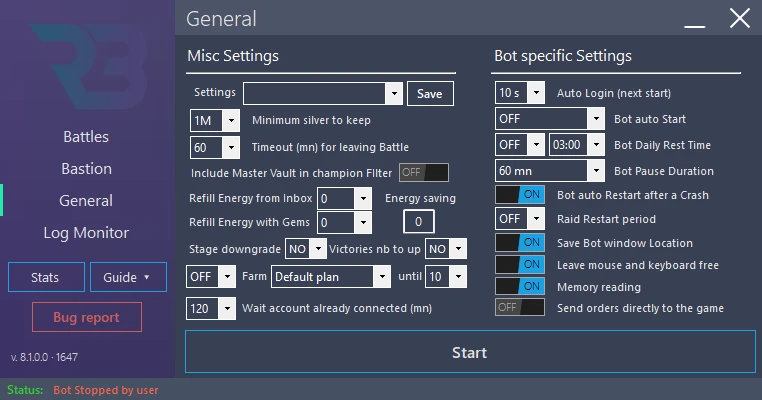
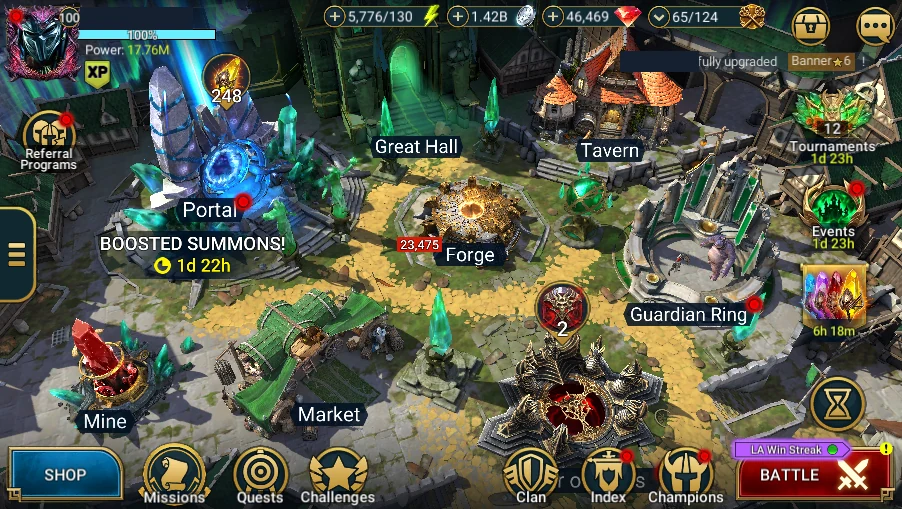
For a first test of a new profile, leave Bot auto Start OFF, gem refills at 0, and enable only one or two modules. Watch the first launch in Log Monitor before letting RSLBot work on its own.
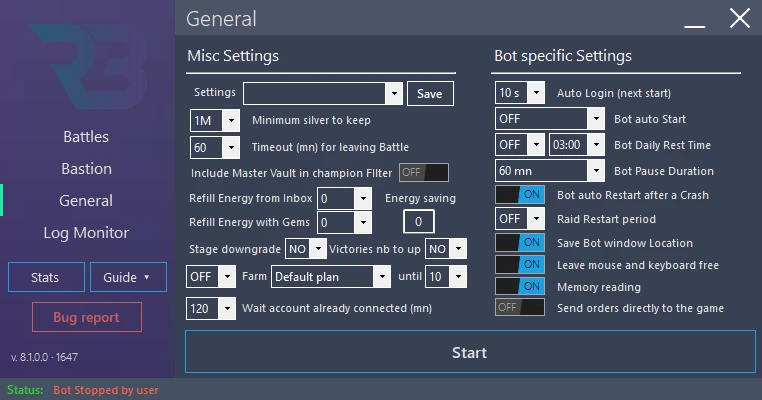
RSLBot GUIDE
Best practices
- Test each new profile over a short period.
- Start with all gem spending at zero.
- Choose a suitable Minimum silver to keep value before enabling a feature that spends silver.
- Check the Storage AutoSell window before selling with a new Autosell rule.
- Lock important champions in the game.
- Keep a copy of validated profiles and rule files.
- Check the first runs after a RAID or RSLBot update.
- Read Log Monitor before resetting a module.
- Use only official downloads and links.
RSLBot GUIDE
Bastion
The Bastion tab groups the activities outside battles. Its main lines, with their switch and gear, are below; the Storage Auto frame (AutoSell and Relic Rank Up) is described in chapter 14, and the Daily Quests and Ranking up actions frame (Quests, Tavern, Portal, Summon Rush) in chapters 11 to 13:
| Line | Choices | Purpose |
|---|---|---|
| Rewards and Market management | switch, ⚙ | Collecting rewards and Market purchases. |
| Exchange Gold Bars in Bazaar | switch, ⚙ | Bazaar exchanges. |
| Sparring | ON / OFF, rank, rarity | Sparring Pit. |
Some buildings only open from a given account level: Great Hall and Tavern at level 6, Sparring Pit and Mine at level 15. RSLBot ignores them until the account reaches that level.
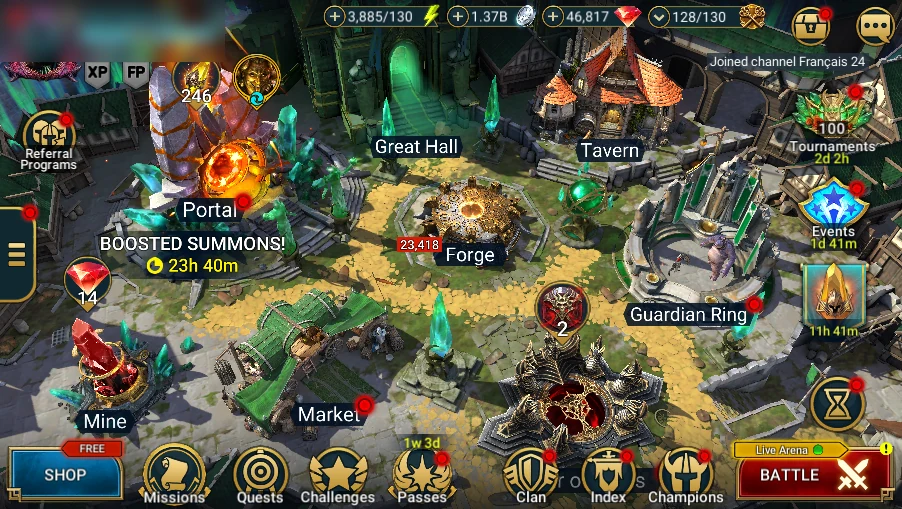
With Memory reading ON, RSLBot clicks the Bastion buildings where RAID's game data places them, moves the camera only when needed and never clicks under the chat or the notification bubbles. It visits the reward places first (Missions, Challenges, Quests, Inbox, Passes).
Rewards: choose the categories
Rewards and Market management set to ON enables collection. The gear opens the Rewards and Market Management panel without changing the saved ON/OFF state. This panel has one switch per category:
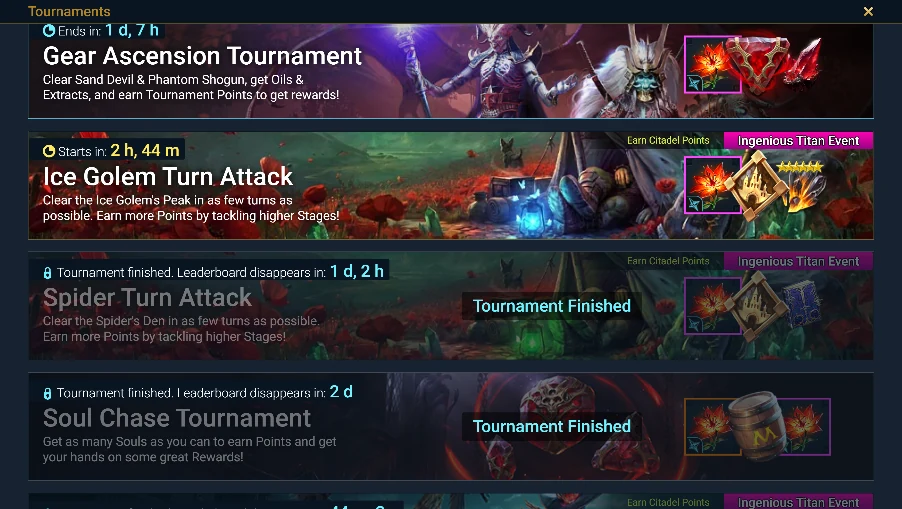
- Missions, Quests (daily, weekly, monthly, advanced and achievement rewards), Passes, Clan (clan check-in and clan chest), Great Hall, Challenges, Events, Tournaments;
- Inbox Gems, Silver, Potion, Charms ...: collects gems, silver, potions, rank and rarity charms and Multi-Battle attempts from the Inbox;
- Buy Ancient Shards in Market and Buy 2 stars Champions in Market: extra Market purchases (not available in Free);
- All Rewards ON and All Rewards OFF switch all categories; OK closes the panel.
What some categories do in 8.5:
- Challenges: the ready rewards are claimed at once.
- Passes: the pass tabs are read in RAID; a pass without tabs is claimed too, and the Battle Pass intro pages are turned with Next.
- Tournaments: the rewards of the running tournaments are claimed as they become ready (each Claim Reward row is checked in RAID first).
- Events: RSLBot opens only the event cards that show a red dot (a reward to take) and claims their rewards; the Demon Coalition rewards are collected too.
- Inbox: besides gems, silver and potions, the new Shop and Other rewards are collected (Pumpkin Hunt, Live Arena and Hydra Clash chests, Tournament and Chimera Clash chests), and the chest windows are closed.
With ON, RSLBot also collects, without a dedicated switch, the daily login reward, the Plarium Points programme, playtime rewards, the day of the Reward Calendar (the 25-day calendar in the Bastion menu), free shop gifts (see below) and the Limited Series rewards (Watch, the 50K silver of each episode and the share rewards; the video window is closed at once, Share is never clicked). The calendar's vote days are left to the player ("Reward Calendar: day … is a vote day, left to you").
Inbox energy refills do not depend on this panel: they are set by Refill Energy from Inbox in General. Before ON, review each category and check inventory space.
Shop: free gifts
When collection is active, RSLBot opens the shop when it shows something to collect: free Mystery Shard and Ancient Shard, Silver Ticket, daily rewards of offers already obtained and free gifts of limited offers. It never clicks a price button.
Market: tell the purchases apart
On each Market visit, RSLBot buys the Mystery Shards on offer (this purchase is always on) and unlocks, with silver only, the next slot up to the 6th; it never pays for a slot with gems and respects Minimum silver to keep. Ancient Shard and 2-star champion purchases are set in the panel described above.
Mine
When it visits the Bastion, RSLBot also collects the gems from the Mine (account level 15 or higher).
Bazaar: choose the items
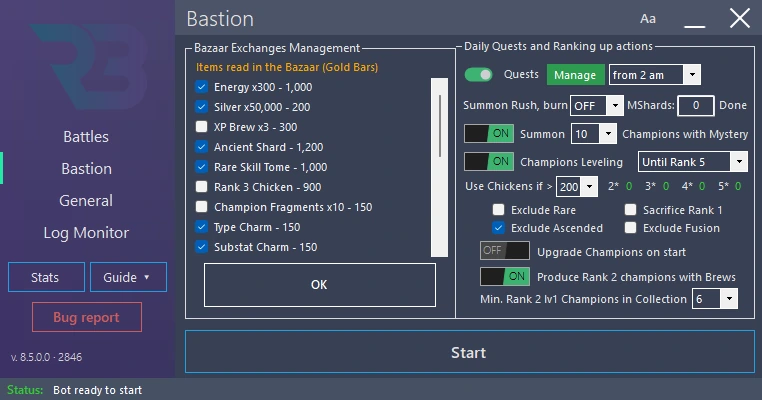
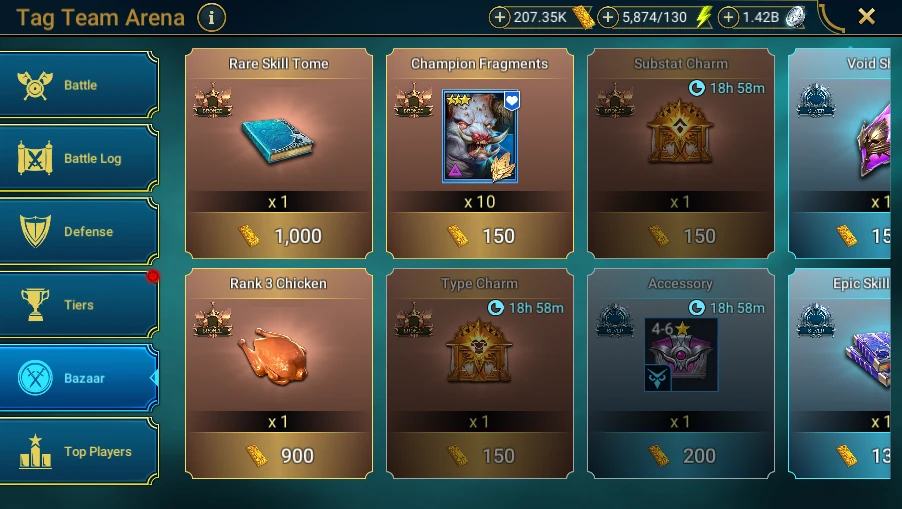
Exchange Gold Bars in Bazaar set to ON makes the checked exchanges. The gear opens the Bazaar Exchanges Management panel without changing the saved ON/OFF state. It shows the real items of your account's Bazaar, read in RAID (name, quantity, price in Gold Bars, items locked by your league), grouped by the currency required: tick the items to exchange, then OK. The list is updated at each Bazaar visit and when the panel opens while RAID shows the Bazaar. Your choices follow each item, even when a bought item leaves the list. If you switch to ON with nothing checked, the panel opens automatically.
RSLBot stops at the first checked item the Gold Bars cannot pay. The Bazaar is not available in Free.
Sparring Pit
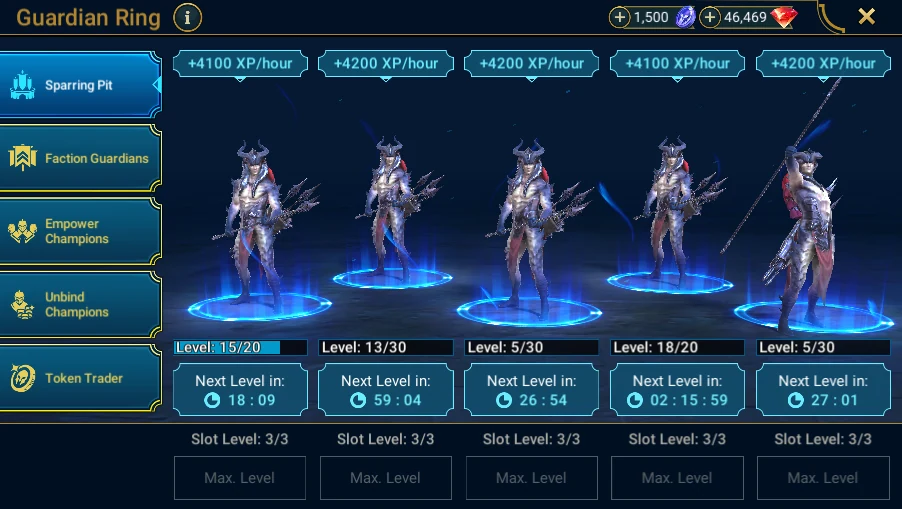
Sparring set to ON levels up champions in the Sparring Pit: RSLBot upgrades the slots that are ready and replaces champions that reached the maximum with others matching the two lists:
- rank: rank 1 to rank 6, or ranges such as rank 1 & 2, rank 2 to 4, rank 3+;
- rarity: Any, Common, Uncom., Rare, Epic, < Rare, < Epic.
The champions are chosen on the cards RAID shows, with the sort order read in RAID. Do not confuse this passive progression with ranking up in the Tavern (chapter 12). Champions used in a team, a fusion or a collection must stay protected: check the criteria before enabling it.
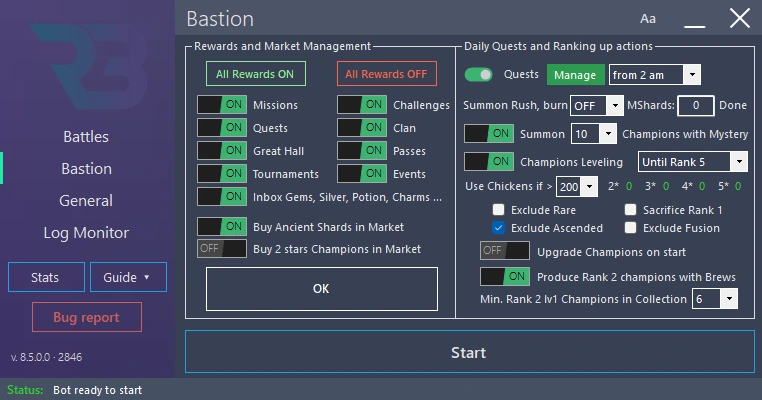
RSLBot GUIDE
Quests
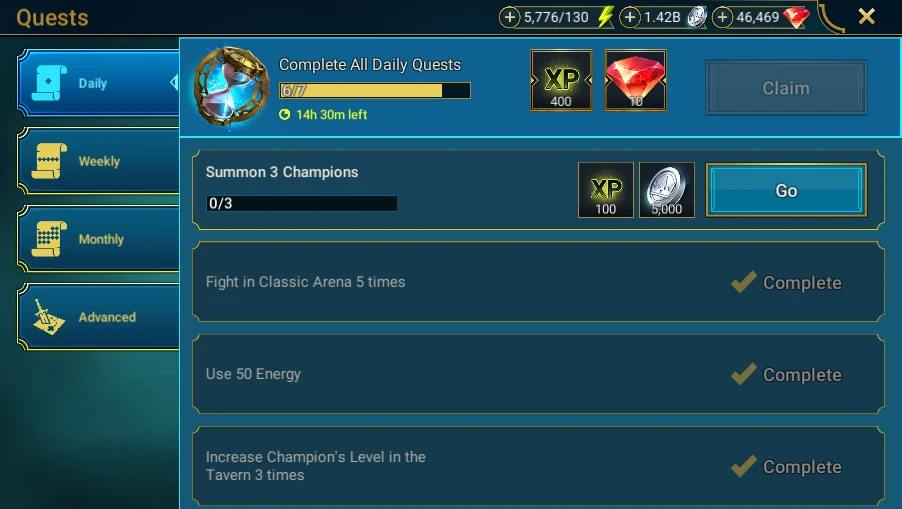
RSLBot does the quests of RAID for you: Daily, Weekly, Monthly and Advanced quests, and the Grim Forest quests. Everything is read in RAID's game data: which quests are open today, which are done, and what is still missing. This automation feature is included in every licence.
The Quests line
In the Daily Quests and Ranking up actions frame of the Bastion tab, the Quests line has:
- its switch: ON, from the start hour, RSLBot does every quest it can of the types that are On in Manage; OFF, no quest;
- the green Manage button: opens the Quests - Manage window;
- the start hour at the end of the line.
The Quests - Manage window
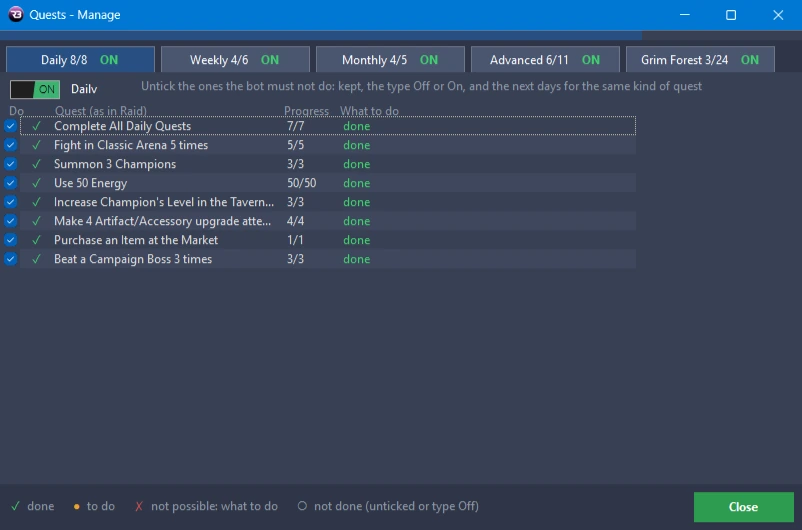
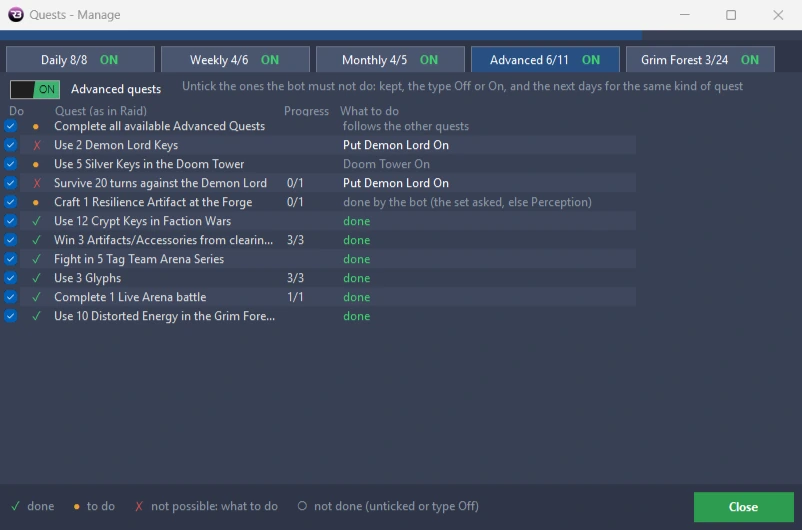
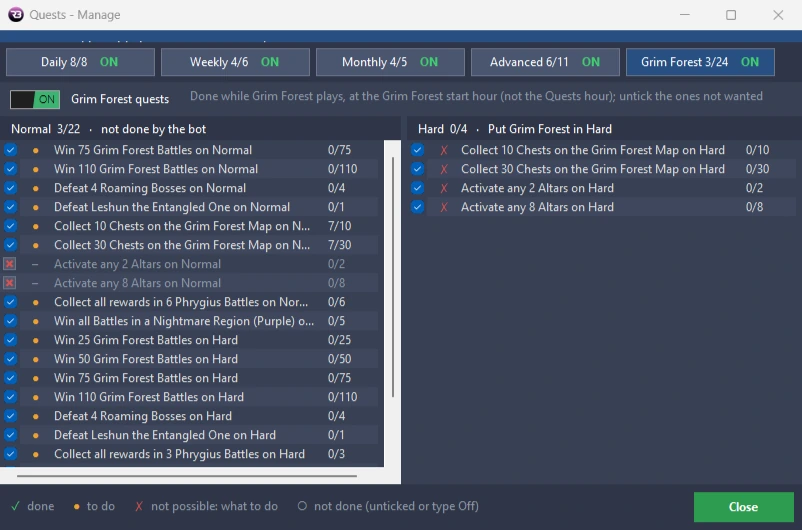
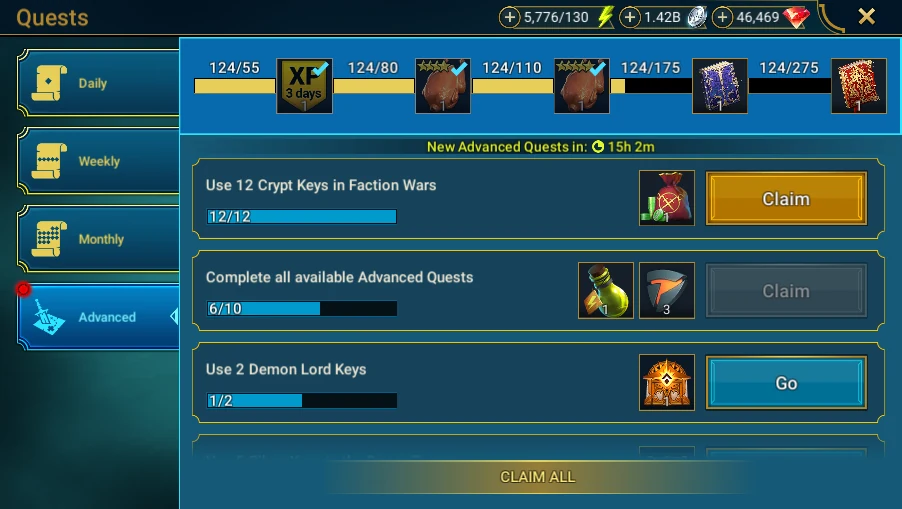
The window shows the quests as RAID shows them, by type: one tab per type (Daily, Weekly, Monthly, Advanced, Grim Forest), each with its count of quests done and its state ON or OFF.
- On a tab: the type's On / Off, and one box per quest. Turning a type On ticks every box: untick the quests RSLBot must not do. Your boxes are kept, also for the same kind of quest on the next days.
- Each quest has its name as in RAID, its state (done, in progress, to do) and What to do when RSLBot cannot do it with your settings: for example "Put Tag Team Arena On", or "Put Campaign & Dungeons On, then add …" with the line to add.
- A quest RSLBot cannot do at all has its box greyed with a red cross.
- The Grim Forest tab shows two tables, Normal and Hard. These quests are done while Grim Forest plays, at its own start hour, not at the Quests hour.
The window does not block RSLBot: you can leave it open, move it and resize it. What you change in the Battles tab (a battle put On, a line added) shows there at once. Close closes it.
What RSLBot does by itself
With a type On, RSLBot does the quests that do not need a battle: champion levels, artifact upgrades, summons, skills, potions to mix (Lesser Arcane potion), artifacts to craft (the set the quest asks for, otherwise Perception), the free shard, and the quests of the whole type ("Complete All … Quests"). It also does:
- Craft 1 Relic (Advanced);
- Unlock a Mastery (Advanced): a champion that already holds its scrolls is given its mastery; otherwise a Minotaur line is needed;
- Use 3 Glyphs (Advanced);
- Ascend a Champion (Weekly): in the Tavern's Ascend tab, ascensions 1 to 4 only;
- Clear 2 Stages in the Cursed City: RSLBot replays the first stages, without spending keys, even when Cursed City is OFF;
- Fight in Classic Arena with 4 different Affinities: RSLBot picks, among your saved Classic Arena teams, the one that matches the quest (only when Classic Arena is On).
Craft quests are only done with Memory reading ON. Crafting at the Forge or mixing potions really uses up materials, potions or silver: untick these quests if you do not want that spending.
Battle quests
Quests no longer start battles of their own. Battle quests are done by your normal settings:
- campaign and dungeon quests (win battles, beat bosses, win artifacts, spend energy, masteries): by your Campaign & Dungeons lines. A line with Quest in To do is only played while a quest needs it (see chapter 20);
- arena quests: by Classic Arena or Tag Team Arena turned On.
What to do in Manage tells you which battle to turn On or which line to add.
The log
Each quest is written in the log when its state changes: Advanced quests that cannot be done show a warning (they change every day); the others are in the log file and in Manage. A quest that becomes done while RSLBot runs is shown in green.
Configure
- Leave Quests OFF while configuring.
- Open Manage, turn On the types you want and untick the quests to leave out.
- Read What to do and adjust your battles and your Campaign & Dungeons lines.
- Choose the start hour, then turn Quests ON.
RSLBot GUIDE
Champions: levelling and training
These settings are in the Daily Quests and Ranking up actions frame of the Bastion tab. Champions Leveling and Champions Training are included in Regular and Premium.
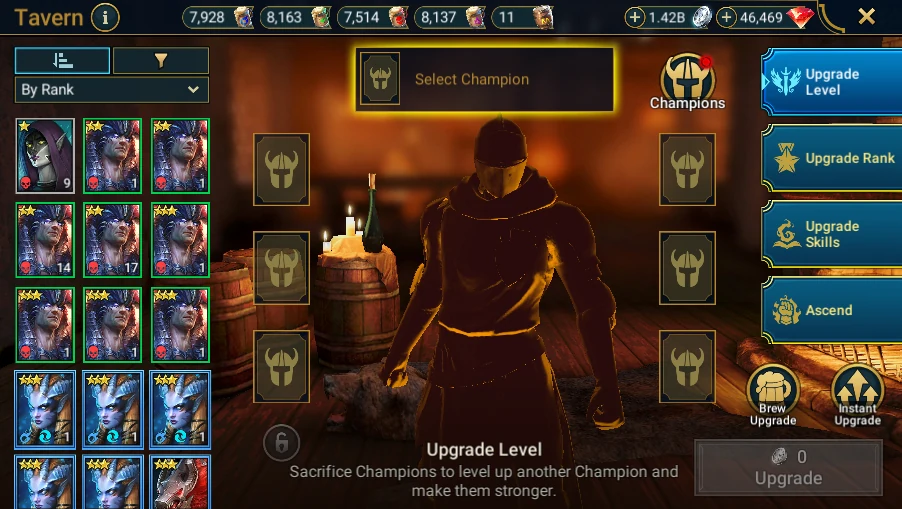
- Champions Leveling (ON/OFF switch): RSLBot levels up and ranks up champions in the Tavern, according to the mode chosen on the right.
- Champions Training: this is the Champ.Training choice in that same list. RSLBot raises champions up to 5 stars by feeding them Brews before sacrificing them (2 stars: 1 Brew; 3 stars: 1 Brew; 4 stars: 3 Brews; 5 stars: 6 Brews), until it reaches the requested number of 5-star level 25 champions.
The settings
| Setting | Values | Purpose |
|---|---|---|
| Mode (right of Champions Leveling) | Champ.Training, Until Rank 3/4/5, Rank 1/2/3/4 only, Rank 2 & 3, Rank 3 & 4, Rank 2 & + | Until Rank n: from rank 1 up to rank n level 1; Rank n only: only champions of that rank; Rank 2 & +: from rank 2 to rank 5 level 1. |
| Upgrade Champions on start | ON / OFF | Goes to the Tavern right at Start, before battles. Otherwise RSLBot goes there when at least 3 champions can rank up, especially when replacing max-level champions is active in the Campaign. |
| Sacrifice Rank 1 | box | Sacrifices all rank 1 champions to level up the others. |
| Exclude Rare | box | Rare champions are never sacrificed (they are still levelled and ranked up). |
| Exclude Ascended | box | Ascended champions (purple stars) are never sacrificed (they are still levelled and ranked up). Awakened champions (red stars) are never sacrificed, even with the box unchecked. |
| Exclude Fusion | box | No rank up of rare and epic fusion champions, and no sacrifice of rare fusion champions. |
| Use Chickens if > | Off, On, 5 to 500 | Off: no chickens; On: all chickens; a number: only the chickens above this stock, for each rank. |
| 5 stars to train nb | 0 to 50 | For Champ.Training: number of 5-star level 25 champions to produce. It goes down with each finished champion; at 0, RSLBot turns off Champions Leveling and the Campaign. |
| Produce Rank 2 champions with Brews | ON / OFF | First prepares rank 2 champions: rank 1 champions are taken to level 10 with a Brew of their affinity and other rank 1 champions, then ranked up to rank 2. |
| Min. Rank 2 lv1 Champions in Collection | 0 to 40 | Stock of rank 2 level 1 champions to keep with the previous option. |
| Summon Champions with Mystery | ON / OFF and Full, 10 to 90 | Summons champions with Mystery Shards at the Portal when ranking up runs short of them. |
| 2* 3* 4* 5* | counters | Number of champions produced, tracked by RSLBot. |
When possible, RSLBot first uses the game's Fast Rank Up feature, then completes champion by champion.
Protections
RSLBot never sacrifices an epic or legendary champion, or a locked champion. As food, it takes common or uncommon champions that are not in a team, not in the vault and not boosted; it also takes rares, after commons and uncommons, when Exclude Rare is unchecked. Other protections remain: with Exclude Fusion checked, a rare for which RAID shows the fusion warning is not sacrificed (RSLBot cancels and picks another one); with Exclude Ascended checked, no ascended champion is taken, and no rare either for now; an awakened champion (red stars) is never sacrificed, whatever the boxes. To sacrifice rares, uncheck both Exclude Rare and Exclude Ascended. RAID's Fast Rank Up only takes rares when all three boxes are unchecked. Champions placed in the Sparring Pit are never used as replacements, in a team or in a secret room. Before any Tavern automation:
- lock important champions in the game;
- check Exclude Rare if you have any doubt;
- check Exclude Ascended and Exclude Fusion;
- do not set Use Chickens if > to On without setting a reserve;
- choose a suitable Minimum silver to keep value in General;
- start with a limited mode and check the result.
Ranking up sacrifices champions or chickens: it cannot be undone.
Prepare Leveling and Training
- Leave Champions Leveling and Summon Champions with Mystery OFF while configuring.
- Choose the mode: Champ.Training or a rank target.
- Set the exclusion boxes, the chicken reserve and, for Training, 5 stars to train nb.
- Decide whether the Portal may feed the chain with Mystery Shards.
- Save the profile, then switch Champions Leveling to ON and watch the first Tavern visit in Log Monitor.
RSLBot GUIDE
Summon Rush
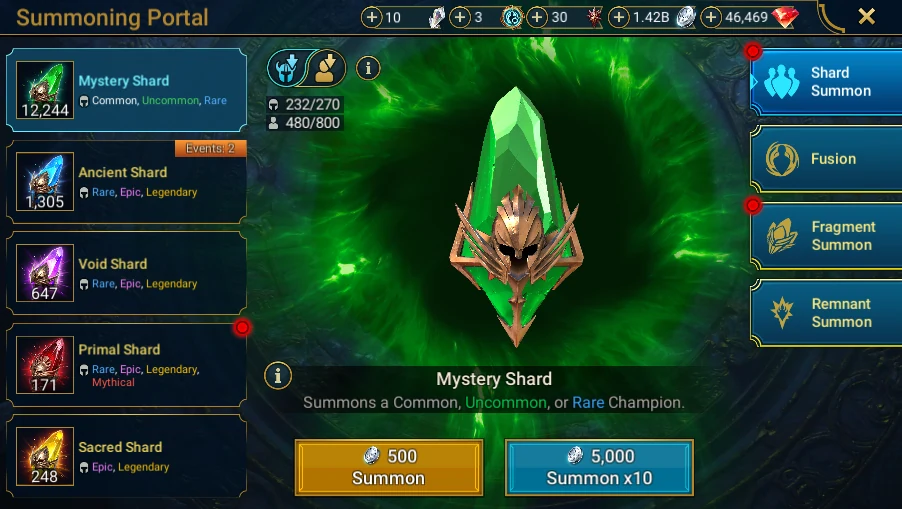
Summon Rush is included in Premium. It is a one-off operation: RSLBot burns the requested number of Mystery Shards to summon champions, and sacrifices level 1 and 2 champions to rank up champions of rank 3 and above. The rank-up settings from the previous chapter apply (Champ.Training, Exclude Rare, Fusion, Ascended). Once the number is reached, RSLBot goes back to its normal work (battles, etc.).
Configure
- Check the licence and the active profile.
- Free at least 30 slots in your champion collection (40 is better).
- Review the champion protections in the previous chapter.
- In the Daily Quests and Ranking up actions frame, choose the number of MShards to the right of Summon Rush, burn: OFF, or from 50 to 5000. Start with a small amount.
- Start RSLBot (or stop it and start it again if it was running): summoning begins. The Done counter shows the shards already used; it goes back to 0 each time the value changes.
In RAID, Portal → Mystery Shard shows how many shards you have. Each summon uses one shard, and the progression chain that follows in the Tavern cannot be undone.
RSLBot GUIDE
Equipment and Autosell
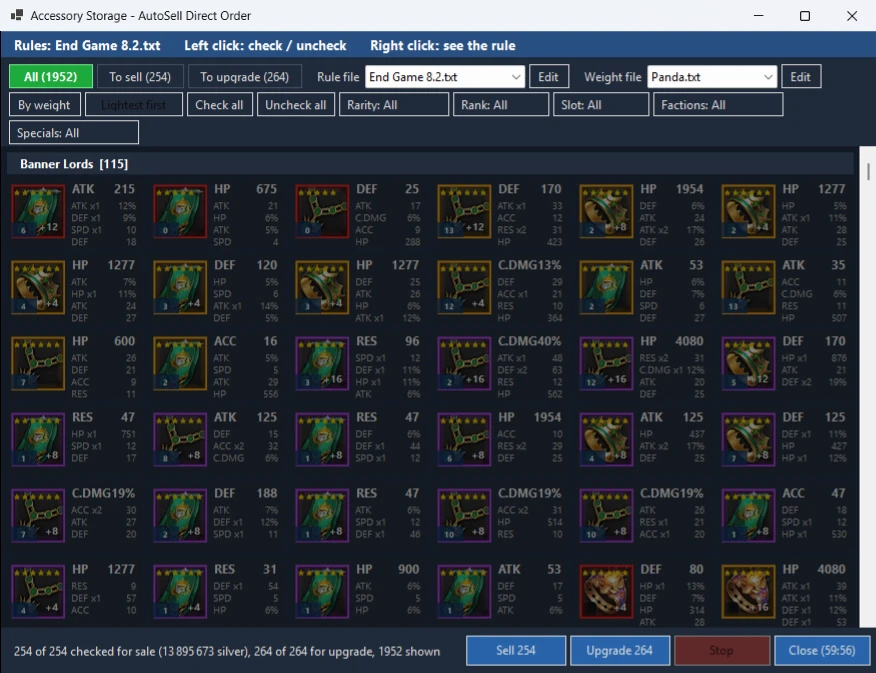
View the reference screenshots.
AutoSell sorts your artifacts, accessories and gemstones for you: it sells what is useless, upgrades what is worth it and keeps the rest. This chapter explains everything you can do: the dashboard, the rules files and their syntax, the sale window with its filters, how the rules are shown, the weights and how they combine with the rules.
The three ways AutoSell runs
| When | What happens | Window |
|---|---|---|
| After each battle (Battles line) | Each item won is judged by the Battles rules file: sold, upgraded or kept at once. | None |
| Auto, once a day (Artifact, Accessory, Inbox, Gemstone, Relic lines) | From the chosen hour, RSLBot handles the lines in Auto, within their limits. | None |
| Manage, by hand (bot stopped) | RSLBot opens the AutoSell window of the chosen line with all its items; nothing is sold or upgraded until you click. | Yes |
Three things decide:
- The rules (one text file per line) say for each item: sell, keep, or upgrade up to a level.
- The weight (0 to 100) ranks the items: the lightest go first when room is needed.
- The protections come before the rules: a protected item, an item in a champion's preset or one of the best pieces of its group is never sold (except after battles, see below).
The Storage Auto dashboard
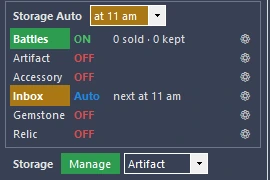
Everything is set in the Storage Auto frame of the Bastion tab:
- At the top, Storage Auto and the Auto hour (at 8 am by default, local time). OFF turns every Auto line off. The hour is lit in orange while Auto is on.
- One row per line: Battles, Artifact, Accessory, Inbox, Gemstone, Relic. Each row shows:
- its state: OFF in red, Auto in blue, ON in green for Battles. A click on the state turns the line's Auto on or off;
- its result: for Battles, the items sold and kept today ("S sold · K kept"); for the others, "running…" during the run, then the time and the day's result (for example "08:12 · 35 sold · 4 up"), in orange when a limit or a stop cut it short, otherwise the next run ("next at 8 am"). A text too long is cut with "…"; the whole report is in the tooltip ("Last Auto run …");
- a gear ⚙ that opens its settings (see The gear of a line).
- Under the frame, Storage, the Manage button and a list (Artifact, Accessory, Inbox, Gemstone, Relic) open a line's window by hand.
| Line | On the dashboard | Licence |
|---|---|---|
| Battles | OFF / ON, ⚙ | Regular and Premium. Autosell after Campaign, Dungeon, Clan Boss, Live Arena and Cursed City battles; Hydra and Chimera have their own Autosell box in their Manage. The file cannot be changed or edited while RSLBot is running. |
| Artifact | OFF / Auto, ⚙, Manage | Every licence. Artifact storage. |
| Accessory | OFF / Auto, ⚙, Manage | Every licence. Accessory storage. |
| Inbox | OFF / Auto, ⚙, Manage | Every licence. Inbox items. |
| Gemstone | OFF / Auto, ⚙, Manage | Premium. Gemstones: file Gemstones.txt, one line per gemstone type (see Gemstones). |
| Relic | OFF / Auto, ⚙, Manage | Premium. Relic Rank Up (see Relic Rank Up). |
The old Full, New and Screen modes are no longer chosen: Manage always shows the whole storage, and Auto handles the new items, then makes room within its limits.
Rules files
Rules are text files in the AutoSell folder, next to RSLBot. Each line (Battles, Artifact, Accessory, Inbox) has its own file, chosen in its gear (Rule file) or in the AutoSell window. A file chosen on one line is not used by the others.
Files shipped with RSLBot:
- Casual Players 8.2, Mid Game 8.2, End Game 8.2: RSLBot's presets, for every use (battles, Inbox, storage), from the broadest to the most demanding;
- Panda's files (Panda_End_Game…), in two versions: …Battles for battles and …Storage for the storage;
- Tredepica's files (TredepicaDungeon…, TredepicaStorage…); TREDEPICA_FILTER_GUIDE is a guide to read, not a rules file: do not choose it.
To make your own rules, copy a shipped file under another name, then edit the copy. Edit (in the gear or in the window) opens the file in the AutoSell rules editor (see below); an RSLBot update does not overwrite your files.
How a line is read
- The file is read from top to bottom, and the first line that matches the item decides. The lines below are not looked at.
- When no line matches, the item is kept ("No rule: kept").
- Blank lines and lines that start with
//are ignored (comments). A//at the end of a line is not a comment: it makes the condition fail. - Upper and lower case do not matter.
A line is written: Action [level] [item kind], condition, condition, …
| Part | Values | Example |
|---|---|---|
| Action | Keep, Sell, Upgrade 4, Upgrade 8, Upgrade 12 or Upgrade 16 (upgrade up to that level) |
Upgrade 12 |
| Item kind (optional) | Artifact (the 6 artifact slots), Accessory (ring, amulet, banner), SpecialAcc (an accessory of an accessory set, such as Mercurial or Swift Parry, or of a special type, such as Bloodshield). No kind: artifacts and accessories. |
Sell Accessory |
| Conditions | separated by commas; all must be true | Rank < 5, Rarity < Epic |
An Upgrade line no longer applies to an item that has reached its level: the lines below then decide. After each upgrade, the item is judged again by the whole file.
Conditions
Form: Field operator value. Operators: =, <, >, <=, >=. Several values separated by / mean "one or the other", and only with = (Type = W/H/S).
| Field | Values |
|---|---|
Set |
the set's name in RAID (Speed, Lifesteal, Swift Parry, Mercurial…), or GroupSets (see below). On an Accessory line, only accessory sets are accepted. |
Type |
W weapon, H helmet, S shield, G gauntlets, C chestplate, B boots, R ring, A amulet, N banner |
Main |
main stat: HP, HP%, ATK, ATK%, DEF, DEF%, SPD, CR%, CD%, RES, ACC |
Rank |
1 to 6 (stars) |
Level |
0 to 16 |
Rarity |
Common, Uncommon, Rare, Epic, Legendary, Mythic, in that order: Rarity < Epic = Common, Uncommon or Rare |
Faction |
for accessories: Dark Elves, Sacred Order, Banner Lords, Knights Revenant, Dwarves, Orcs, Demonspawn, Ogryn Tribes, Barbarians, Lizardmen, Skinwalkers, Undead Hordes, High Elves, Shadowkin, Sylvan Watchers, Argonites |
Special |
special accessory type: Bloodshield, Reaction, Revenge, Cleansing, Refresh |
Sub |
one substat from the list; a digit right after the name asks for a minimum of rolls on it: SPD2 = SPD rolled at least twice |
2*Sub, 3*Sub, 4*Sub |
2, 3 or 4 different substats from the list |
For Sub: several Sub conditions on one line must be met by different substats, and their total cannot exceed 4 (Sub + 3*Sub = 4 at most). A Mythic item's rarity bonus counts as one more roll on its substat.
Two special lines prepare the lines below them:
GroupSets = Swift Parry/Deflection/Pinpointdefines a group of sets; thenSet = GroupSetsmeans "one of these sets". A newGroupSets =replaces it for the lines after it.SpecialAcc = Mercurial/Bloodshieldlimits the followingSpecialAcclines to these accessories, until the nextSpecialAcc =.
Examples from the shipped files
| Line | What it does |
|---|---|
Keep, Level > 8 |
Keeps every item already upgraded past +8 (artifacts and accessories). |
Keep SpecialAcc |
Keeps every set or special accessory. |
Sell Accessory, Rank < 5, Rarity < Epic |
Sells accessories of 4 stars or less that are Common, Uncommon or Rare, unless a line above kept them. |
Upgrade 8 Accessory, Rank = 5, Type = R, Main = HP, Sub = HP%/ATK% |
Takes 5-star HP rings with an HP% or ATK% substat to +8. |
Keep Accessory, Rank = 5, Type = R, Main = HP, Sub = HP%1/ATK%1 |
Right after the previous one: at +8, the ring is kept only if HP% or ATK% got at least one roll; otherwise a line further down decides (often the sale). |
GroupSets = Swift Parry/Deflection/Pinpoint then Keep Accessory, Set = GroupSets |
Keeps every accessory of these three sets. |
Pitfalls
Rank,LevelandRarityonly read the first value:Rank = 5/6only tests 5. WriteRank >= 5.Set,Type,Main,FactionandSpecialignore the operator:Set < Speedreads asSet = Speed.- The item kind must be written exactly
Artifact,AccessoryorSpecialAcc:Keep Accessories(plural) is ignored without a message, and the line then applies to every item. - An extra comma at the end of a line gets the line refused.
- Order matters: a very broad
Sellline at the top sells before yourKeeplines further down are read. Put the importantKeeplines first.
A refused line: the Rules refused window
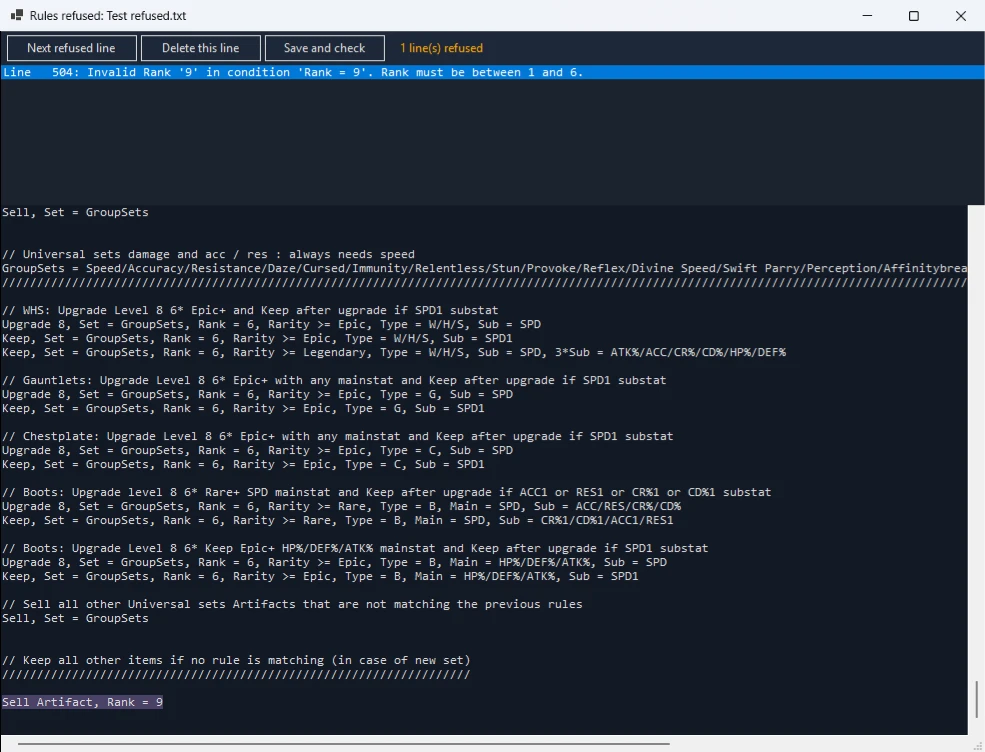
One refused line and the whole file is refused, because a skipped line could be a Keep that protects items. RSLBot says so in orange in the log ("AutoSell rules file … line(s) refused, the file is not used") and opens the Rules refused: <file> window:
- at the top, the list of errors ("Line N: …"); a click on an error selects the line;
- below, the whole file, editable, with each refused line on a red background;
- Next refused line goes to the next refused line, Delete this line deletes the selected line, Save and check saves and checks again;
- the status says how many lines are still refused, or "No line refused: the file is used at the next Start" in green; "(not saved)" is added while your changes are not saved;
- the first save keeps a backup copy <file>.bak; closing with unsaved changes asks "Save the changes to …?".
The corrected file is used at the next Start. The errors are also written to Logs\AutoSell errors - <file>.txt.
The AutoSell window
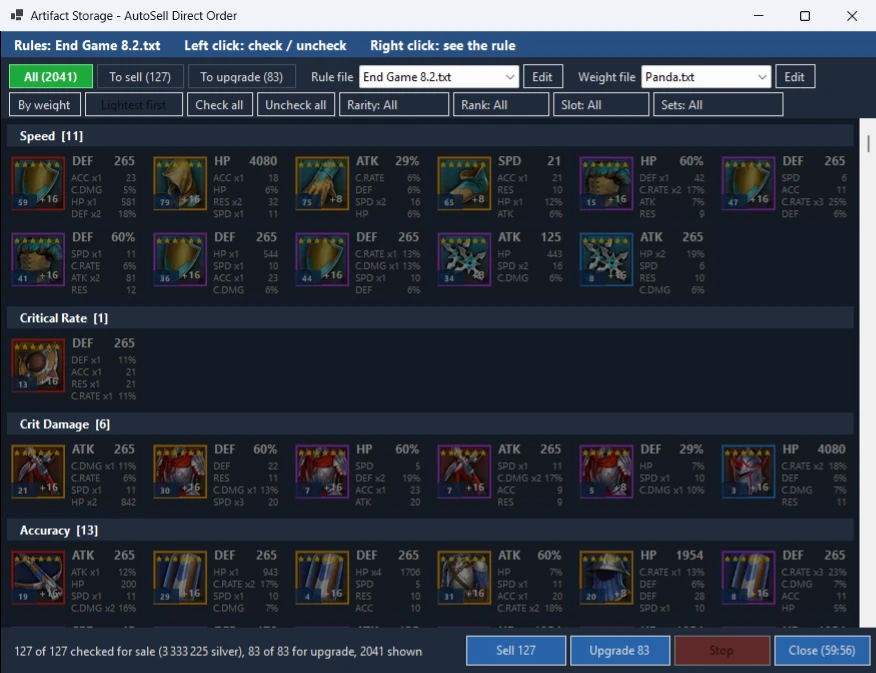
The Storage AutoSell window (Inbox AutoSell for the Inbox) opens with Manage, bot stopped: choose the line in the list beside Manage, then click Manage. RSLBot starts, goes to the storage (or the Inbox) and opens the window with all the items, judged by the line's rules file. If the bot is running, it asks you to stop it first ("Stop the bot first, then click Manage again"). When the window is over, RSLBot stops; a line that was in Auto goes back to Auto by itself.
While the window waits, RSLBot's Pause button shows Paused; the window does not stay in front of RSLBot's. It goes beside RAID when there is room, can be moved and resized, and keeps its place and size for next time.
The header
The blue band recalls the rules file and the mouse use: "Rules: <file> Left click: check / uncheck Right click: see the rule". During an action it turns orange and says what RSLBot is doing ("Selling…", "Upgrading <item> +8 → +12 (3 of 10 done)"…).
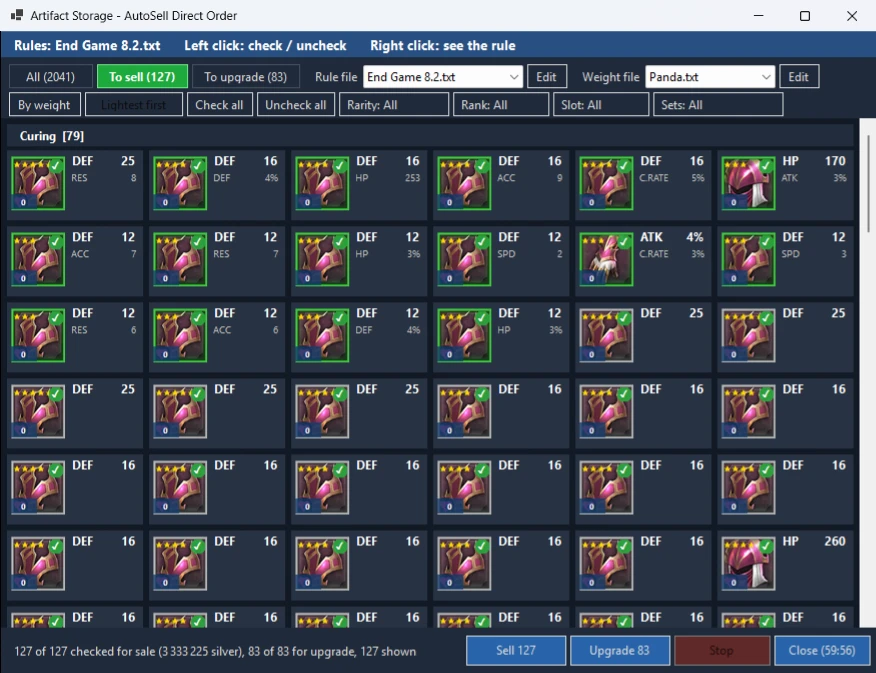
Tabs
- All (N): every item, the ones the rules keep too;
- To sell (N): the ones the rules sell;
- To upgrade (N): the ones the rules upgrade (the card shows "+8→+12");
- To collect (N) (Inbox only): the ones the rules keep, to collect to the storage.
The tab shown is in bright green. When the window opens, every card of To sell, To upgrade and To collect is checked: uncheck what you want to keep.
Changing the rules from the window
- Rule file: the files of the AutoSell folder. Choose another one and every item is judged again at once; that file becomes the line's file.
- Edit opens the file in the AutoSell rules editor. As soon as you save it, RSLBot reads it again and judges every item again ("rules saved in …, every item judged again"). So you can fix a rule and see its effect on the cards straight away.
- If the saved file has a refused line, the window keeps the rules it had and the Rules refused window opens (see above).
Seeing the rule that decided
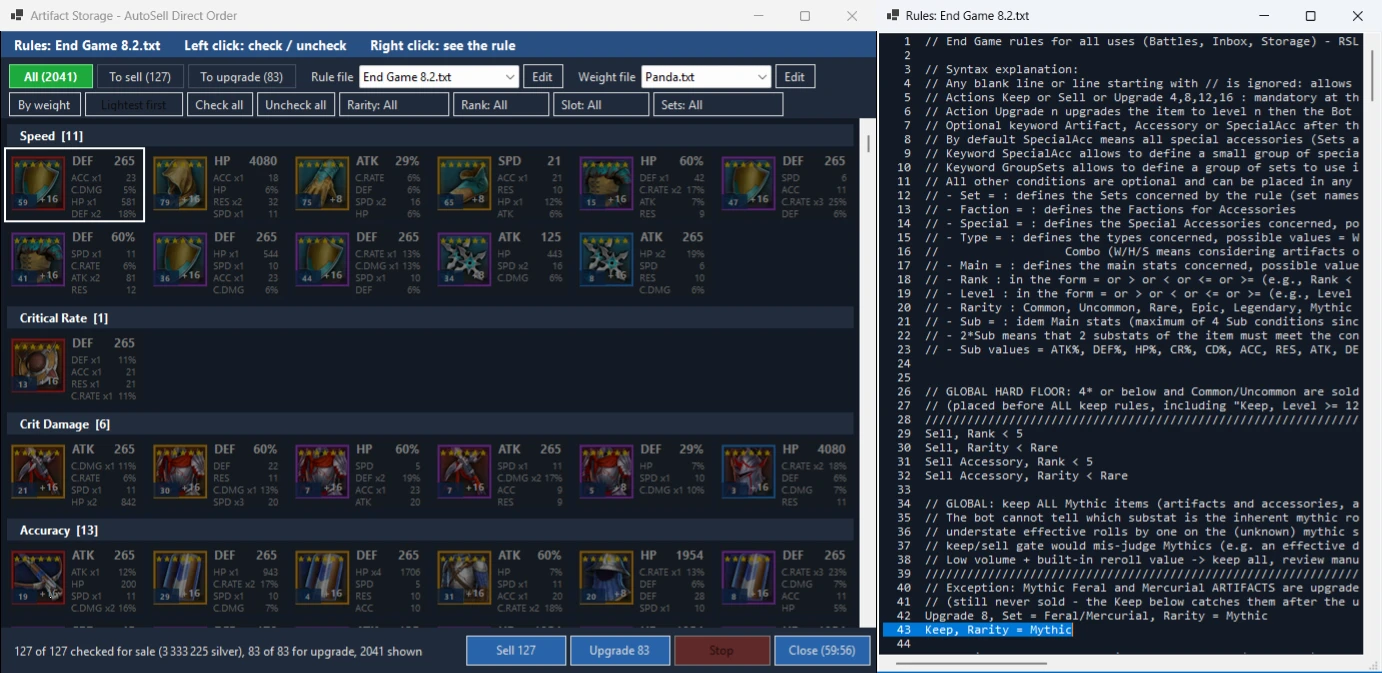
- Hover a card: the item's details (rarity, rank, slot, level, set or faction, main stat and substats with their rolls and glyphs, sale price "Sell price: N silver", number "Artifact #N", weight "Weight N / 100"), then the rule line that decided ("Rule line 29: Sell" and its text) or "No rule: kept".
- Right click a card: the Rules: <file> window opens beside, with the whole numbered file and the line that decided selected. This window is read-only: to change the file, use Edit.
Filters
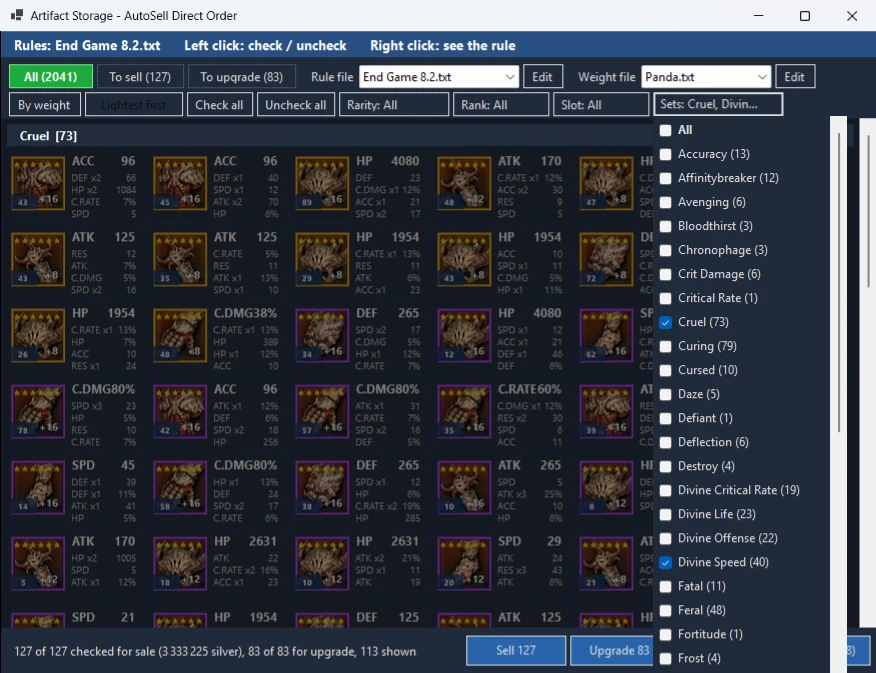
The filters are buttons that open a check list; the button shows the choice ("Rarity: All", "Sets: Speed, Lifesteal", "Sets: 3 chosen").
- Rarity: Common to Mythical;
- Rank: 1* to 6*;
- Slot: the slots of what is shown (helmet to shield, ring, amulet, banner);
- Sets (artifacts) or Factions (accessories), each with its count of items;
- Specials (accessories): Standard, then the specials of the factions chosen.
Several boxes checked = one or the other. All, at the top of each list, unchecks everything and shows everything. Your choices stay when you change tab and when the window comes back. Check all / Uncheck all act on the cards shown.
Important: Sell N and Upgrade N only take the checked cards shown. If you filtered set by set (or Special by Special), go back to All before clicking, otherwise only the cards shown are sold or upgraded. The number on the button is always the exact number of items that will be handled.
Cards and mouse
- The cards look like RAID's storage: rarity frame, stars, level, stats with "x2" for 2 rolls, and a blue badge with the weight. They are grouped by set (by faction for accessories), sorted by rarity, rank and level.
- Left click: check or uncheck. Shift+click: every card between the last click and this one takes the same state.
- A checked card has a green tick; an unchecked card is darkened.
- Items in a champion's preset and protected items are locked: they cannot be checked.
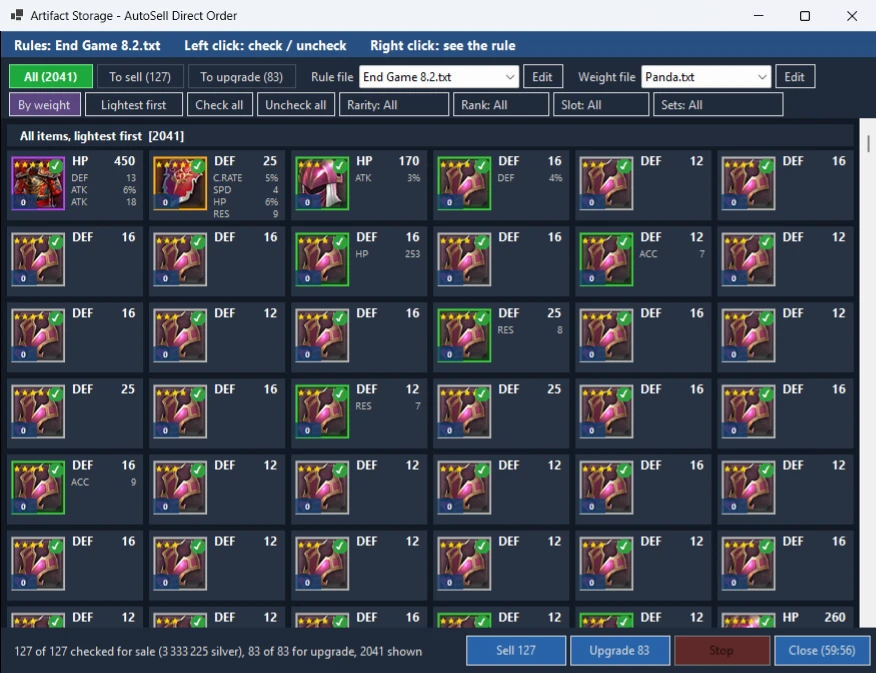
- By weight shows the tab in one list sorted by weight; Lightest first / Heaviest first switches the order. Items at +16 rank as the heaviest, protected items (no weight) come last. The checks do not change.
Buttons
- Sell N sells the checked items, Upgrade N upgrades them up to the rule's level, with Instant Upgrade and respecting Minimum silver to keep. If the action's tab is not shown, the first click only shows it: click again.
- Collect N (Inbox) collects to the storage the checked items of To collect.
- Above 20 items, RSLBot asks first ("Sell 25 artifacts?"); No is the default, and Enter or Esc answer No.
- During an action, the cards leave as they are done; a red Stop button ends it after the item in progress. The window then comes back with the lists judged again, keeping your tab, your filters and the cards you unchecked.
- After an upgrade, the item is judged again: if it now goes to sale, it appears checked in To sell, but it is sold only if you click Sell N.
- Close (mm:ss) closes without doing anything. The 60-minute countdown starts again at each click in the window; at the end, it closes by itself and nothing is sold.
- If the storage changes in RAID meanwhile, the lists are read again. If a RAID box is open, RSLBot does not click and asks you to close it.
- While Send orders directly to the game is OFF, an orange line at the bottom of the window says so: without it, the sale goes card by card and takes several minutes.
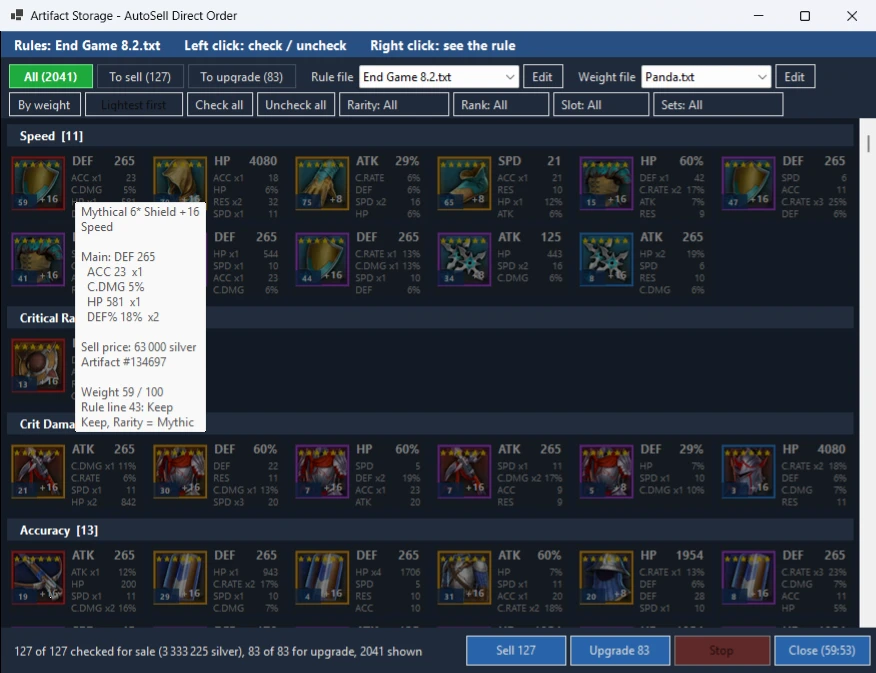
For artifacts, when RAID's storage list is grouped by set, RSLBot sells and upgrades set by set: it unchecks Hide Set Filters in RAID, opens each set in turn, then puts RAID back as it was (the log says "Storage AutoSell …: set by set, N sets"). If the storage list stops moving (a filter or a window open in RAID), RSLBot stops and says so ("Storage AutoSell: storage list not moving (filter, popup?), stopped"): close what is open in RAID, then start again. For accessories, it works faction by faction, then Special by Special.
Weights
Every artifact and accessory of the storage gets a weight from 0 to 100 (Panda's Autosell 2.0 formula): the lighter it is, the less it is worth keeping. The weight does not decide alone: it ranks the items to know which go first.
What makes the weight, in plain words:
- the set: each set has a tier (S, A, B, C); a set not in the list counts as C;
- rank and rarity: a 6-star Legendary or Mythic weighs the most; a 5-star only weighs if it is of an S or A set (or of a 5-star set such as Mercurial);
- the main stat: the right main for the slot and the set (SPD on boots, CD% on gauntlets of a crit set…) weighs more, a flat main (HP, ATK, DEF) less;
- the substats: each substat useful to the set's profile counts, multiplied by its rolls; flat substats count 0; the rolls still to come count too;
- the level: x1.0 (+0 to +7), x1.1 (+8 to +11), x1.3 (+12 to +15), x1.6 (+16), for the silver already spent.
Groups and held items. A group gathers the pieces that can replace each other: same set, same slot and same main for artifacts; same faction, same slot and same main for accessories. Every piece of the account counts, even those a champion wears. In each group, the best ones keep their weight and the next ones are lightened. The very best are held ("Held: scarce, number 1 of 7 in its group"): a Sell rule never sells them.
Protected items have no weight and are never sold, whatever the rules say: Mercurial, Merciless, Feral, Swift Parry, Deflection, Reaction and Bloodshield accessories, and banners with SPD rolled 3 times or more. Items in a champion's preset are never sold either.
Seeing the calculation. In a weight list, a right click on a card opens the Weight: <item> window, which details the calculation, the item's group and whether it is held.
Weight files
- They are in AutoSell\Weights; Panda.txt is the default one (written again when missing, never overwritten).
- To make your own: Edit (beside Weight file) opens the file in Notepad, File > Save As copies it under another name, then choose it in Weight file. When saved, the list is weighed again.
- The file reads
name = value, with sections in brackets: [General], [Tiers] (value of tiers S to C), [Rank 6] and [Rank 5] (rarity), [Main], [Level], [Ore], [Sets] (Speed = S, speed: tier and profile of each set), [Profile …] (value of each substat for that profile), [Groups] (group = K, M: the best K keep their weight, the best M are held) and [Protected] (protected accessories, banners' SPD rolls).#starts a comment. - One refused line and the file is not used: RSLBot uses Panda's numbers and says so in orange ("Weight file …: N line(s) refused, Panda's weights used").
- The window's file (Manage) and the file of each line in Auto (gear) are chosen separately.
Selling by weight without rules
Open Manage on a storage line that has no rules file: the window shows All by weight (N), one list from the lightest to the heaviest, nothing checked. The header becomes "Weight: none checked … Right click: the weight and how it is computed".
- Check lightest checks the N lightest shown (30 by default; type a number or pick 10 to 500);
- Exclude leaves sets (or factions) out: they leave the list and the checks;
- the filters, Lightest first / Heaviest first and the right click (the weight's calculation) work as elsewhere;
- Sell N sells what is checked. If you checked items the line's rules keep, RSLBot asks first ("Sell 25 items, 3 of them kept by your rules?").
In this view, you choose: a held item can be checked (its note says so), but a protected item or one in a preset stays locked.
How rules and weights combine
The rules say what to sell, keep or upgrade. The weight says in which order, and lets you, if you want, also sell kept items when the storage is full. The protections come before both.
| Where | What the rules do | What the weight does | Protections |
|---|---|---|---|
| After battles (Battles) | Decide alone, item by item. | Nothing. | None: only the rules and Minimum silver to keep count. Keep Keep lines for your valuable accessories. |
| Manage, Artifact / Accessory | Fill To sell, To upgrade and All. | Badge on each card, By weight sorting, All by weight view without rules. | Preset, protected and held items move from To sell to the kept items. |
| Auto, Artifact / Accessory | Say which items may be sold or upgraded. | Picks the lightest of those the rules sell; can sell kept items by weight (if you turn it on). | Preset, protected and held items never sold, neither by the rules nor by weight. |
| Inbox (Manage and Auto) | Fill To sell, To upgrade; the rest goes to To collect. | Only used to find held items (compared with your storage); no badge, no sorting. | Protected and held items go to To collect. |
| Gemstone | Gemstones.txt says how many to keep per type. | Nothing. | Gemstones set in a relic are never counted or sold. |
The Auto of a storage line, step by step
- Enough room? If the storage has more free slots than Don't run if free slots are above (200 by default), the line does nothing that day ("skipped · 230 free").
- Upgrades: the new items (RAID's Just New) the rules upgrade first, then the heaviest, at most Max upgraded per run (100 by default), as long as silver stays above Minimum silver to keep.
- Sales by the rules: among all the storage items the rules sell (except preset, protected and held items), RSLBot sells the lightest first (+16 items last) until the wanted number of free slots is back, at most Max sold per run (200 by default).
- Sale by weight of kept items (only if you turned it on in Sale by weight): if room is still short, RSLBot sells the lightest of the items the rules keep, at most that part's Max sold per run (0 by default = never), never at Don't sell items level ≥ or above (16 by default), and, with Don't sell items of a Keep line On (the default), only items no line kept ("No rule: kept"). The log and the dashboard say so in orange.
- The summary: "Auto Artifact: 12 new, 35 sold (5 of them kept by the rules, sold by weight), 4 upgraded, … free slots 180 → 200 (200 wanted)".
Auto: every day from the Storage Auto hour
- The hour is set next to Storage Auto, at the top of the frame (at 8 am by default, local time); OFF turns every Auto line off. Turn a line on with a click on its state (OFF → Auto) or in its gear.
- Once a day, from that hour, at the start of a Bastion visit, RSLBot handles the lines in Auto in this order: Artifact, Accessory, Inbox (the storages first: their sales free room for the Inbox items collected), then Gemstone, without any window. Relic runs on its own, after a first Manage > Start (see Relic Rank Up).
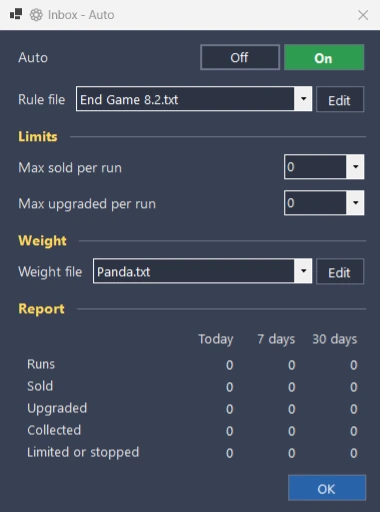
- Inbox: the items the rules sell are sold, the ones they upgrade are upgraded, the ones they keep are collected to the storage, within Max sold per run and Max upgraded per run (0 by default = no limit). With no rules file, nothing happens.
- Artifact and Accessory: see the steps above.
- Gemstone: the gemstones Gemstones.txt sells are sold, lowest rarity first, at most Max sold per run (0 by default = no limit).
- The log sums up each line and ends with "Auto lines over for today, the bot goes on with its day". A line not finished is tried again 30 minutes later, up to 3 times a day. If something looks wrong (gems going down after a sale…), RSLBot stops Auto for the day and says why ("Auto stopped for today: …").
- Auto needs Memory reading ON. With Send orders directly to the game ON, sales and upgrades are much faster.
The gear of a line
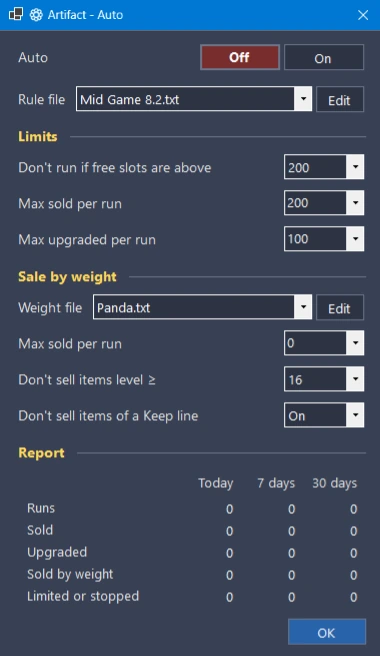
The gear ⚙ at the end of a row opens the small ⚙ <line> - Auto window. Click the gear again to close it.
- Auto: Off / On (for Battles: After each battle).
- Rule file and Edit: the line's rules file, and Edit opens it.
- Limits:
- Don't run if free slots are above (Artifact, Accessory): 25 to 1500, 200 by default;
- Max sold per run and Max upgraded per run (Artifact, Accessory, Inbox), Max sold per run (Gemstone). Type a number or pick one; 0 = no limit; what is left waits for the next run.
- Sale by weight (Artifact, Accessory):
- Weight file and Edit: the weight file of this line in Auto;
- Max sold per run: how many kept items may be sold by weight per run (0 = never, the default);
- Don't sell items level ≥: Off or 4 to 16 (16 by default); items at this level or higher are never sold by weight;
- Don't sell items of a Keep line: On (the default) protects every item a
Keepline keeps; Off lets them be sold too.
- Weight (Inbox): the weight file used to find held items.
- Report: Today, 7 days and 30 days: Runs, Sold, Upgraded, Sold by weight (already counted in Sold), Collected (Inbox) and Limited or stopped (runs cut short by a limit, a stop or a sale by weight). For Battles: Sold and Kept. A day skipped because there was enough room is not counted in Runs.
Gemstones
The Gemstone line sells the gemstones you do not keep. Its file Gemstones.txt (in AutoSell, made from Gemstones.default.txt when missing) has one line per gemstone type:
12 | Rare | Gemstone name = 5 # owned 9 (+2 socketed)
- after
=: empty = keep them all; N = keep N free gemstones of that type and sell the rest (the oldest first); - gemstones set in a relic are never counted or sold;
- the file is ordered by shape, then rarity (Rare, Epic, Legendary, Mythical); RSLBot updates the
# ownedcomments and adds new types, without touching your values; - by default, it keeps 5 gemstones of each Rare type and all the others;
- a gemstones file's name must start with "Gemstones".
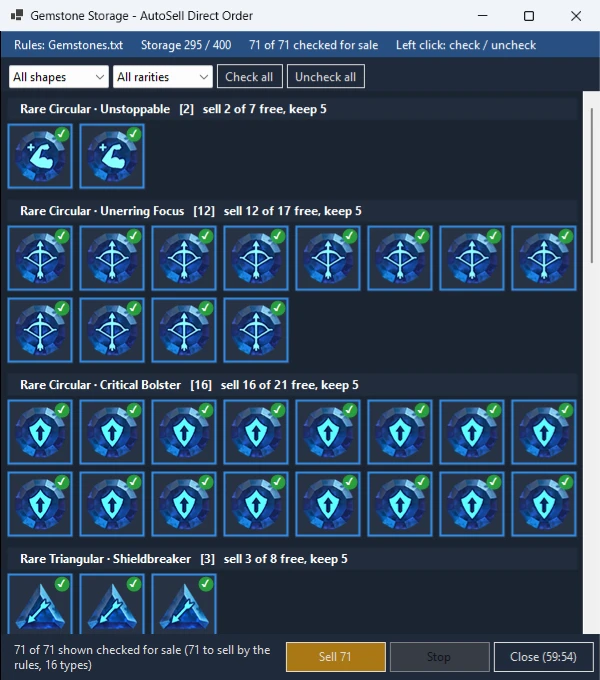
Manage with Gemstone opens RAID's Gemstone Storage in Sell mode and the Gemstones AutoSell window: header with the file and the storage (Storage N / M), cards grouped by type (rarity, shape, name) with how many are sold and kept, filters All shapes and All rarities, Check all / Uncheck all, left click to check. Sell N sells the checked gemstones shown (above 20, RSLBot asks first); with Send orders directly to the game ON, the sale is one direct order. Stop ends after the gemstone in progress, Close (mm:ss) closes without selling.
The AutoSell rules editor
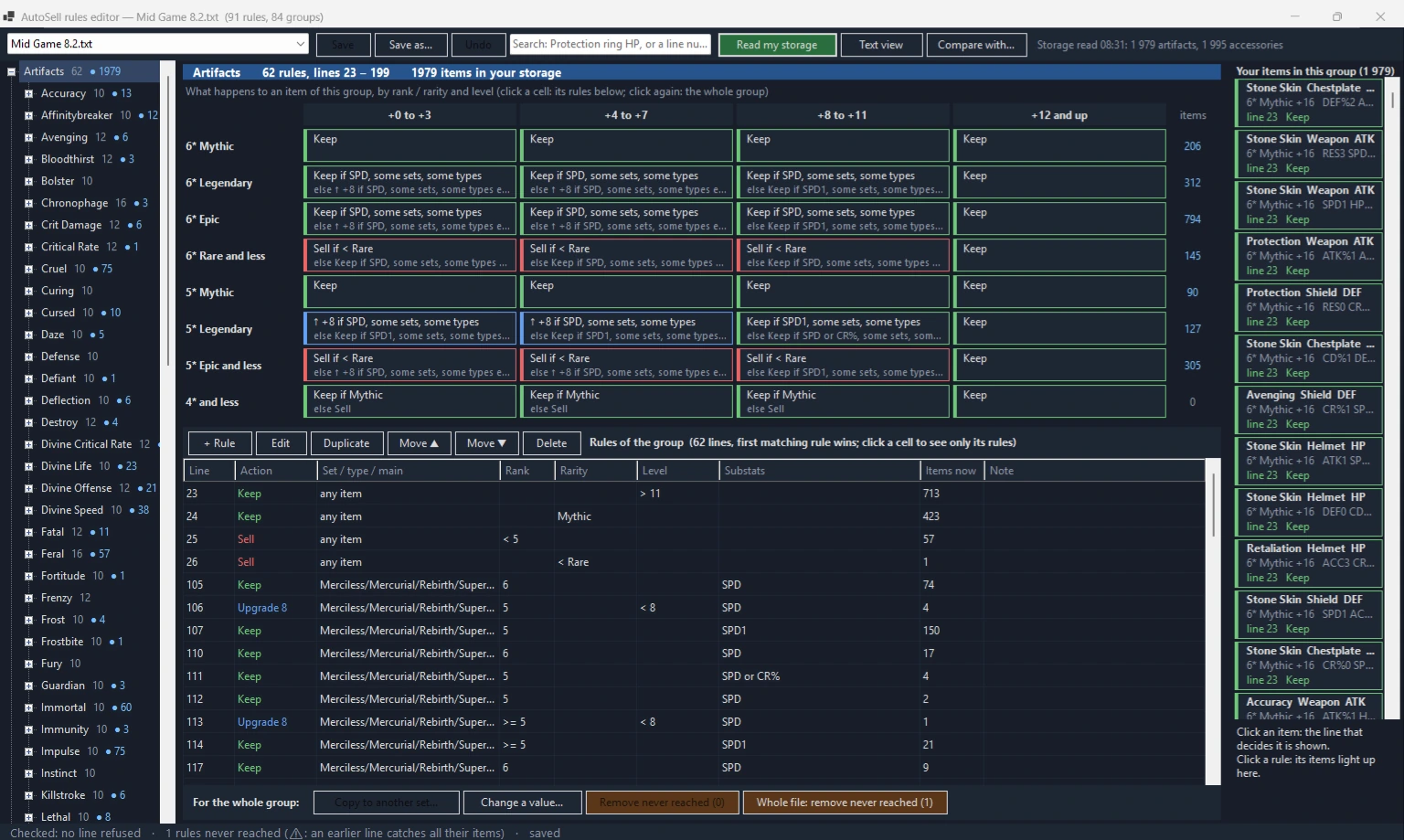
Edit, next to a rules file (in a gear or in an AutoSell window), opens the AutoSell rules editor. It shows the file as groups instead of lines, so you can see what each rule does to your items.
- On the left, the groups: Artifacts / Accessories, then set, slot and main stat.
- In the centre, the group's grid: what happens to an item of this group by rank or rarity (rows) and by level (columns), in a few words: sold, kept, upgraded to +N. Click a cell: its rules are listed below; click again: the whole group.
- Below, the rules: every line of the file that can catch an item of the cell, in order. Rules that no item can reach (an earlier line already decides all their items) are marked.
- On the right, your items: click Read my storage (RAID open) and the editor reads your storage: click an item to see the line that decides it; click a rule to light up its items.
- The toolbar: the file, Search (for example "Protection ring HP", or a line number), Read my storage, Save, Undo and Text view (the file's lines with their numbers).
To change the rules: + Rule, Edit, Duplicate, Move and Delete in the rules' bar. Each change is checked with RSLBot's own rule reader: Save writes the file only when no line is refused (a refused line would make RSLBot drop the whole file), and keeps the file as it was before the first save beside it (.bak). Undo cancels the last changes. If you close with changes not saved, the editor asks first.
Tools for a whole group (For the whole group:):
- Copy the group to another set: every rule of the group that names its set is copied for another set;
- Change a value in every rule of the group;
- Remove the rules never reached: RSLBot then decides every item exactly as before, and the file is lighter.
Compare with… opens another rules file: in each cell where it says something else (another action, another upgrade level), its decision is shown in orange under yours. Stop compare ends it.
Relic Rank Up
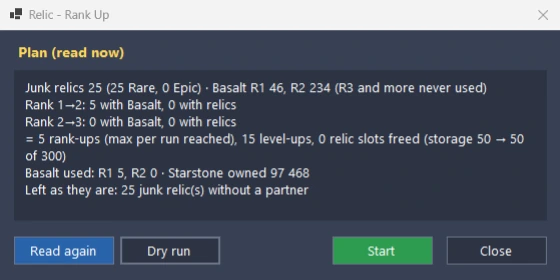
Relic Rank Up is a Premium feature. It turns your junk Rare and Epic relics into Rank 3 relics, following a keep file per relic type: Rank 1 to 2 with Basalt Rank 1, then junk Rare relics in pairs; Rank 2 to 3 with Basalt Rank 2, then junk Rank 2 relics in threes (same type first). Before each Rank Up, the relic gets a Max Upgrade (Starstone).
Never touched: relics worn by a champion, with a gemstone, Legendary and Mythical relics, relics already upgraded, relics kept by the keep file, and anything above Rank 3. RSLBot never uses Basalt of Rank 3 or more and never ranks a relic above Rank 3. It needs Memory reading ON.
The Relic line
- Manage with Relic opens the Relic - Rank Up window, bot stopped: the plan read now in RAID (which relics rank up and what they eat), with the keep file and the gear's limits.
- Start plays this plan in RAID for real: for each relic, Max Upgrade, then Rank Up. Each rank-up is checked in RAID's game data before and after: anything unexpected stops the run.
- Dry run: RSLBot selects the first relic and its materials in RAID, then unselects them. Nothing is upgraded or spent.
- Auto: once a day from the Storage Auto hour, the same plan is read again and played, at most Max rank-ups per run. Auto only starts after a first Manage > Start that went through on this PC: you see and check the first plan yourself. A run stopped short is tried again 30 minutes later, up to 3 times a day.
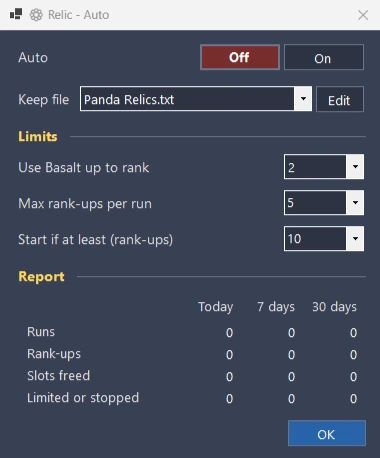
The gear of the Relic line
- Auto: Off / On.
- Keep file and Edit: the keep files are in AutoSell\Relics (Panda Relics.txt by default; an update never overwrites it). One line per relic type with the number of base copies to keep (or ALL); the copies beyond are junk. Edit opens the file in Notepad.
- Use Basalt up to rank: 0 = no Basalt, 1 = Basalt Rank 1 only, 2 = Basalt Rank 1 and 2 (2 by default).
- Max rank-ups per run: the most rank-ups in one run, by Manage > Start and by Auto (5 by default; 0 = no limit). The rest waits for the next day.
- Start if at least (rank-ups): Auto runs only when the plan has at least this many rank-ups (10 by default; 0 = any).
- Report: today, 7 days and 30 days.
Faster sales and upgrades: Send orders directly to the game
Turn this switch on: it is OFF by default, and without it mass sales and upgrades are slow.
- Where: General tab, Bot specific Settings column, last row Send orders directly to the game. It needs Memory reading and Leave mouse and keyboard free ON, otherwise it is greyed. You can change it while the bot runs.
- What it does: when you click Sell N or Upgrade N, RSLBot sends the whole selection to the game in one go; Auto uses it too.
- Without it: RSLBot goes through RAID's storage and handles the items card by card, which takes several minutes for a large selection.
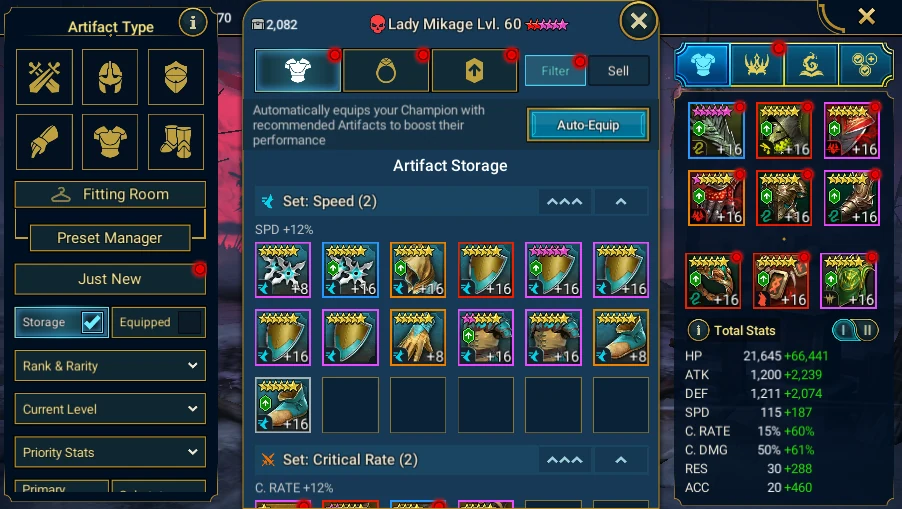
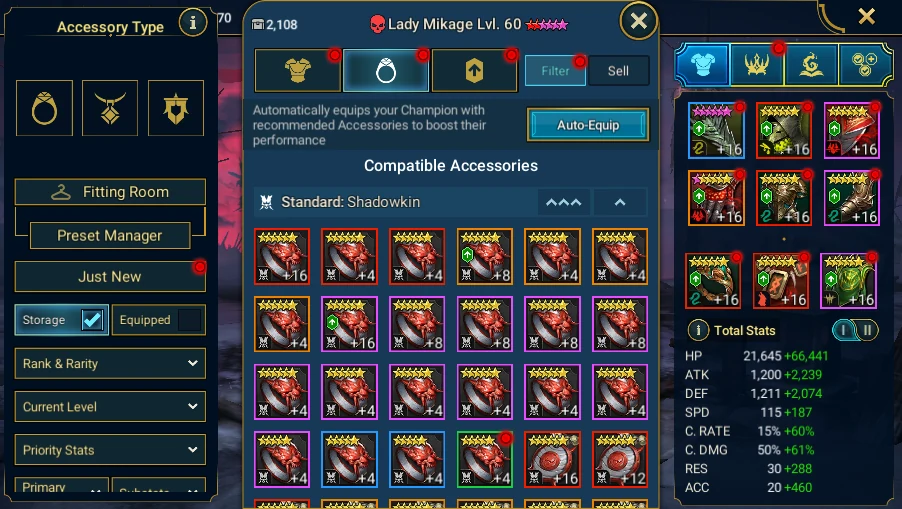
Reference screenshots
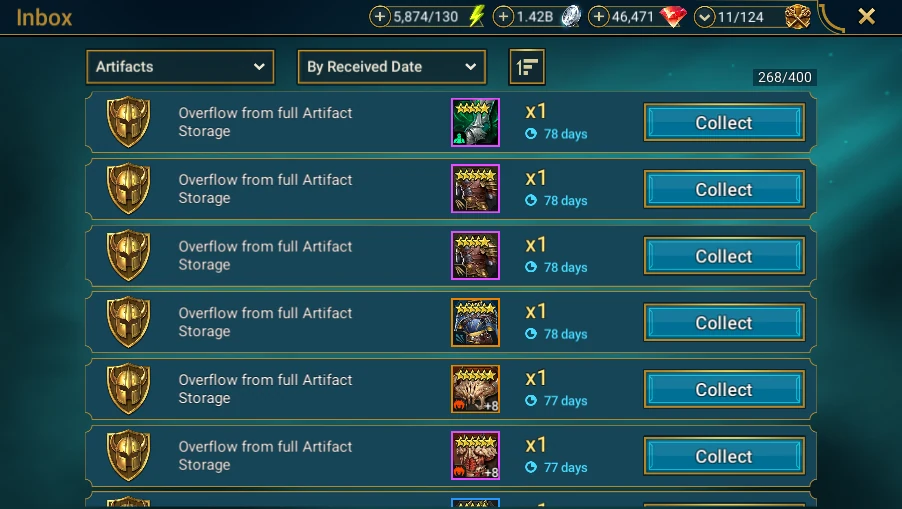
First test step by step
- Save your profile and a copy of the chosen rules file.
- Stop RSLBot.
- In the gear ⚙ of the line concerned (Artifact, Accessory or Inbox), choose its rules file. Leave the other lines OFF.
- Choose that line in the list beside Manage, then click Manage.
- In the AutoSell window, open the To sell tab and hover a few cards: check the rule line that decided. A right click shows the line in the file.
- If a card should not be sold, click Edit, fix the file and save: the window judges everything again at once.
- When the list suits you, click Sell N. Otherwise close with Close (mm:ss): nothing is sold.
- Only then, set the line to Auto and set its limits in the gear.
Nothing is sold or upgraded by hand until you click Sell N or Upgrade N. A completed sale cannot be undone.
RSLBot GUIDE
Organising battles
The Battles tab has two columns:
- on the left, the Manage Battles list and the Bastion switch on the first row, then Campaign & Dungeons and its list of lines (chapters 18 to 20);
- on the right, every other battle, in the order of RAID's Battle menu: Faction Wars, Classic Arena, Tag Team Arena, Live Arena, Demon Lord, Hydra, Chimera, Doom Tower, Cursed City and Grim Forest.
The switch and the gear of each line
Each battle line starts with a compact switch: green = ON, red = OFF, grey = not included in your licence. Then come its status light, its name and, depending on the battle, a summary (next key, next difficulty) or a start time (Starting).
- Click the switch: ON or OFF.
- Click the gear ⚙ next to it: opens the battle's settings window (Manage). Opening it does not change ON/OFF.
- Right-click the switch or the name: the battle's other choices, depending on the battle:
| Battle | Right-click choices |
|---|---|
| Hydra, Chimera | Manage, Reset |
| Demon Lord, Doom Tower, Faction Wars, the three arenas, Grim Forest | Manage |
| Cursed City | Reset |
- Wait: pauses the battle until the game's next reset.
- Reset: clears what RSLBot tracks for this battle (counters, best scores, waiting). It does not give back any key or energy in the game.
Only use Reset when what RSLBot tracks no longer matches the account, for example after battles you played by hand.
The Doom Tower line also shows its Gold Keys mode (OFF, Normal, Hard, Nm->Hd, Hd->Nm) before its start time (see Doom Tower).
The first row: Manage Battles and Bastion
- Manage Battles is a list of global commands: All battles ON (every battle of your licence), All battles OFF, Manage Battles Priorities (chapter 17) and the Dedicated … shortcuts (chapter 16). With Free, only All battles ON and All battles OFF are offered.
- Bastion (switch and gear): ON, RSLBot also goes through the Bastion (rewards, quests, Market, AutoSell…); OFF, battles only. The gear or a right-click offers Battles only for a time (10 s to 12 h): the switch turns amber until the time is over. This replaces the old Dedicated Battles for line.
Choosing the right setup
- Campaign & Dungeons: an ordered list of campaign places and dungeons, each line with its own stage, team and battles to do. It replaces the old Campaign, Dungeons and Daily Battles lines.
- Other battles: bosses, arenas, towers and maps, each with its own keys or tokens.
- Bastion OFF / Dedicated: RSLBot only does battles, for the time you choose.
- Priorities: the order in which the battles run, and the time from which each one may start.
RSLBot does not go into a battle that has nothing left to fight with: Cursed City, Hydra, Chimera, Demon Lord and Doom Tower without keys, or an arena without tokens when no allowed refill can give any back today. The log says so once, and the battle is picked up again as soon as keys or tokens come back.
RSLBot never completes a team that already has at least one champion: the Classic Arena defence, the arena team when no team is chosen and the campaign team are only filled when they are empty. You can therefore keep a single champion in a team on purpose. When it fills a team, it only takes the champions RAID lets you pick (locked cards are skipped).
Battle modes and progression
The Fight and Stage setting of a Campaign & Dungeons line offers four modes:
- Replay: always replays the stage you set;
- Next from: starts from the stage you set and moves to the next one after a win;
- Replay Last: replays the highest stage available;
- Next from Last: starts from the highest stage available and moves on after each win.
For a first try, pick a stage you have already won and Replay. With the Next modes, watch the first move to a new stage.
Defeats are handled line by line: Max defeats, Down and Up are set on each line (chapter 19), and Faction Wars and Doom Tower have their own (chapters 24 and 25). The old Stage downgrade and Victories nb to up settings of the General tab are gone.
Super Raids uses more energy per run; only tick it if that is what you want. Each Campaign & Dungeons line has its own box, and so do Faction Wars and Doom Tower (in their windows).
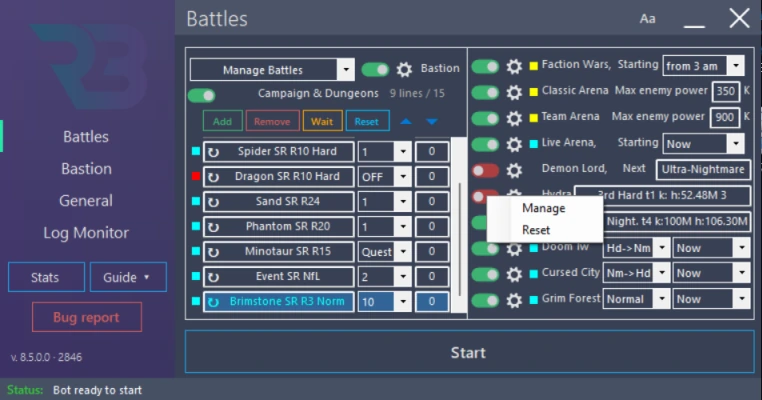
RSLBot GUIDE
Dedicated battle mode
Dedicated mode tells RSLBot to do nothing but battles: while it lasts, RSLBot no longer goes through the Bastion (rewards, market, inbox, quests and so on). When it ends, RSLBot goes back to the Bastion and resumes its normal cycle.
Dedicated mode is not available with Free.
The two commands
- The Bastion switch, on the first row of the Battles tab: OFF = battles only, with no time limit; the gear or a right-click = Battles only for a time from 10 s to 12 h (the switch turns amber). The time starts when RSLBot starts and each time you choose it again.
- Manage Battles → Dedicated …: a shortcut that turns one battle ON, all the others OFF, and sets Bastion to OFF. The choices depend on your licence: Dedicated Campaign & Dungeons, Faction Wars, Classic Arena, Tag Team Arena, Live Arena, Hydra, Chimera, Doom Tower, Cursed City, Grim Forest.
To go back to normal, choose All battles ON or All battles OFF in Manage Battles (this also sets Bastion back to ON), or set your battles and the Bastion switch back yourself.
Preparing a dedicated session
- Save your usual settings.
- Set up the battle you want (gear): target, team, number of battles.
- Check energy refills, gems and Super Raids: dedicated mode does not limit any spending.
- Choose the Dedicated … shortcut, or set the battles yourself and the Bastion switch to OFF (or Battles only for a time).
- Watch the start of the session and the return to the Bastion at the end.
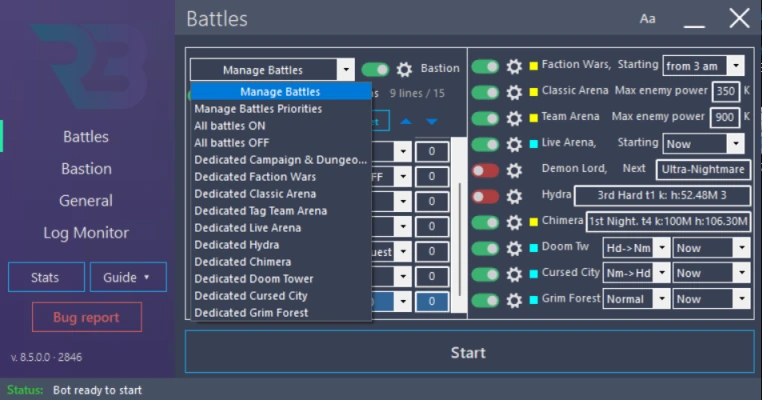
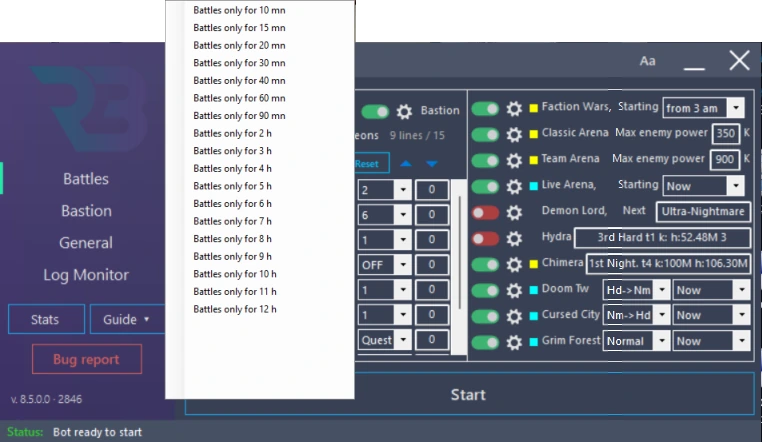
RSLBot GUIDE
Priorities and schedules
Priority management is a Premium feature. Open it with Battles → Manage Battles → Manage Battles Priorities: the Battles Priorities panel opens.
When several battles are ready at the same time, RSLBot runs the one highest in the list. Default order: Demon Lord, Classic Arena, Tag Team Arena, Live Arena, Dungeons, Campaign, Faction Wars, Cursed City, Doom Tower, Grim Forest, Hydra, Chimera. Campaign & Dungeons lines take the place of Dungeons or Campaign, depending on their target.
Changing the order and the times
- In Priority order, select a battle, then use the up/down arrows to move it.
- In Start from, click a battle's time to change it: Now or a time from 0 am to 11 pm. Before that time, the battle does not start.
- Reset Order restores the default order without touching the times. Reset Hour restores the default times without touching the order.
- OK closes the panel. Changes are saved straight away.
The times for Doom Tower, Faction Wars, Live Arena, Cursed City and Grim Forest can also be set on their line in the Battles tab (Starting): it is the same setting.
A start time does not guarantee a start
Now means "as soon as the battle is ready", not "right now". A battle that is OFF, has no keys or tokens, or is not included in your licence will not start, whatever its place in the list. A battle in progress or dedicated mode can also delay it.
Build the order around key and token resets, your quests and how long your teams take to fight.
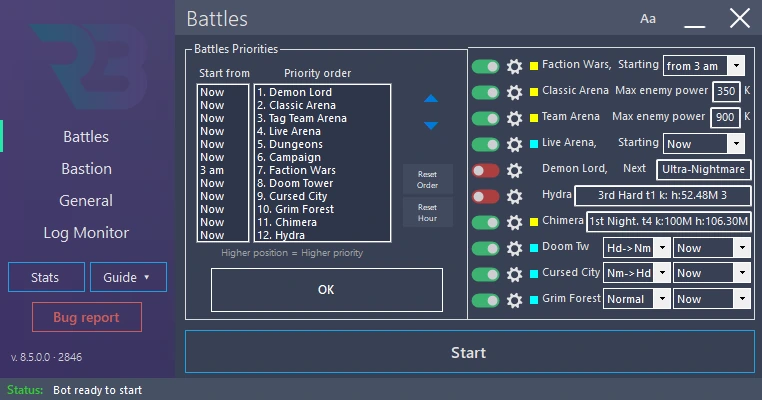
RSLBot GUIDE
Campaign & Dungeons
Campaign & Dungeons is an ordered list of up to 15 lines, included in every licence. Each line is a campaign place or a dungeon, with its own stage, team, battles to do and defeat settings. RSLBot plays the lines from the top: a line is played until its battles to do are done, then the next one. It replaces the old Campaign, Dungeons and Daily Battles lines: your old lines are kept.
With Free, the dungeons offered are the four gear dungeons (Ice Golem's Peak, Spider's Den, Dragon's Lair, Fire Knight's Castle); the others need Regular or Premium (or the weekly rotation). Campaign places are open to every licence.
The list
On the left column of the Battles tab:
- the Campaign & Dungeons switch turns the whole list ON or OFF (the lines and their settings are kept). The same switch is at the top of the line window;
- N lines / 15 shows how many lines the list has;
- the green Add button adds a line at the end of the list and opens its settings; the red Remove button deletes the selected line; the arrows move the selected line up or down;
- Wait: every line waits for the next daily reset (lights orange); Reset: the Done of every line goes back to 0 and the list plays again from the top.
Each line shows, from left to right:
- its light: green played now, light blue waiting for its turn, orange done until the reset, red OFF;
- ↻ when its battles come back every day;
- its summary: place or dungeon, mode and stage, and short marks: T2 team 2, SR Super Raids, Rplc 2 two replacements, D5 stops after 5 defeats in a row (shown when it is not the usual 3 for a campaign place, 5 for a dungeon), ↓2 one stage down after 2 defeats, ↑3 one stage up after 3 victories. A summary too long ends with "…": move the mouse over it to see it whole;
- To do: its battles to do;
- Done: battles played today (counted when a battle starts).
Battles to do
The To do list of a line offers:
- 1 to n: this number of battles;
- 1 Mx to All Mx: until that many champions reach max level (max scrolls for the Minotaur);
- Unlim: no limit; keep it for the last line, otherwise the lines below it are never reached;
- Quest: the line is only played while an open quest needs its battles (campaign wins and bosses, dungeon bosses, energy, masteries), then it waits for the reset. Not offered for Iron Twins;
- OFF: the line is skipped; Wait: this line waits for the next reset; Reset: this line's Done goes back to 0.
For Iron Twins, the goals are 6 or 12 battles (3 or 6 with Super Raids); 12 (or 6) assumes the Refill.
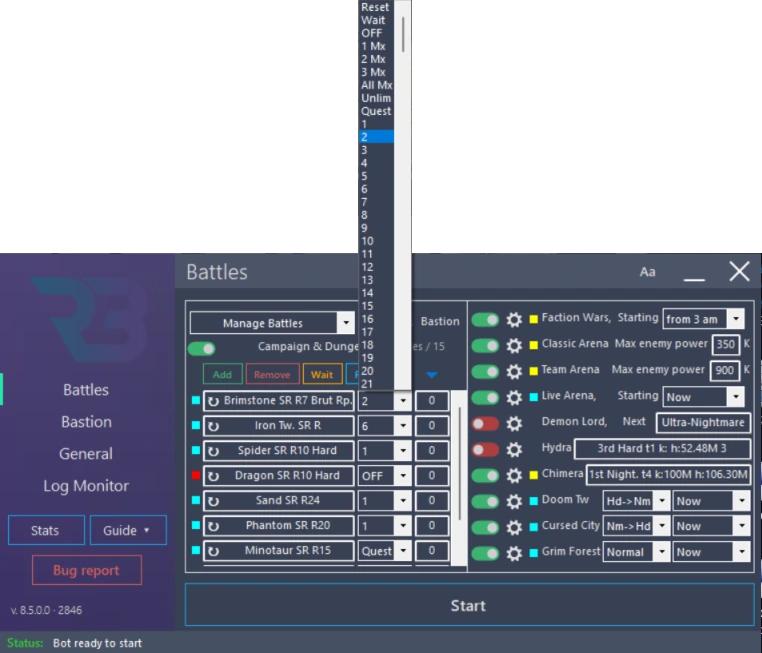
RSLBot GUIDE
Campaign & Dungeons: the settings of a line
Click a line to open its window:
| Setting | What it does |
|---|---|
| Name or Place | A dungeon (the "Dungeons" part) or a campaign place, from Kaeroc Castle to Brimstone Path (the "Campaign Places" part). |
| Campaign Mode / Dungeon Mode | Difficulty: Normal to Nightmare in the campaign; Normal or Hard (H1 to H10) for the four gear dungeons. |
| Team | Slot number in RAID's Team Setup. For a campaign line, Automatic: the strongest free champions fill an empty team (each new region empties it); a team not found also falls back to Automatic. For a dungeon, empty = the champions already in place. |
| Battles to do | Same list as the line's To do (chapter 18). |
| Fight and Stage | Battle mode (Replay, Next from, Replay Last, Next from Last) and stage. |
| Replace | Replacing champions that reached max level: Off, or 1 to 3 slots in the campaign, 1 to 4 in dungeons (the leader is never replaced), with a rarity filter and a rank filter. Not shown for the Minotaur. |
| Max defeats | Defeats in a row before the line stops until the next daily reset (1 to 10). Usually 3 for a campaign place, 5 for a dungeon. |
| Down | Defeats in a row before the line goes one stage down (NO: never). It then replays the lower stage. |
| Up | Victories in a row on the lower stage before the line tries the stage above again (NO: never). |
| Super Raids | Super Raids for this line. Not shown for potion dungeons. |
| Repeat every day | ON: the battles to do come back every day at the reset (↻ in the line). OFF: one total, counted down and not refilled. |
OK closes the window.
A dungeon's Hard stages only open once Normal mode is completed in RAID. If all Hard stages are still locked, RSLBot plays the chosen stage in Normal mode; the start log says "in Hard Mode" only when Hard mode is really played. A campaign line never plays a stage of another region.
Iron Twins Fortress
For Iron Twins, the window changes: Fight mode (Replay or Next from), then a stage (Off or 1 to 15) and a team for each affinity (Spirit, Magic, Force, Void). The Refill box allows one Iron Twins key refill for 150 gems. It is separate from energy refills.
Dungeons offered
- gear: Ice Golem's Peak, Spider's Den, Dragon's Lair and Fire Knight's Castle;
- potions: Arcane Keep, Spirit Keep, Magic Keep, Void Keep and Force Keep;
- others: Iron Twins Fortress, Minotaur's Labyrinth, Sand Devil's Necropolis and Phantom Shogun's Grove;
- Event, for the event dungeon when it is open in the game.
Each dungeon needs its own team: a Dragon team will not necessarily win at Fire Knight. Potion dungeons follow the game's schedule; a closed dungeon does not open just because it has a higher priority.
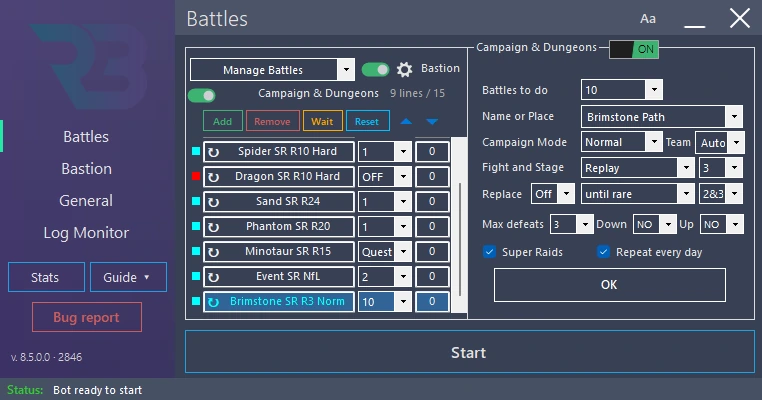
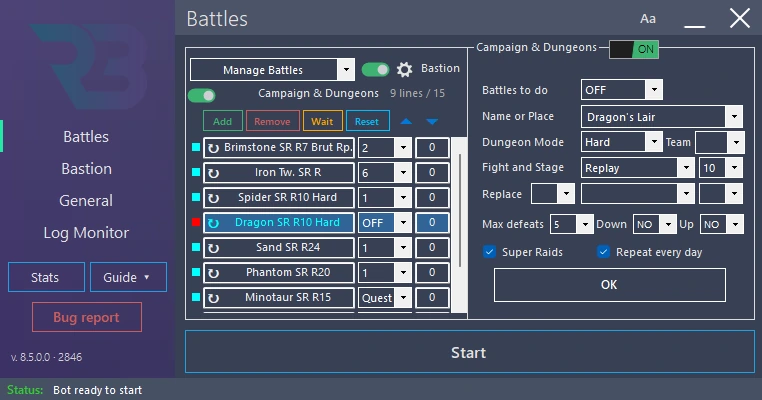
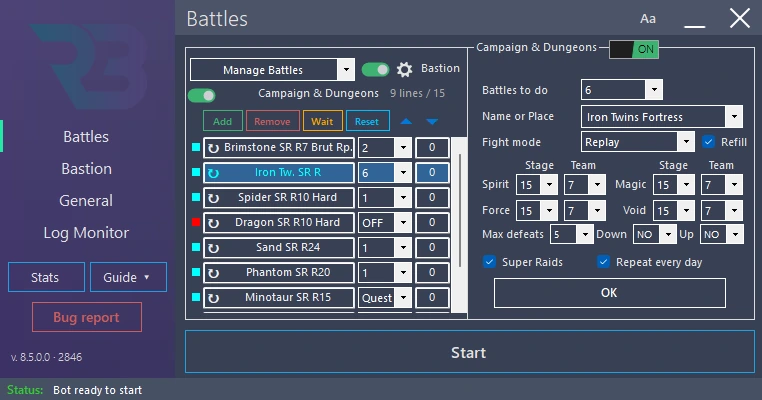
RSLBot GUIDE
Campaign & Dungeons: building a list
Step by step
- Add a line with the green Add button and set it up in the window that opens. To change it later, click it.
- Choose a stage you have already won, Replay, a team and a small number of battles for the first try. Leave Replace on Off and Super Raids unticked at first.
- Choose its To do (a new line is OFF).
- Add the other lines, then put them in order with the arrows: the lines at the top are played first. Put an Unlim line last.
- Turn the Campaign & Dungeons switch ON.
- Compare with the game's preparation screen: same difficulty, same place, same stage.
Lines for the quests
Quests no longer start battles of their own: campaign and dungeon quests (win campaign battles, beat bosses, win artifacts, spend energy, unlock a mastery) are done by your lines. Add a line for them, with Quest in To do if it should only play while a quest needs it. In Bastion → Quests → Manage, each quest says which line does it, or what to add or change (see Quests).
Example: levelling champions, then farming a dungeon
- Line 1: Brimstone Path, Brutal, stage 12-7, Replay, Team Automatic, Replace 2, To do All Mx.
- Line 2: Dragon's Lair, stage 20, Replay, Team 3, To do 10.
- Line 3: Fire Knight's Castle, stage 15, Replay, Team 4, To do Unlim.
RSLBot levels champions on line 1 until they are all at max level, plays 10 Dragon battles, then Fire Knight until it runs out of energy. The next day, the lines with ↻ start again.
When levelling champions, check that the team still wins after each replacement: Max defeats and Down avoid wasting energy if the team becomes too weak. The until epic rarity filter accepts common, uncommon, rare and epic champions as replacements; only choose it if that is what you want.
If RAID has emptied the team of a campaign line (new region), RSLBot fills the team and plays the battle.
RSLBot GUIDE
Demon Lord
RSLBot plays your Demon Lord keys following a plan per affinity: for each of the four affinities, the six difficulties in the order you choose, each with the chest you want, the keys, the battle mode and the team. The box next to Demon Lord in the Battles tab shows the first difficulty played for the day's affinity.
On the Demon Lord line: the switch (ON / OFF) and the gear, which opens the Clan Boss window. Keys reset at 10:00 UTC. If you already played keys by hand, RSLBot sees it: the chests and the damage are read in RAID.
The Clan Boss window
The window is not modal: you can move it, resize it and keep it open while using RSLBot.
- At the top, today: the day's affinity, the keys played, the time to the reset and a bar per difficulty played, with the chest reached and the damage.
- One tab per affinity (Spirit, Magic, Force, Void). The window opens on the day's affinity. When RAID shows a different affinity per difficulty, each difficulty is played in its affinity's tab.
- The table, one row per difficulty, in the order the keys are played (row 1 first):
| Column | What it does |
|---|---|
| # | Order: each row is played until its chest or its keys, then the next row. |
| Difficulty | To change the order, choose on a row the difficulty you want there: it moves to that row with its chest, keys, mode and team, and the difficulty that was there takes its old place. |
| Chest | Chest wanted on this difficulty (1, 2, 3, Max = the last one); empty = no chest, the keys only. |
| Keys | No chest: the keys played. A chest: the most keys spent for it (empty = no limit). Chest and Keys both empty: the row is not played. |
| Mode | How the battles are played: Quick Battle, RAID's Auto, or Smart (comes with version 9: played as Auto until then). |
| Team | Team saved in RAID (1 = first of its list); empty = the champions already in place. |
| Today | Where this difficulty is today: chest reached, damage, keys played. |
- All rows done: keep the keys: ON, once every row is done the keys left are kept; OFF, the last row played is played again.
- COPY TO ALL AFFINITIES: copies the rows of the tab shown to the three others.
- RESTART TODAY'S KEYS: the keys played today and the damage added up by RSLBot are forgotten; RSLBot starts again from row 1.
- OK saves the plan; CANCEL closes without saving.
The chests and the damage are read in RAID, so RSLBot knows when the chest you asked for is reached and moves to the next row. The first time you open the window, your old keys and teams are converted into the plan.
Example: Ultra-Nightmare up to its last chest, then Nightmare
- In each affinity tab, put Ultra-Nightmare on row 1 with Chest Max and Keys 3, and Nightmare on row 2 with Chest empty and Keys 2.
- Choose the team of each row for each affinity: the Demon Lord's affinity changes every day.
- Leave All rows done: keep the keys ON for a first try.
- Click OK, turn Demon Lord ON and watch the first key.
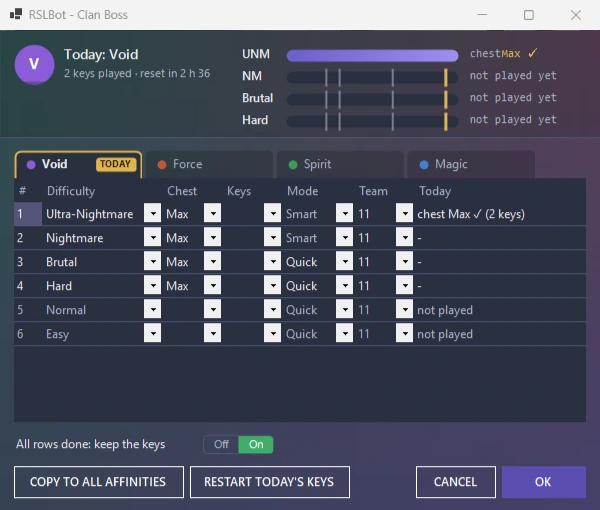
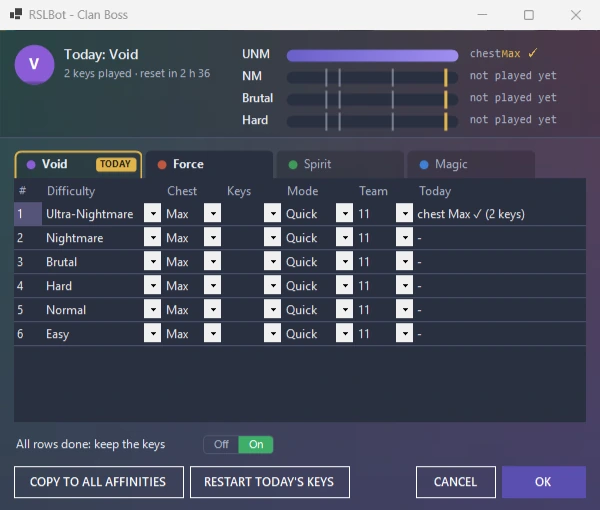
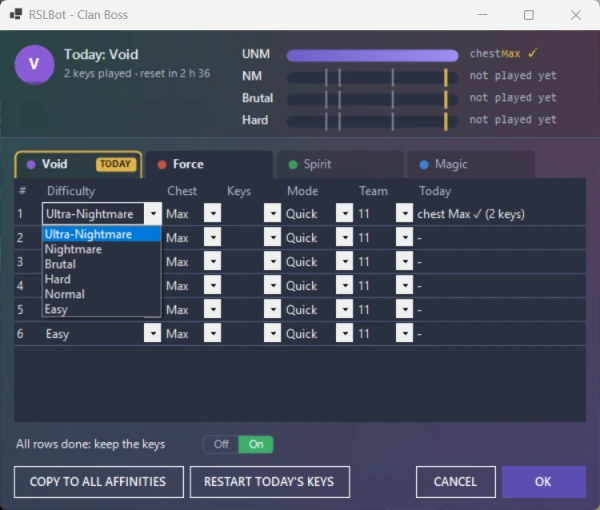
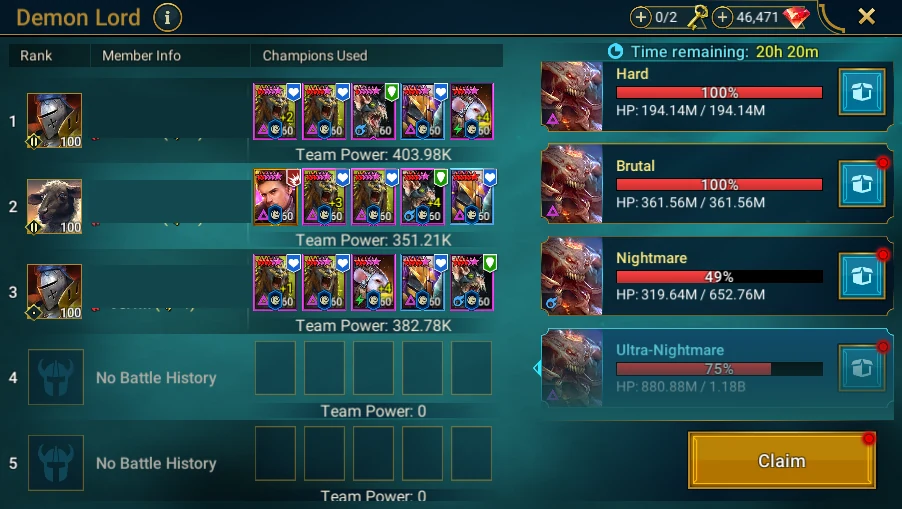
RSLBot GUIDE
Hydra
Hydra is included in Premium, and may be offered for a limited time to Free or Regular through the weekly rotation.
The Hydra line has its switch (ON / OFF), its gear (the Hydra Management panel) and, with a right-click, Reset (sets best scores and battle counts back to 0, and checks the keys again). The box to the right of the line shows the next key.
The three keys
The panel has one line per key: 1st Key means 3 of 3 keys available in RAID, 2nd Key 2 of 3, 3rd Key 1 of 3.
| Column | What it is for |
|---|---|
| Mode | Difficulty: Normal, Hard, Brutal or Nightmare. |
| Team | Number of a team saved in the game (1 to 15). |
| Keep | Damage to reach to keep the result, for example 50.5K, 20M or 1.2B. Below this score, RSLBot does not keep the result and tries again. A value without K, M or B turns Hydra off. |
| Highest | Best score reached (information). |
| Battles | Number of battles done for this key (information). |
A battle shorter than 2 minutes (team too weak) is not started again straight away: RSLBot waits 1 to 5 minutes before the next one, and after 6 battles that short within the hour, it waits for the end of that hour. The same goes for Chimera.
Below the table:
- Use Focus on Hydra Heads: RSLBot targets the heads in this order: the head that has swallowed a champion, then Decay, Mischief, Blight;
- Focus Decapitated Heads: adds decapitated heads as the second priority;
- Turn Off Hydra Battles after the 3rd Key: turns Hydra off once all three keys are done;
- Autosell Rewards Chests Items: applies AutoSell to items from reward chests.
When there are no keys left, RSLBot waits before checking Hydra again; restarting or using Reset checks again straight away.
Setting up a key
- Open Battles → Hydra → Manage, with Hydra OFF.
- For each key, choose a difficulty you can reach and the matching team.
- Set a realistic Keep for that team: a goal that is too high means many retries.
- Set the head targeting. The team's skills and auto settings are set in RAID.
- Check AutoSell before ticking Autosell Rewards Chests Items.
- Compare with the selection of the same difficulty in RAID, then turn Hydra ON.
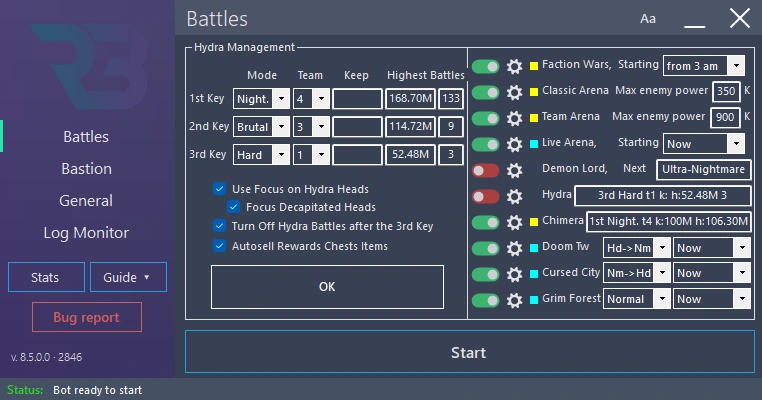
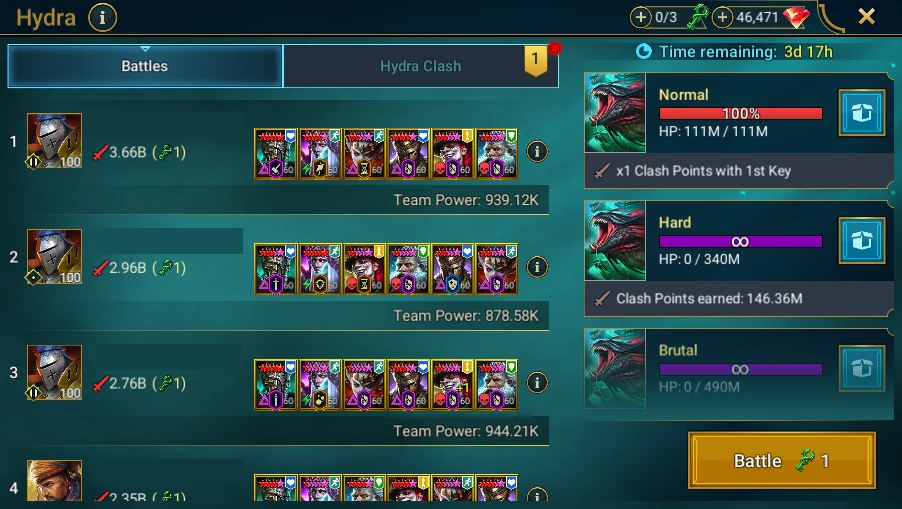
RSLBot GUIDE
Chimera
Chimera is included in Premium, and may be offered for a limited time to Free or Regular through the weekly rotation.
The Chimera line has its switch (ON / OFF), its gear (the Chimera Management panel) and, with a right-click, Reset (sets the tracked scores, battles and trials back to 0, and checks the keys again; it does not give back any key already spent).
The settings of the two keys
For 1st Key and 2nd Key:
| Column | What it is for |
|---|---|
| Mode | Difficulty: Easy, Normal, Hard, Brutal, Nightmare or Ultra-Nightmare. |
| Team | Number of a team saved in the game (1 to 15). |
| Keep | Damage to reach to keep the result (K, M or B, as for Hydra). |
| Min. Trials | Minimum number of trials completed (0 to 20). |
RSLBot keeps a result only if the damage reaches Keep and, when Min. Trials is above 0, that number of trials is reached. Otherwise it does not keep the result and tries again. With 0, only the damage condition counts.
The Results 1st Key and Results 2nd Key lines show, for information, Battles (battles done), Highest (best score) and Trials done (best number of trials).
Below the table:
- Use A1 only before Chimera Viper form: at turns 24 and 54, RSLBot leaves auto mode and only uses the A1 skill until the Chimera takes its Viper form, then goes back to auto;
- Turn Off Chimera Battles after the 2nd Key: turns Chimera off once both keys are done.
Setting up a key
- Open Battles → Chimera → Manage, with Chimera OFF.
- Choose the difficulty and the team.
- Set Keep and Min. Trials to what your team really reaches.
- Decide on Use A1 only before Chimera Viper form based on your team's rotation.
- Compare with the preparation of the same battle in RAID, then turn Chimera ON.
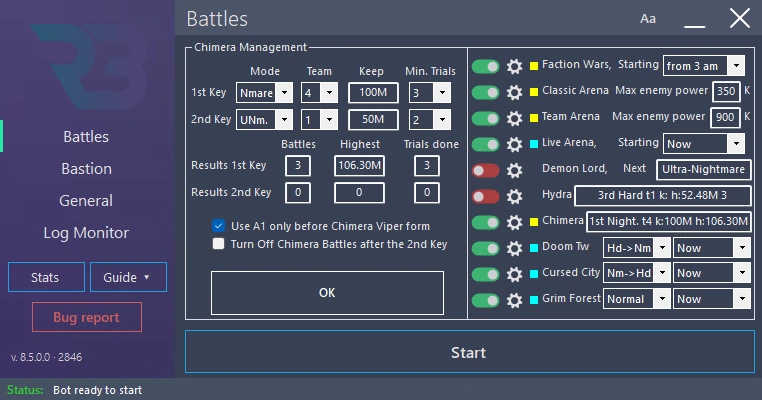
RSLBot GUIDE
Doom Tower
Doom Tower is included in Regular and Premium, and may be offered to Free for a limited time through the rotation.
On the Doom Tower line of the Battles tab: the switch and gear, the Gold Keys mode and the start time (Starting).
The Doom Tower Management panel
Teams (number 1 to 15, or empty):
- Floors 1-59 and Floors 61-119: team for ordinary floors;
- one team per boss: CG (Celestial Griffin), ED (Eternal Dragon), NS (Nether Spider), FS (Frost Spider), MD (Magma Dragon), SK (Scarab King), DH (Dreadhorn), DF (Dark Fae).
Gold keys and Secret Rooms:
- Gold Keys (on the Doom Tower line): OFF, Normal or Hard (that mode only), Nm->Hd (Normal, then Hard once the Normal Ultimate boss is defeated) or Hd->Nm (Hard, then Normal once the Hard Ultimate boss is defeated). With Hd->Nm, when Hard is blocked, the gold keys go on in Normal;
- Secret Rooms after boss: OFF (none), ON (all of them, Hard ones then Normal ones), or a boss floor, for example H40 (only once the Hard boss of floor 40 is defeated, then Hard ones, then Normal ones) or N10 (only once the Normal boss of floor 10 is defeated);
- Super Raids: Super Raids for the silver keys battles (RSLBot unticks it in the game when one silver key is left).
Max defeats (at the bottom of the window): defeats in a row before Doom Tower stops until the next daily reset (NO: never), on a Floor (Gold Keys battles), a Boss (Silver Keys, or a boss floor with Gold Keys) and a Room (a Secret Room).
Silver keys: a Silver Keys switch turns their use on, then three lines, each for one boss:
- Mode: Normal or Hard;
- Boss: the boss floor (10, 20 … 120);
- Nb asked: number of silver keys to spend per day on this boss (0 to 40);
- Done: keys already spent today (information). Changing the Mode or the Boss sets Done back to 0.
Keeping each use separate
If the team asked for is not found and no champion is in place, RSLBot takes the best champions in the list (stars, then level, then rarity) and says so in orange in the log: a battle lost here does not cost a key.
- Open Battles → Doom Tower → Manage.
- Set the floor and boss teams, then the Gold Keys mode on the Doom Tower line.
- For silver keys, turn on Silver Keys, then set Mode, Boss and Nb asked for each boss you want. If no boss is defeated, RSLBot stops the silver keys until the next reset and says so in orange ("Doom Tower: no boss defeated in Normal mode, Silver Keys stopped until the next reset"): strengthen the team or choose an easier boss.
- Set Secret Rooms separately: champion restrictions change from room to room.
- Choose the start time on the Doom Tower line, then turn it ON.
A boss that is not in the game's rotation does not become available by changing the Boss in RSLBot. After each tower reset, check that bosses and teams still match.
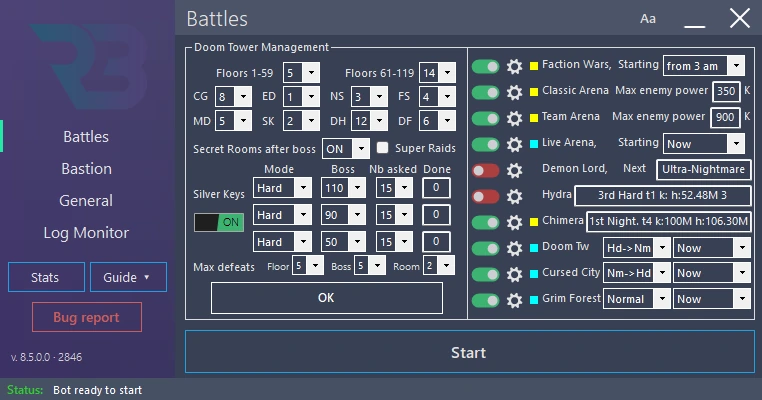
RSLBot GUIDE
Faction Wars
Faction Wars is included in Regular and Premium; a Free licence may get it for a limited time as the feature of the week.
On the Faction Wars line of the Battles tab, the switch turns it ON or OFF, the gear opens its window, and the Starting list sets the time from which RSLBot may start (Now or from X am/pm). Each crypt is then set up separately in Manage.
Setting up the crypts
- Open Battles → Faction Wars → Manage: the Faction Wars Crypts Management panel lists every faction.
- For each crypt, choose:
- the difficulty: Nm (Normal) or Hd (Hard);
- the battle mode: Crypt not selected (crypt ignored), Replay, Next from, Replay Last, Next from Last or a Full Keys mode;
- the stage (1 to 21), used by Replay and Next from.
- The Change all line at the top of the panel applies one difficulty and one battle mode to every crypt at once. Then check the stages one by one.
- Click OK to go back to the Battles tab, then turn the switch ON.
The Full Keys 15 + 7 to Full Keys 21 + 9 modes first play stage 7 (or 9) once a day, without Super Raid, then spend the rest of the keys on the high stage shown (15 to 21). Full Keys CVC + 7/9 aims for stage 21 during a Clan vs Clan, otherwise stage 20.
What RSLBot does during battles
If the team asked for is not found and no champion is in place, RSLBot takes the best champions in the list (stars, then level, then rarity) and says so in orange in the log: a battle lost here does not cost a key.
- Only the crypts open that day in RAID are played; the others wait for their turn in the game's schedule.
- Before going in, RSLBot checks that there are enough keys for the chosen stage. If not, the crypt is not started.
- The Super Raids box of the Faction Wars window turns on Super Raids for the crypts (RSLBot unticks it on stages 7 and 9 with full keys).
- Max, Down and Up, next to Super Raids, apply to every crypt: Down, defeats in a row before the crypt goes one stage down (it then really plays the lower stage); Up, victories in a row on the lower stage before it tries the stage above again; Max, defeats in a row on a crypt (stages gone down included) before it is suspended until the next daily reset, and the next crypt is played. NO = never.
- Hard crypts are never played in Normal: when the Hard stage asked for is still locked, the highest Normal stage open is played.
Keep in mind advanced quests that ask for a boss or a champion of a given rarity. A fast, reliable stage is often better than the highest stage if the only goal is to use up the keys.
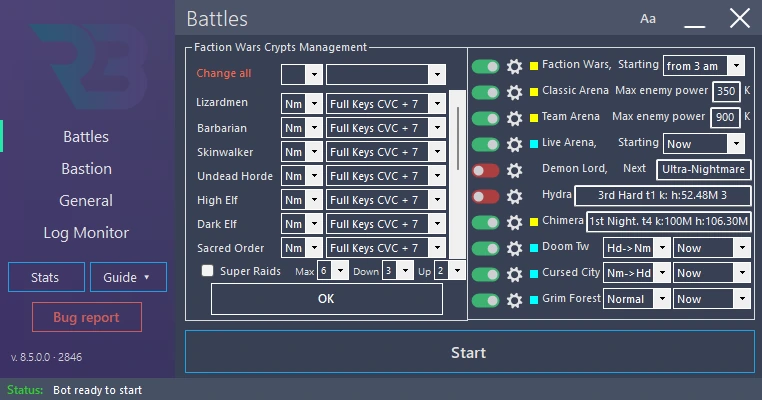
RSLBot GUIDE
Classic Arena
Classic Arena is included in every plan. On the Classic Arena Max enemy power line of the Battles tab, enter in thousands (K) the highest opponent power RSLBot may attack. RSLBot takes the first opponent in the list that it has not fought yet and whose power is below this limit. This limit is a filter, not a guarantee of winning.
Setting up the arena
- Open Battles → Classic Arena → Manage: the Classic Arena Management panel opens.
- Team to select: number of the team saved in RAID to use.
- Defeats: exclude Opponent for: how long an opponent who beat you is avoided (OFF, from 4 h to 30 days).
- Refill Tokens: Inbox: uses token bags from the inbox. Gems: total number of gems you accept to spend on tokens (0 to 1600). Inbox refills are always used first.
- Refresh Opponents with Gems: gems allowed to refresh the list when no opponent fits any more (0 to 500). At 0, RSLBot waits for the free refresh (every 15 minutes) instead of reopening the same list.
- Click OK.
Champion and opponent lists
- To avoid (Regular and Premium): enemy champions to avoid. The E button opens the list for editing.
- Dont Fight: Clans / Names and Fight Only: Clans / Names (Premium): avoid or target certain clans or players. Names go in the text files of the Arenas folder (for example ClassicArenaDontFightClan.txt), one name per line.
namematches exactly that name,name*names that start with it,*namenames that end with it and*name*names that contain it. - Target List is greyed out in the released version: it cannot be used.
If a name filter does not work, compare it in the log with the name as RAID shows it: special characters and variants must match. A list of remembered defeats can also explain why an opponent is avoided.
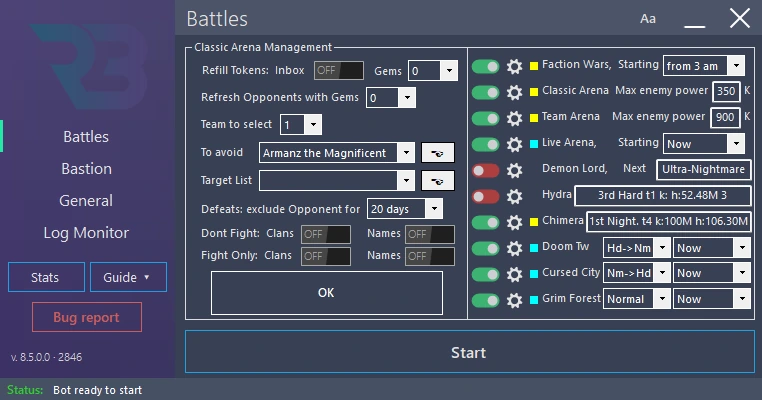
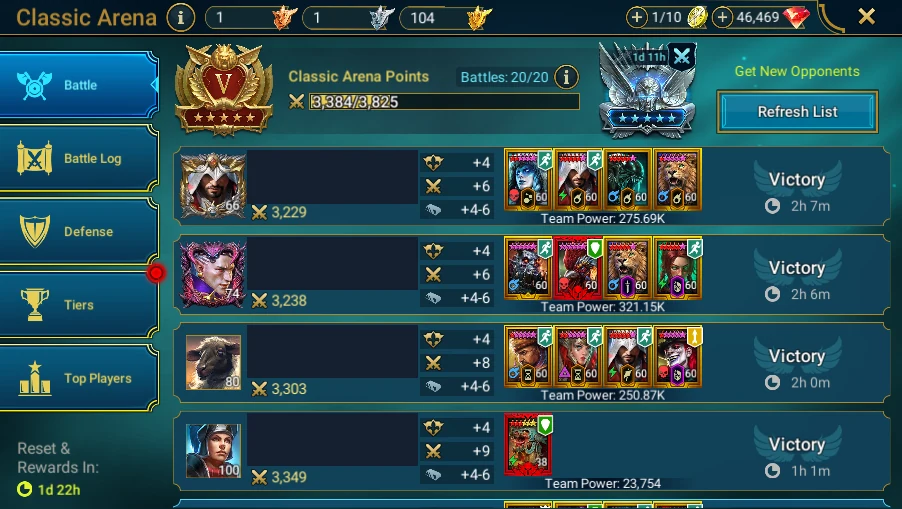
RSLBot GUIDE
Tag Team Arena
Tag Team Arena is included in every plan. On the Team Arena Max enemy power line of the Battles tab, enter in thousands (K) the highest opponent power.
Preparing the three teams
If RAID refuses to tick a team twice, if a team is locked or if two teams share a champion, RSLBot reports it once in the log and carries on with the battle as it does for a team that cannot be found: fix the teams in RAID. If a team still cannot be found 3 times in a row, Tag Team Arena waits 6 hours before trying again.
- Open Battles → Tag Team Arena → Manage: the Tag Team Arena Management panel opens.
- Choose Team 1, Team 2 and Team 3: these are the numbers of teams saved in RAID. Check in the game that each one holds the champions you want.
- Tokens Refill Nb … by Day: number of token refills per day (0 to 20). Inbox bags are used first, then RSLBot buys tokens with gems (15 gems for the first, then more and more up to 100; reset every day at 00:00 UTC).
- All Inbox Refill: uses all the token bags in the inbox.
- Oppon. Refresh … Gems: gems allowed to refresh the list when no battle is possible any more (0 to 500).
- Defeats: exclude Opponent for: how long an opponent who beat you is avoided.
- Click OK.
The Select Opponent by Clan and/or by name area (Dont Fight / Fight Only, Clans and Names) is Premium only. It works as in Classic Arena, with the files in the Arenas folder.
A series involves several battles and uses one token: make a first try while watching RSLBot.
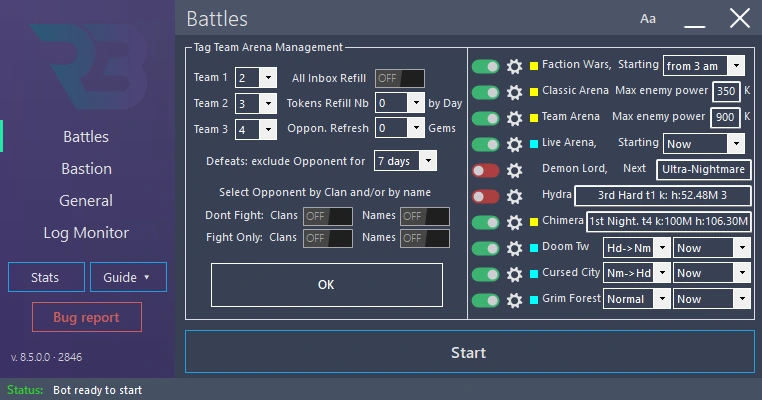
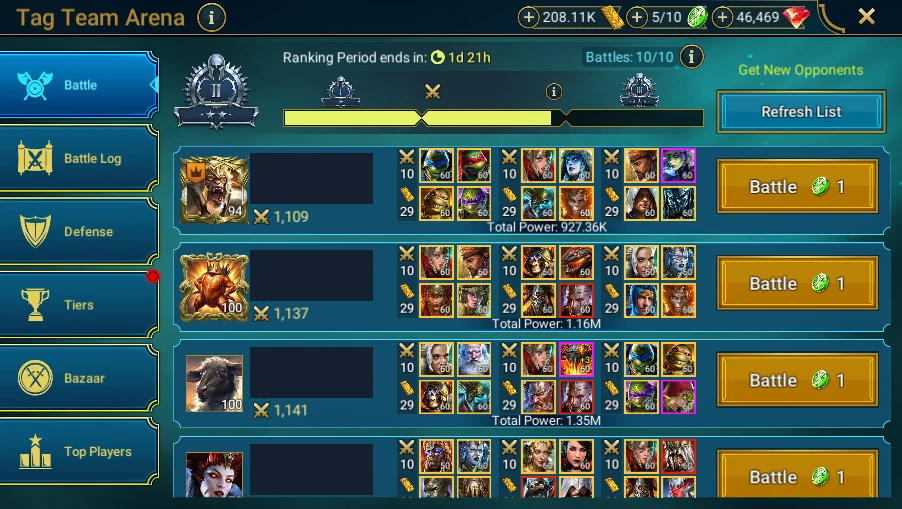
RSLBot GUIDE
Live Arena
Live Arena is included in Premium; Free and Regular may get it for a limited time as the feature of the week.
On the Live Arena, Starting line of the Battles tab, choose ON/OFF and the start time. The light shows the state: red = inactive, blue = waiting for the start time, yellow = tokens to check, green = at least one token available, orange = no tokens left, waiting for the reset.
Preparing the team
- Open Battles → Live Arena → Manage: the Live Arena Management panel opens.
- Fill in lines T1 to T5 (starters) and S1 to S10 (substitutes). For each line: the champion's name and, if needed, a rarity filter, an affinity/type filter and a leader position.
- To change the order, click a line, then use the up/down arrows.
- Ban List (Regular and Premium): champions to ban, in list order. The E button opens the list for editing.
- Refill by day: token refills per day (0 to 20). Free inbox bags are used first; further refills are bought.
- Number to loose: number of battles to lose on purpose to lower your score (0 to 50). Leave it at 0 if you do not want this.
- Click OK.
When a starter is not available, RSLBot takes the first available substitute of the same category: the order of the substitutes matters. The leader position applies to the champions actually in the final team. Target List is greyed out in the released version.
Watch RSLBot through a few selections before leaving it to play alone: a Live Arena battle is played against a real player.
Skill order for the first turns
The Skills order button, next to OK, opens the Live Arena skills order window. It lists the starters and substitutes you have set up. For each champion, choose Auto, A1, A2, A3 or A4 for its turns 1 to 4.
- Activated: play these skills in Live Arena applies the sequence. Choosing a skill ticks the box automatically. When unticked, the sequence stays saved but the battle stays on auto.
- As soon as a skill is set, the battle starts in manual, each champion plays the planned skill, then the battle switches back to Auto once all the planned skills have been played.
- During this manual phase, Auto means the champion plays A1. A1 also replaces a skill that is still on cooldown.
- A champion that changes form during the battle (for example Lady Mikage after her A4) plays the skills of its new form.
- If RSLBot cannot find a champion's skills on its turn, it leaves that turn to RAID and goes on with the other champions' plan. After two turns in a row with no skill found, the battle switches back to Auto.
- RESET ALL TO AUTO sets every cell back to Auto and unticks Activated.
- The choices follow the champion, not the line: a champion removed and added back gets its skills back.
The panel button shows Skills order ON in green or OFF in red. In the grid, the chosen skills are green if the sequence is on, red otherwise. A2, A3 and A4 are not the same skill from one champion to another: check the skills and their cooldowns in RAID.
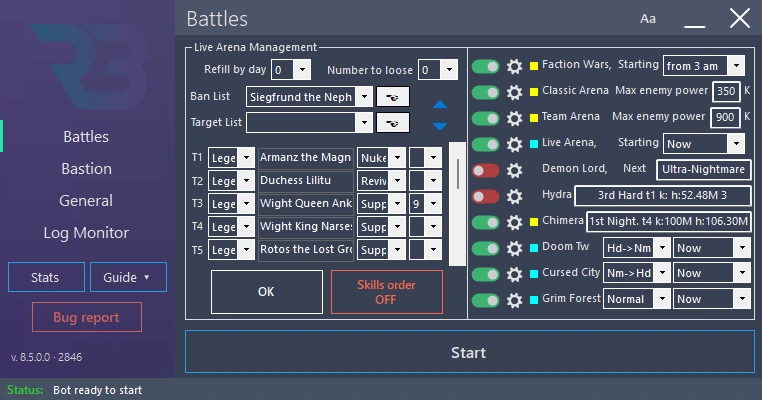
RSLBot GUIDE
Cursed City
Cursed City is included in Premium; Free and Regular may get it for a limited time as the feature of the week.
Cursed City has no Manage panel: everything is set on its line in the Battles tab.
- The switch turns it ON or OFF; a right-click offers Reset, which clears the list of skipped stages.
- The start time: Now or from X am/pm.
- The mode: Normal, Hard, Nm->Hd (Normal then Hard) or Hd->Nm (Hard then Normal).
How RSLBot works through the map
In V8, RSLBot follows the Cursed City map:
- It checks the keys available, then opens the map for the planned difficulty.
- It takes the open stages one by one: path C first, then D, P and S, lowest number first, Amius the Lunar Archon last. Skipped stages are left out.
- It scrolls the map to the stage and selects it directly.
- When no stage is left on the map, it moves to the other difficulty if the mode is Nm->Hd or Hd->Nm. Otherwise it waits for the keys to reset.
A stage is skipped in three cases: 3 defeats in a row, stage conditions not met, or no champion available. The list of skipped stages starts again from scratch at the start of a new rotation (back to C1) or with Reset.
Champions
If the stage team is empty, RSLBot resets the filters and takes the first five available champions. To include the Master Vault in this search, turn on Include Master Vault in champion FIlter in the General tab (this setting is also used for Live Arena and Doom Tower Secret Rooms).
Stage restrictions change with each rotation. Watch the first champion selection and the first change of difficulty after a rotation.
Status light and advanced quest
The Cursed City light shows: yellow = state to check next time round, green = active, orange = all keys spent, red = no stage left to do in this rotation, purple = no stage available, paused until the next key reset.
The quest Clear 2 Stages in the Cursed City is done by Quests (chapter 11), even when Cursed City is OFF.
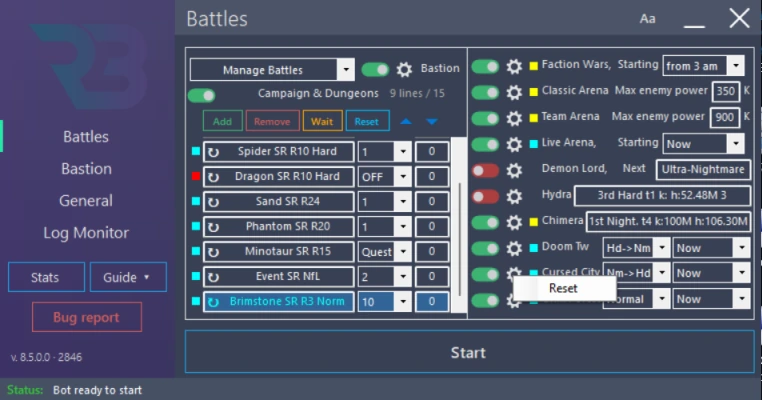
RSLBot GUIDE
Grim Forest
Grim Forest is included in Premium since RSLBot 8.0. Free and Regular may get it for a limited time as the feature of the week.
On the Grim Forest line of the Battles tab:
- the switch (ON / OFF) and the gear (Manage);
- the start time: Now or from X am/pm;
- the mode: Normal, Hard, Nm->Hd or Hd->Nm. With a two-difficulty order, RSLBot moves to the other difficulty when the first has nothing left to do and at least one key remains. This is not a promise to finish both maps.
The light shows: yellow = state to check, green = active, orange = waiting for the next rotation, purple = no stage available, paused until the next key reset.
How RSLBot works through the map
In V8, RSLBot follows the Grim Forest map by itself. It first plays the main stages it can reach (E, then M, then H, lowest number first), then the other battles it can reach. After the battles, it opens all the chests it can reach; a chest guarded by enemies is played as a battle. When no battle can be reached, it opens the footprints along the shortest path to the nearest battle. It scrolls the map to the right place and selects it directly.
So you no longer need to fight a stage by hand to choose the starting point (the menu tooltip still mentions it).
If the Grim Forest deck is empty, RAID asks you to set it up: RSLBot shows Grim Forest: the deck is empty, set it up in Grim Forest (Team Decks). Grim Forest Battles turned OFF and turns Grim Forest OFF. Set up the deck in the game, then turn it back ON.
RSLBot makes each team only with the champions of your deck that RAID lets you pick: a champion not drawn or locked is left out. On the Draw Champions screen, it draws the champions and then confirms the draw.
The Grim Forest Management panel
Open Battles → Grim Forest → Manage:
- Keys to save: keys to keep without using them (0 to 25).
- Defeats to skip: defeats in a row allowed on the same stage before skipping it (1 to 9).
- Do Rewards Bosses: allows reward boss stages when they are available.
- Trait Cards: priority order of stats for trait cards (see below).
- The Normal/Hard button switches the panel between the Normal and Hard teams. It only changes the saved teams: the difficulty played comes from the mode chosen on the Grim Forest line.
- The Standard/Mimic button switches between the two team orders.
- Set Team syncs the game's deck with the panel.
- OK closes the panel and keeps the settings.
In 8.5, the Curio Altar is closed with its Collect button, a guarded chest that was skipped is not chosen again, and the Hard rows are no longer shifted. The Grim Forest quests are done while Grim Forest plays (see Quests).
Normal and Hard teams, Standard and Mimic profiles
- Choose the difficulty with the Normal/Hard button.
- In Standard, fill in the starter lines (5) and substitute lines (up to 15): name, rarity filter, affinity/type filter and leader position. Substitutes at the top are tried first.
- In Mimic, set the order used against the Mimic. Both profiles share the same champions for the difficulty; only the order and the starter/substitute positions can change. In the Mimic profile, the arrows swap lines.
- RSLBot only uses the Mimic order on Mimic stages.
Set Team: reading or filling the deck
This button changes data: use it with the bot stopped (otherwise Stop the bot first). In RAID, open Grim Forest → Deck Setup at the same difficulty as the panel (otherwise Go first to Deck Setup | Normal screen or | Hard screen).
- If the RSLBot lists already hold champions, RSLBot first offers to empty the slots for the difficulty shown (Yes = empty, No = carry on with the sync, Cancel = cancel).
- Then, if the game's deck can be changed: Yes reads the deck shown in RAID and fills the RSLBot lists; No fills the game's deck from the RSLBot lists (starters first, then substitutes); Cancel does nothing.
- If the deck cannot be changed, only reading into RSLBot is offered.
All of the above applies to the Standard profile. When the Mimic profile is shown, Set Team copies the Standard team from the RSLBot settings into the Mimic profile, without doing anything in RAID; then reorder it with the arrows. An empty Mimic profile also takes the Standard team when it is opened.
Trait card priorities
Rank the stats in the Trait Cards list with the arrows to suit your team. For each card offered, RSLBot adds up the ranks of its stats: the lowest total wins. On a tie, the card containing the highest-ranked stat wins.
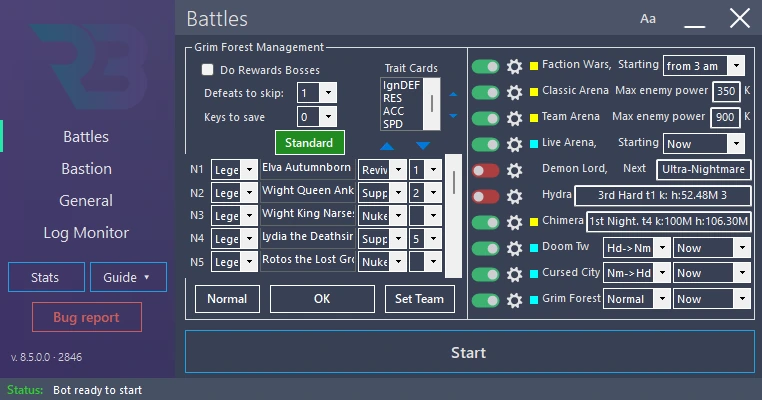
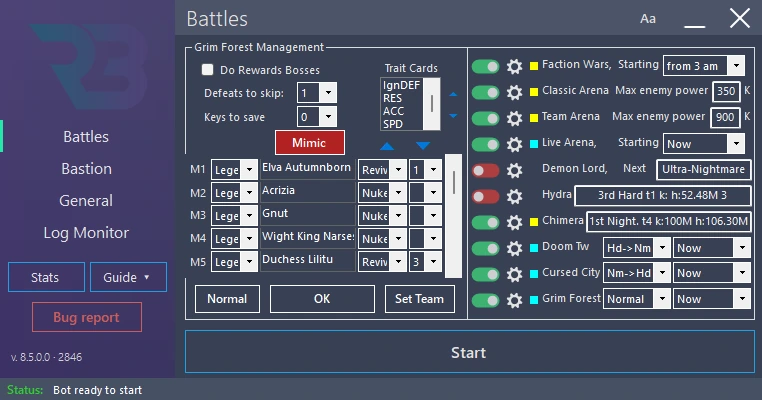
RSLBot GUIDE
Farm: start a new account
Farm is a Premium feature, unlocked by buying 10 one-month Premium licences. Its Farm row, in the General tab, takes a new account up to the account level you choose: 5, 10, 15, 20, 25, 30, 35 or 40 (10 by default). With Premium it appears in General; it stays greyed out until Farm is unlocked, and its tooltip gives the condition. With Free and Regular it does not appear.
During the run, the plan drives the account: your usual settings are set aside and some General settings do not apply. In particular, Minimum silver to keep is ignored (treated as 0) and all Inbox energy refills are used, whatever your setting.
Start
- Create the account and sign in yourself in RAID (authentication, CAPTCHA or 2FA code if any).
- In the General tab, on the Farm row, first choose the plan to use in the middle list (the files of the AccountStart folder: Default plan or your own copy, see the starter champion below), then the level to reach in the list to the right of until.
- Set the first list of the Farm row to ON: the run starts with this plan, up to this level.
- To change a plan, choose Edit in that same list: the chosen plan opens in your text editor. Stop the bot first (otherwise "Stop the Bot before to edit the account start plan").
- Start RSLBot with Start and watch the log: each plan step applied appears in light blue.
You can change the plan during the run: the log says so ("Account start plan: … (its next steps from the next account level)") and the new plan's steps apply from the next level.
When you switch to ON, RSLBot saves your settings in Settings before account start.txt, then loads starting settings: Campaign in Normal mode at the stage after the last one won (Kaeroc Castle stage 1 on a new account), Next from Last mode, unlimited battles, no champion replacement, Bastion rewards ON, all other battles OFF. These starting settings are also saved in Account start.txt.
The starter champion (Account Start Leader)
The starter champion is the team leader during the run: RSLBot trains it first (rank up, brews, artifacts, skills), keeps it with Warpriest in the Campaign team and puts it in the Classic Arena defence. The possible champions are Athel, Elhain, Kael and Galek.
The plan line Account Start Leader is optional; in the supplied plan it is commented out.
- Without this line: RSLBot takes the starter champion the account already has (the best one if it has several). On a new account, with no starter yet, it chooses Athel in the tutorial ("Choose your first Champion" screen).
- With this line, for example
1 : Account Start Leader = Kael: that champion becomes the leader, and on a new account it is the one RSLBot chooses in the tutorial. Copy Default plan.txt under another name, add or uncomment the line at level 1, save, then choose that copy in the plan list of the Farm row.
What RSLBot does during the run
- Tutorial: RSLBot follows the game's guide, plays the tutorial battles in Auto and x2, scrolls through the story pages and picks the starter champion with the arrows: the one in the plan's Account Start Leader line, or Athel without that line. The tutorial battle where Auto is not available yet (RAID 11.90.1) is played by following the guide: skills, enemies and buttons are read in RAID.
- Campaign: it plays stage after stage in Normal. After a loss, it goes back one stage; a loss at stage 1 of a region sends it back to stage 7 of the previous region. When the next region is still locked by the account level, it replays the last stage won to gain experience. It checks Super Raids as soon as the game offers it (each battle then costs twice as much energy).
- Energy: it uses all Inbox refills, never spends gems, and puts the Campaign on hold when energy runs out until it has come back.
- Main champions: the starting champion and Warpriest always stay in the Campaign team. The starting champion is also the leader of the arena defence team. RSLBot equips them with the best artifacts using the game's auto-equip each time a new artifact comes in, then upgrades these artifacts up to level 8 (12 from account level 20) with silver. It upgrades the starting champion's skills only with Rare Skill Tomes. Right after a rank up (4 stars or more), it feeds this champion Brews of its affinity in the Tavern and moves the Campaign back 5 stages while it levels the champion up again.
- Rewards: it collects the Bastion rewards (missions, challenges, quests, pass, Great Hall, Inbox, daily login, Progression Rewards), even if their switches are off in your usual profile. These switches are not changed.
- Market: it unlocks slots with silver, up to the 6th at most (adjustable in the plan), and never accepts a price in gems.
- Collection: depending on the plan, it expands the champion collection by 10 slots at a time, paid with silver (the price is read in RAID), never with the gem button.
- Rares: rare champions are fed to the rank ups of the main champions.
- Portal: when the plan turns it on, it summons with Mystery Shards, especially when it runs short of champions to replace.
- Resume: after an RSLBot restart, the run picks up where it was; it does not restart the plan from level 1.
The plan provided (Default plan)
| Level | Changes |
|---|---|
| 1 | No starter champion forced: the Account Start Leader line is commented out. RSLBot takes the account's starter champion, or Athel on a new account. |
| 15 | Replacement of 2 champions in the Campaign (up to epic, ranks 1 to 4); Portal ON (10 champions); Tavern ON with rank up to rank 4, without sacrificing rank 1 champions and excluding rares; collection raised to 40 slots. |
| 20 | Each newly won stage is replayed 10 times; stage downgrade after 2 losses, back up after 10 wins; the Campaign stops moving forward while the starting champion or Warpriest is below 4 stars; 6 Market slots; collection at 50 slots. |
| 25, 30, 35 | Collection at 60, 70, then 80 slots. |
Read the file shipped with your version: its header explains each plan-specific setting and it is the exact reference for the default run.
Change or create a plan with Edit
- Change a plan: stop the bot, choose the plan in the list of the Farm row, then Edit in the first list. The plan opens in your text editor; save your changes.
- Create a plan: open a plan with Edit (for example Default plan), make your changes, then File → Save as with a new name. The file is saved in the AccountStart folder and then appears in the plan list of the Farm row.
- Default plan.txt is replaced by each new RSLBot version: keep your changes in a copy.
Customise a plan
Default plan.txt is replaced with each new version of RSLBot. To customise it, copy it under another name (for example My plan.txt) in the same folder, then edit the copy.
- One step per line:
level : setting name = value, for example15 : Campaign Champions replacement number = 3. - The setting name is written as in the files of the Settings folder (open Account start.txt with Notepad to see them). For a drop-down list, the value must be one of its choices. Upper and lower case are ignored.
- Lines starting with
#are comments. - A badly written line is flagged in orange in the log and ignored; the other lines are still applied.
- Each step is applied only once, when the account reaches its level. The plan can be edited while RSLBot runs: it is read again at each level check.
- Sign-in data and the state of Farm cannot be changed by a plan.
Settings made for the plan
These settings only exist in a plan. They are written like the others: level : name = value.
| Setting | Values | Effect |
|---|---|---|
| Account Start Leader | Athel, Elhain, Kael or Galek (optional) | Starter champion and team leader (see above). Without this line, RSLBot takes the account's one, or Athel on a new account. |
| Account Start Campaign Farm | number, 0 = no farm | Each new campaign stage won is replayed this many times (experience, artifacts) before the next one. The last stage of a region is not farmed. |
| Number of Defeats in a row to downgrade stage number | NO, 1 to 10 (1 during the run) | After this many defeats in a row, the campaign goes back one stage. |
| Number of Victories in a row to upgrade stage number | NO, 1 to 10 (3 by default) | After going back, the lost stage is tried again after this many victories. During a campaign farm, the farm's number is used. |
| Account Start Market Slots | 0 to 6 (6 by default) | Market slots unlocked with silver, up to this one. The 7th asks for gems: RSLBot never goes past the 6th and never accepts a price in gems. |
| Account Start Champion Collection | number of places, 0 = off | The champion collection is extended by 10 places at a time up to this number, with silver only (120,000), never with the gems button. |
| Account Start Farm Until Core Rank | number of stars, 0 = off | While the starter champion or Warpriest is under this many stars, the campaign does not go further: the stage won is replayed (food, experience) until both are ranked up. |
Other useful settings in a plan
Any setting of the files in the Settings folder can be changed by a plan. The most useful ones:
| Setting | Values |
|---|---|
| Account Start Leader | Athel, Elhain, Kael, Galek, or nothing. Filled in: on an account starting from zero, it is the champion RSLBot chooses in the tutorial; on an account already started, it must give the champion already chosen. Empty (line missing or commented out): RSLBot finds the starter champion already chosen on the account itself; if the account starts from zero, it chooses Athel. |
| Campaign Champions replacement number | Off, 1, 2, 3 (champions replaced when at max level) |
| Campaign Champions replacement rarity / rank | the same choices as in RSLBot |
| Classic Arena Battles switch, Tag Team Arena Battles switch | ON, OFF |
| Dungeons Battles menu | ON, OFF, with Dungeon Name, Dungeon Stage, Number of Dungeon Battles to do |
| Demon Lord Battles switch, Faction War Battles switch, Doom Tower Battles switch | ON, OFF |
| Minimum Energy for Battles | number |
| Tavern switch | On, Off, with Champion to level Rank choice (Until Rank 3, Until Rank 4…), Sacrifice rank 1 champions checkbox, Exclude rare / ascended / fusion champions checkbox (On, Off) |
| Portal switch | On, Off, with Number of champions to summon (10, 20…): summons with Mystery Shards; during the run the Portal is also used when there are not enough champions to replace |
The exact name of each setting is the text before the colon in Account start.txt (in the Settings folder, open it with Notepad). Sign-in data and the state of Farm cannot be changed by a plan.
When steps are applied
- The account level is read after each battle and at the Bastion.
- Each step is applied once, when the account reaches its level, in level order. Every change is shown in light blue in the log.
- A step whose level is already passed is not applied again, even after RSLBot restarts. To start the plan again from the beginning, set the Farm row to OFF and then ON.
- You can change the plan while RSLBot runs: it is read again at each level check.
- At the chosen level, your usual settings come back and the following steps are not applied.
Stop and get your settings back
- At the chosen level, the run stops on its own and your settings saved in Settings before account start.txt come back; that file is then deleted.
- To stop earlier, set the Farm row back to OFF: your previous settings are restored the same way.
- To replay the plan from the start, switch it OFF then ON again.
- The bot window position and your sign-in data stay as they currently are.
RSLBot GUIDE
Glossary
| Term | Meaning |
|---|---|
| Automation program | RSLBot itself. Its automation features are included according to the Free, Regular or Premium plan. |
| Farm | Premium feature, unlocked by buying 10 licences, that levels a new account up to the chosen level (the Farm row of the General tab). |
| AccountStart | Folder next to RSLBot that holds the plans used by Farm. |
| Bastion | The main screen of RAID and the general management tab in RSLBot. |
| Campaign & Dungeons | Ordered list of up to 15 campaign places and dungeons, set up line by line (replaces Daily Battles). |
| Dedicated Battle | Temporary mode in which RSLBot only does battles, with no Bastion actions (Bastion switch OFF). |
| Minimum silver to keep | Silver reserve below which RSLBot stops spending silver. |
| Replay | Repeating a stage already selected. |
| Next from | Moving from stage to stage, starting from the chosen stage. |
| Super Raids | Game mode that uses more resources to multiply the rewards. |
| Starter | Priority champion in an automatic selection (T lines). |
| Substitute | Champion chosen when a starter is not available (S lines). |
| Skills order | Skills each champion plays on its first turns in Live Arena. |
| Autosell | Rules that automatically sell artifacts or accessories. |
RSLBot GUIDE
What's new in 8.5
RSLBot 8.5
- Licences: Daily Battles is no longer a separate feature: Campaign & Dungeons lines for every licence (the 4 main dungeons with Free). Storage and Inbox management for every licence, Free included. AutoSell after Battles with Regular and Premium. Live Arena and Summon Rush with Regular. Relic Rank Up and Gemstones with Premium.
- RAID 11.90.1 supported.
- Battles tab: every battle on the right, in RAID's order; a compact ON/OFF switch with a gear on each line; Manage Battles and the Bastion switch on the first row (the Dedicated Battles line is gone).
- Campaign & Dungeons: one list of up to 15 lines, each with its own fight mode and stage, Max defeats, Down and Up, and a Quest choice in To do.
- Quests: a new Quests line and Manage window, read in RAID, by type (Daily, Weekly, Monthly, Advanced, Grim Forest); quests no longer start battles of their own. New: Craft 1 Relic, Unlock a Mastery, Use 3 Glyphs, Ascend a Champion.
- Doom Tower: Gold Keys mode on its line (Normal, Hard, Nm->Hd, Hd->Nm), Secret Rooms ON or from a boss defeated, Max defeats for floors, bosses and Secret Rooms.
- Faction Wars: Max, Down and Up; going down really plays the lower stage; Hard crypts no longer played in Normal.
- Demon Lord: new Clan Boss window: a plan per affinity (order, chest, keys, mode, team), chests read in RAID.
- Relic Rank Up: the plan read in RAID, run from Manage or by the daily Auto.
- AutoSell rules editor: see, edit and compare your rules files by groups. Auto handles the Artifact and Accessory storages before the Inbox.
- Bazaar: the real Bazaar items to tick, read in RAID.
- Sparring Pit, Passes, Limited Series, Tournaments, Events (Demon Coalition included), Inbox chests: see Bastion.
- Farm: the RAID 11.90.1 tutorial is handled.
- Memory reading ON: RAID's screens and server lag are read in the game data (no more guesses from the screen); when game data cannot be read, RSLBot waits instead of playing in a limited mode.
- RAID version not validated for your RSLBot: an orange warning at each start.
- Tooltips appear after 1 s and stay 10 s.
From RSLBot 7.8 to 8.0
Here is what changed for you between RSLBot 7.8 and RSLBot 8.0.
Licence and plans
- Licences linked to RAID accounts: since 28 October 2026, a one-year licence links to up to 3 RAID accounts, a lifetime licence to up to 5, a 1, 3 or 6-month licence to none. Licences bought before keep their rules (one RAID account; several accounts during 15 days for those bought before V8). New three-month licence.
- The RSLBot account must be linked to a Discord account; RSLBot offers to do it at sign-in.
- A renewal reminder in the log a few days before the licence ends, with the link to rslbot.com/licenses.
- New Farm feature in Premium, unlocked by buying 10 one-month Premium licences: it levels a new account up to the chosen level (the Farm row of the General tab), with a plan you can edit in the AccountStart folder.
- Grim Forest moves to Premium; Free and Regular may get it as the feature of the week. Hydra joins the possible features of the week for Free.
- When a version of RSLBot is no longer supported, RSLBot says so clearly and stops.
- After a RAID update, RSLBot carries on if the game is still compatible; otherwise it explains that an RSLBot update is needed.
Bastion
- The day of the Reward Calendar is claimed every day (vote days are left to the player).
- Bot Daily Rest Time: a daily rest, with RAID closed every day for the chosen time.
- Minimum silver to keep (General tab): below this silver reserve, RSLBot stops spending silver (Market, Portal, artifact upgrades and so on).
- New rewards collected automatically: the Plarium Points programme and its Treasure Tickets, free gifts and daily rewards in the shop (never a paid offer), Playtime Rewards only when a reward is ready.
- Market: slots that can be paid for with silver are unlocked as soon as the reserve allows; a slot that costs gems is never unlocked.
- Portal: the setting for the number of champions to summon is respected, within the free slots in the collection.
- Tavern: uses RAID's Fast Rank Up, and the making of rank 2 champions with brews has been reworked. Exclude rare and Exclude ascended only keep these champions out of the sacrifice: they are still levelled and ranked up.
- Missions, Challenges and Passes: ready rewards are claimed one by one, with a check.
- Inbox and storage: menu choices renamed and reordered (Off, Full, Full Collect, Screen, Screen Collect…, Edit), and a confirmation window before selling artifacts and accessories from storage.
Battles
- Daily Battles: a green Add button on the Daily Battles line, next to Remove, to add a line even when the list is long.
- Cursed City: RSLBot follows the map, takes the open stages in order (C, D, P, S, then Amius) and goes straight to the stage it wants. Keys, difficulty and stage name are read more reliably.
- Grim Forest: RSLBot follows the map, chooses the next stage by itself and opens the path to the next battle. An empty deck is reported and Grim Forest is turned OFF instead of looping. Better handling of the Draw Champions screen.
- Hydra: more reliable tracking of the heads during battle. Hydra, Chimera and Demon Lord damage is read more reliably on the result screen.
- Live Arena: new Skills order window to choose the skills for the first four turns. RAID's Win Streak window no longer blocks the opponent search.
- Classic Arena: more reliable opponent choice (first opponent not yet fought below the maximum power).
- Faction Wars: keys are compared with the cost of the chosen stage before entering a crypt.
- Doom Tower: a lost Secret Room is left until the next period instead of being replayed every time round.
- Champion replacement: new until epic rarity filter.
- After 3 battles stuck while loading, RSLBot stops with a clear message instead of insisting.
RSLBot GUIDE
Send a bug report to support
The Bug report button prepares everything support needs in a single zip file. RSLBot sends nothing itself: you drop the zip on Discord.
Prepare the report
- When the problem happens, click Bug report. The RSLBot - Bug report window opens; the bot keeps playing.
- In the text box, describe what you saw, what you expected, and when it happened. Without text, the zip is not created.
- Click TAKE A SCREENSHOT to capture the RAID window, up to 8 times. Click a thumbnail to remove that screenshot.
- Click CREATE THE ZIP. CANCEL closes the window without creating anything.
- Windows Explorer opens on the zip, in the BugReports folder next to RSLBot, and a message reminds you to drop it in the ❓│ask-support channel on Discord.
What the zip contains
- your text, the RSLBot version and the date;
- the RAID screenshots;
- the log (log.txt and log.1.txt);
- your settings, without the licence data.
Your RSLBot user name, your licence key and your RAID account names are masked. To show an RSLBot panel, add a screenshot of its window made with Windows + Shift + S, hiding player and clan names.
RSLBot GUIDE
Solving common problems
RSLBot cannot find the game
- Check that RAID was started from Plarium Play and has reached the Bastion.
- Check that the window is not minimised.
- The messages Raid window is not at the expected size or Unable to resize Raid window mean RSLBot cannot size the game window: do not resize it yourself and keep it on one monitor whose scaling does not change. Put Raid window in a Monitor with 100% scale display and retry only appears when Raid on scaled monitor is Off in Settings\UserSettings.txt.
- If needed, RSLBot restarts the game itself (Starting Plarium Play and Raid). Otherwise, restart the game and then RSLBot.
RSLBot clicks in the wrong place
- Check the scaling and that no window covers the game.
- Keep the expected RAID options: game in English, windowed (not full screen). When the log shows Raid options to set: …, RSLBot fixes the listed options itself.
- Go back to the Bastion before starting again.
- Prepare a report with the Bug report button.
Clicks have no effect
If RSLBot shows Mouse and keyboard hidden Orders activation failed, close Raid window and let Bot restart it, close the RAID window and let RSLBot start it again. Do not keep retrying: note the screen shown and the time.
RSLBot is going round in circles
If RAID has to be restarted 3 times within an hour, RSLBot leaves it closed for 2 hours instead of restarting it endlessly ("Raid restarted 3 times in an hour (Raid blocked or account suspended?): Raid closed, the bot plays again at …"). Open RAID yourself to see whether it shows a block or maintenance message.
RSLBot protects itself: if it stays 20 minutes in an activity without starting a battle, it leaves it and writes it in orange in the log ("… : no battle for 20 minutes, left and tried again …"). Doom Tower, Cursed City, Grim Forest and Faction Wars are tried again after the next key reset, the other activities 2 hours later. If the problem comes back:
- Press Pause.
- Note the time and the last Log Monitor message.
- Take a screenshot of the game and of RSLBot.
- Check whether an offer, maintenance or event window is open.
- Only restart once you have kept these details.
An activity does not start
- Check that it is ON and that its start time has passed.
- Check its place in the priorities.
- Check the keys, tokens or energy available.
- Check that the feature is included in the active licence.
- Check that a Dedicated Battle mode or another setting is not blocking the normal cycle.
- Look at the colour of its light (tooltip on hover) and at the log: a skipped stage or an activity paused until the key reset is shown there.
If RAID cannot load a battle, RSLBot stops after three failures with the message Raid cannot load this battle (3 tries), please repair the game files in Plarium Play. Bot Stopped. Repair the game files in Plarium Play, check the team and the stage, then start again.
After a RAID update
If RAID has changed version, RSLBot carries on when the game is still compatible. Otherwise it shows Raid … brings significant changes: RSLBot needs an update to work with it and stops after OK. Wait for the matching RSLBot version.
When the RAID version has not been validated for your RSLBot version yet, RSLBot keeps playing and says so in orange at each start ("Raid … not validated for v…: some features may not work"). If a feature does not work, wait for the next RSLBot update. With Memory reading ON, when a piece of game data cannot be read, RSLBot waits and tries again instead of guessing. If RSLBot cannot check the RAID account linked to the licence, it waits with the message "RSLBot cannot check the Raid account linked to this license on this PC (game data not read): the bot waits. Start RSLBot as administrator, or add it to your antivirus exceptions, then restart the bot": run RSLBot as administrator; if that is not enough, contact support (see the Antivirus chapter before adding any exception).
Farm is greyed out, missing or does not resume
- Farm missing: a Premium licence is needed. Farm greyed out: 10 one-month Premium licences must have been bought (the setting tooltip says so).
- Check the plan chosen in the AccountStart folder and fix the lines shown in orange in the log.
- If the run was already in progress, start RSLBot again with the same profile: it picks up where it left off.
- To stop the run and get your previous settings back, set the Farm row to OFF.
- Do not delete Settings before account start.txt during a run.
A command is greyed out or missing
Check your plan and the feature of the week: a module added for a limited time disappears at the next rotation. Target List (arenas) and buying artifacts at the Market are greyed out in the released version: this is not a fault.
Licence and connection messages
Write down the exact message.
- Bot is waiting for server, retry in …: the RSLBot service is not responding. RSLBot retries on its own: do not delete the configuration and do not keep reconnecting.
- Used in the last 10 minutes (licence choice): the licence was used recently on another computer. Only take it back if it really is yours.
- This license was started on another computer, Bot Stopped: the licence was started somewhere else.
- Your license is not valid anymore, Bot Stopped: check your licence status in your account.
- This version of RSLBot is no longer supported, please update RSLBot: install the latest official version.
Sign-in, a 2FA code or a CAPTCHA always need you to step in.
Unexpected gear or team
Check the profile loaded, the game's team number, the difficulty or affinity and the replacement rules. For gear, note the rules file and where it happened (after battle, storage or inbox), then check the AutoSell window before selling again. Do not try to fix a selection by starting a sale, a summon or a rank-up.
A champion name is not recognised
At startup, RSLBot checks the champion names written in your settings (arena lists, Live Arena, Grim Forest, teams…). A name recognised without ambiguity is corrected automatically, and the log says so, for example "Champion name corrected in the settings: Armanz -> Armanz the Magnificent". A name that cannot be found gives an orange line "Champion names not found, correct them in the settings: …" with each name and the setting concerned: correct it in the panel shown, using the champion's exact name in RAID.
Preparing a support request
Send:
- the exact RSLBot version;
- the Plarium Play and RAID versions;
- the screen resolution and scaling;
- the time of the problem and what you expected to happen;
- the matching log excerpt;
- a report made with Bug report (see chapter 34).
Hide the licence key, the email address and any other private data.